
Finding and removing a product's tax exceptions
- For
- Administrator
- Where
- Back office
- Permission
- Manage stores and settings, Manage the catalogue, Manage prices
- Checked on
A product can follow, in one store, another tax than the one its class gives, and a register can have its own tax exception. A rate change does not follow them: the screen refuses it as long as they exist. This guide shows how to find them, then how to remove them.
Before you start
- Settings > Taxes requires Manage stores and settings. A product's page requires Manage the catalogue and Manage prices: without them, the tax-by-store table is read only.
- The 6 % rate in this guide is only an example: type your tax's official rate (see Changing a tax rate).
Removing an exception only applies to future sales. Past sales keep the tax that was collected: nothing is rewritten.
Find the products that have a special tax
Neither the Catalog > Products list, which has no column or filter for tax, nor the Taxes screen, where Product-store exceptions only points to the products, gathers them. A refused rate change, however, names them. To get it:
Open Settings > Taxes, then open Advanced.

Click Edit followed by the tax's name, for example Edit TPS.
Type the new rate in Rate (%), then click Save the tax.
If nothing blocks, the rate change is saved. Only type the rate you want to apply.
The screen refuses the change and says, under What blocks, each cause with its store: a product's name, or "a register has a tax exception". It names twenty at most; beyond that, it adds "And 3 more cause(s)." Remove the ones that are named, then save again: the next refusal names the others.
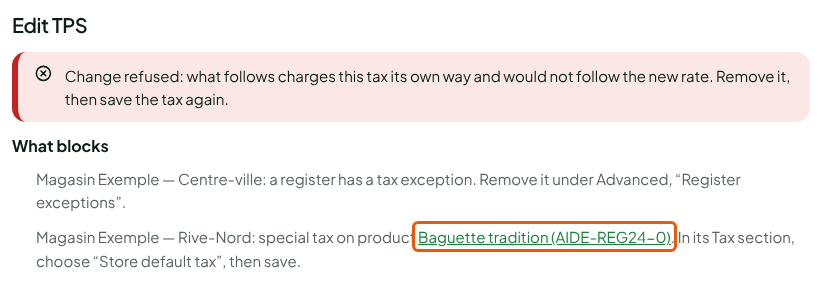
To check a single product, open its page in Catalog > Products: if a store has a special tax, the Product tax by store table is open when the page opens.
A special tax that does not contain the tax that changes, for example No tax, does not block the change: it is not named.
Remove a product's special tax
Click the product's name, under What blocks: its page opens in a new tab.
Find, in the Tax section, the store whose list is not on Store default tax.
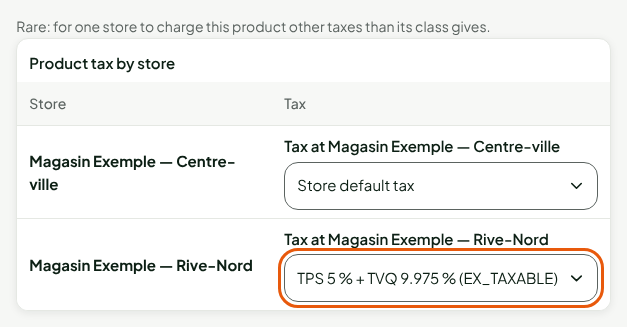
Choose Store default tax in that store's list.
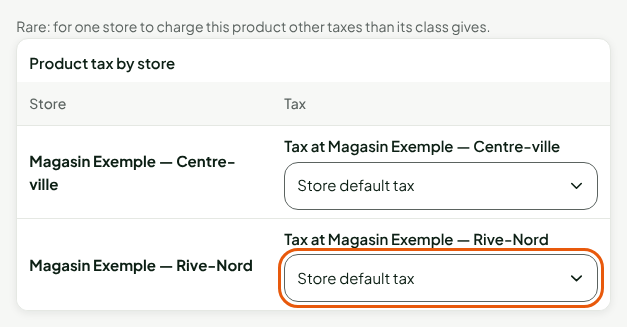
Click Save, in the bar at the top of the page.

The screen shows "Product saved." The product takes its class's tax again in that store. The guide Choosing a product's tax covers this section in detail.

Remove a register's exception
The cause does not name the register, only its store.
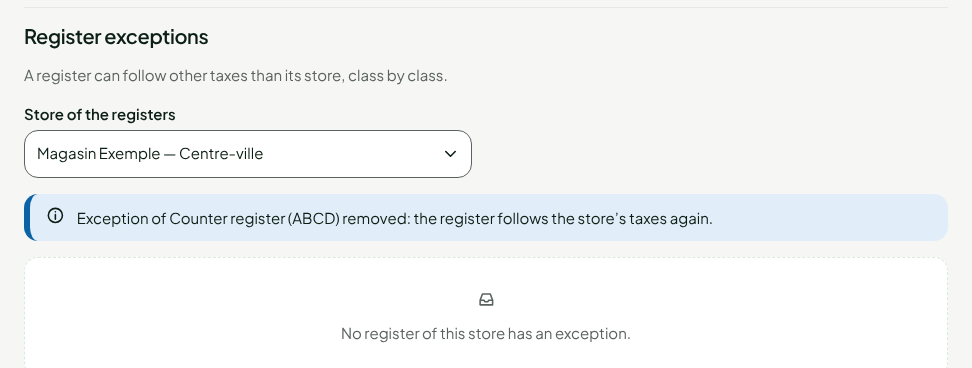
Open Settings > Taxes, open Advanced, then choose the cause's store in Store of the registers.
Click Remove the exception, in the register's card.
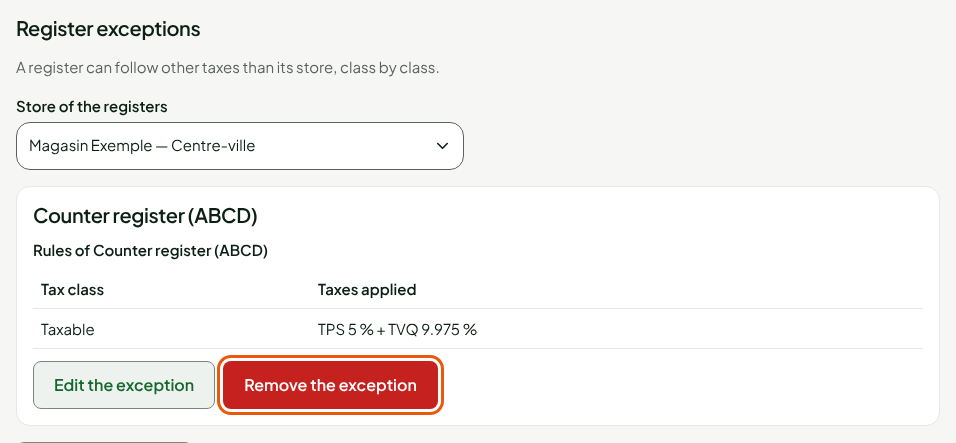
The screen says "Exception of Counter register (ABCD) removed: the register follows the store's taxes again." The list says "No register of this store has an exception."
Remove a category outside the classes
A rate change with a future date is also refused for a category outside the tax classes that no product uses any more: the cause says "category" followed by its name, "outside the tax classes, keeps its own taxes, but no active product uses it". If the cause names products, move them into a class first (see Changing a tax rate).
Click Edit followed by the tax's name, type the rate, choose the day you want in Starting on, then click Save the tax.
Click Remove category followed by the category's name and the store, for example Remove category EX_TAXABLE from Magasin Exemple — Centre-ville.
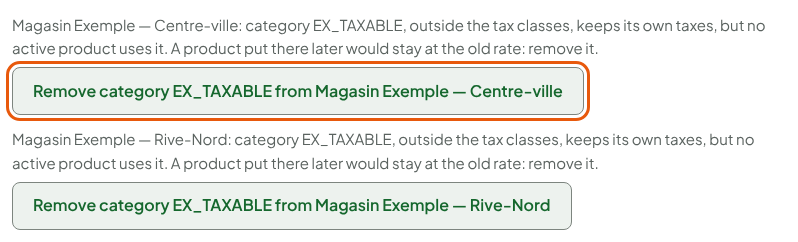
Do the same in each store named. The screen says, for each, "Category EX_TAXABLE removed from" followed by the store, then "Save again."
Check that the change goes through
- Open Settings > Taxes.
- Click Edit followed by the tax's name, type the rate, then click Save the tax.
The screen shows "Tax TPS saved." and the tax's row shows its new rate. If the refusal comes back, it names what is left: remove it the same way.

Troubleshooting
"Read only: the permissions to manage the catalogue and prices are required to change the tax."
You can read the tax-by-store table, but your role cannot change it. Ask for the Manage the catalogue and Manage prices permissions.
"No register of this store has an exception."
The store you chose is not the cause's store. Choose, in Store of the registers, the store the cause names.