Following security best practices
- For
- Cashier, Manager, Administrator
- Where
- Back office, Installed register
- Permission
- Manage stores and settings, Manage back-office access, Manage roles, Manage employee records, Manage register PINs, Manage API clients and webhooks, View logs
- Checked on
A guessed password, a lent PIN or the access of someone who has left is enough for another person to sell, refund or read your reports in your place. These best practices protect your business: go over them with the whole team at setup, then each time someone joins.
Before you start
- The password and the PIN concern each person. Security, role and employee settings require an administrator, or a manager who has those permissions.
- The detailed steps are in the guides cited; this page says what to do, and why.
The back-office password
- Choose a long password, 12 to 128 characters: an easy-to-remember sentence is better than a short word. It must not look like your email nor like a password you use elsewhere.
- Each person has their own account. Never lend your password, and do not write it down near the register.
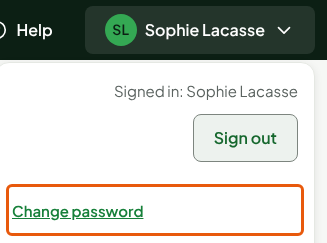
- If you think someone knows it, change it right away: your sessions open elsewhere are closed. Changing your password.
- Forgotten password: click Forgot your password? on the sign-in screen, and a link is sent to you by email.
Two-step sign-in

- Turn on your own two-step sign-in in Settings > Security: at sign-in, the code from your phone is added to the password. Setting up account security.
- Keep your backup codes in a safe place, somewhere other than your phone: each one replaces the app code once if you lose it.

- Require Password and app code at least for the roles that manage the business, under Back-office sign-in. The safest choice wins: if one of a person's roles asks for the code, it is asked.
- Someone has lost their phone and their backup codes: an administrator resets their two-step sign-in. Do not turn it off for everyone.
The register PIN
- The PIN is personal: every sale, every return and every drawer opening is recorded under the name of the person in the session. Never give it to anyone, not even a colleague in a hurry. Signing in to the register with your PIN and switching employees.
- Type it out of sight. When you leave the counter, tap Lock at the installed register; the session there also locks by itself after 10 minutes without activity.
- A manager who approves a task types their PIN themselves: they never say it out loud. Getting a manager's approval.
- A forgotten PIN, or one that someone else knows, is reset in the back office: nobody can read it back, not even an administrator. Setting or resetting an employee's PIN.
- After several wrong PINs, the person is blocked on that workstation until a manager unblocks them.
Roles that fit

- Give each person the role of their work, no more: Caissier to sell, Gérant to manage a store (the built-in roles keep their French names). Create a role when none fits. Creating roles and permissions.
- Set each role's maximum discount, and if needed limit a person to their own sales: same guide.
- Keep the Administrateur role for the people who set up the business: it has every permission in every store. Understanding the administrator's rights.
When someone leaves

- Disable the person the same day, in Team > Employees: they can no longer sign in anywhere and their open sessions are closed. Their sales stay under their name. Disabling an employee.
- Revoke the access of software you no longer use, in Settings > Connected software: Connecting software through the API.
Security alerts
- Read the alerts on the back office's home page: a register operation to check, or failed manager PINs on a locked workstation. Each new alert is also emailed to the administrators. Reading security alerts.
- Failed manager PINs that nobody at the store recognizes: call support.
Never give your password, your PIN or a code from your authentication app, by phone or by email, even to someone who says they are calling from support.