Closing a register and counting the drawer
- For
- Cashier, Manager
- Where
- Installed register, Web register
- Permission
- Sell at the register, Close the register
- Checked on
At the end of the day or the shift, you close the register: you count the drawer, the register compares what was counted with what was expected, and the closing is written. It is a financial fact: once closed, the session does not reopen and can no longer be edited.
Before you start
- Finish the sales in progress. On the web register, a sale whose cash was received but not finished prevents the closing: finish it, or give the cash back to the customer.
- Your role must allow closing the register (permission Close the register). Without it, the screen says so: ask a manager to close.
- To count, take the drawer out and count bill by bill, coin by coin.
A closing is never edited. A sale or a cash movement that arrives after the closing (for example a sale made offline) is added as an adjustment linked to the closing: the original closing stays as it was counted. The Cash closings report shows them.
Count and close
To close the installed register:
Tap Register: opening, movements, closing, then Register closing.

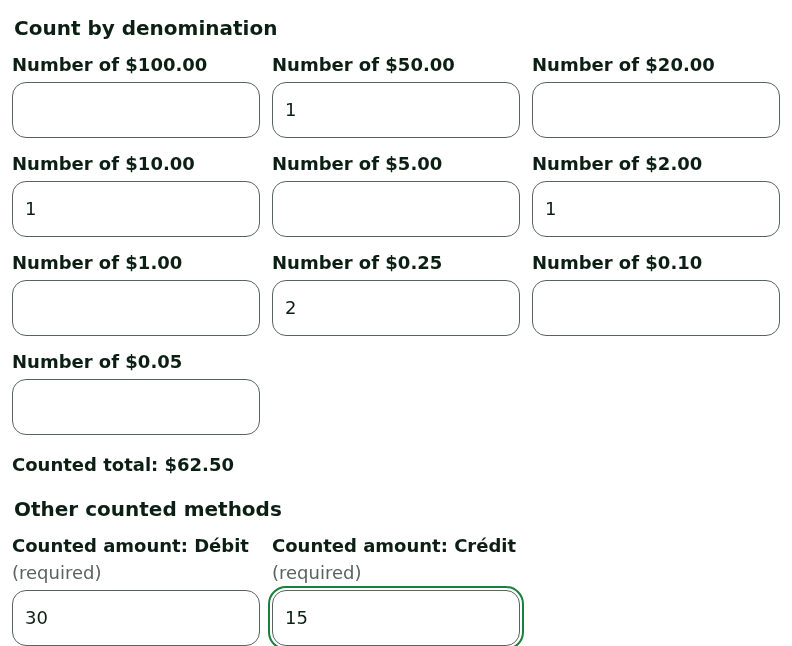
Type, under Count by denomination, the number of bills and coins. Type
0for a missing denomination: the count by denomination is required.Type, under Other counted methods, the counted amount of each method set to "counted at closing", such as debit and credit, from the card terminal's total.
If needed, type the Deposit taken from the drawer. What stays in the drawer becomes the float of the next opening.
Read the Expected, counted and variance by payment method table. If there is a variance, type the Variance reason, which is required.
Tap Close the register.
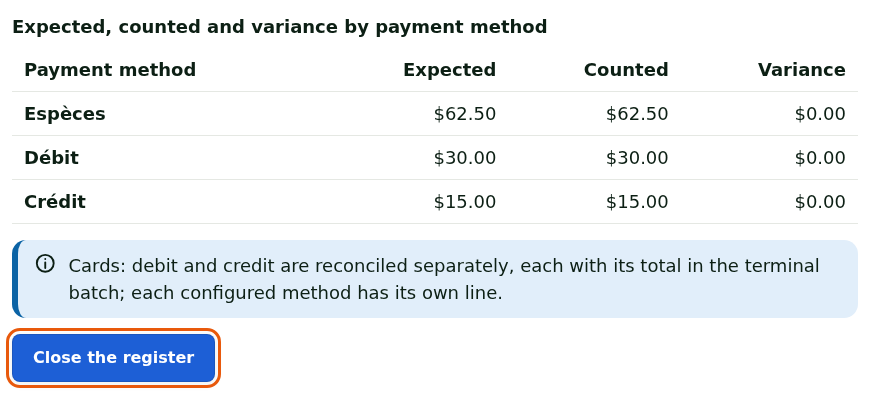
A variance of more than $20 requires a manager's PIN: the Manager approval section appears, the manager picks their name in Manager and types their PIN, then Approve.
The screen shows Register closed: "A closing never changes: a correction is added as an adjustment linked to this closing." A method that is not counted by hand shows not counted.

To close the web register:
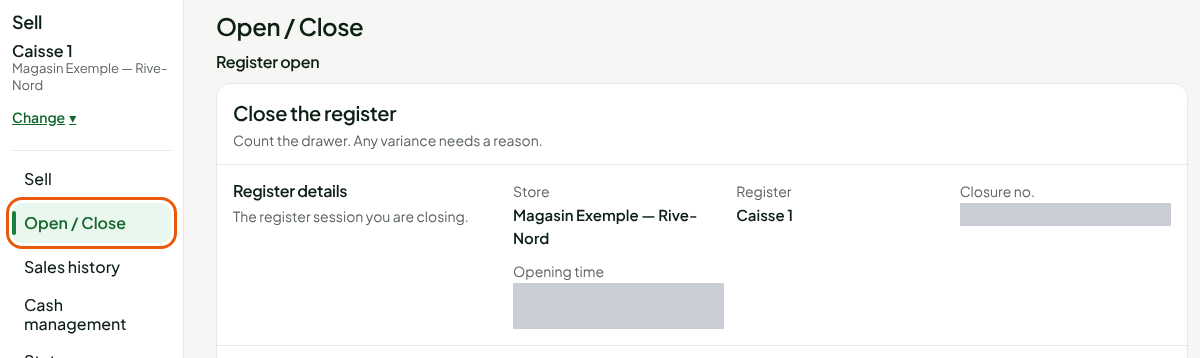
Open Sell > Open / Close. When the register is open, the screen shows Close the register, with the Register details: store, register, Closure no. and Opening time.
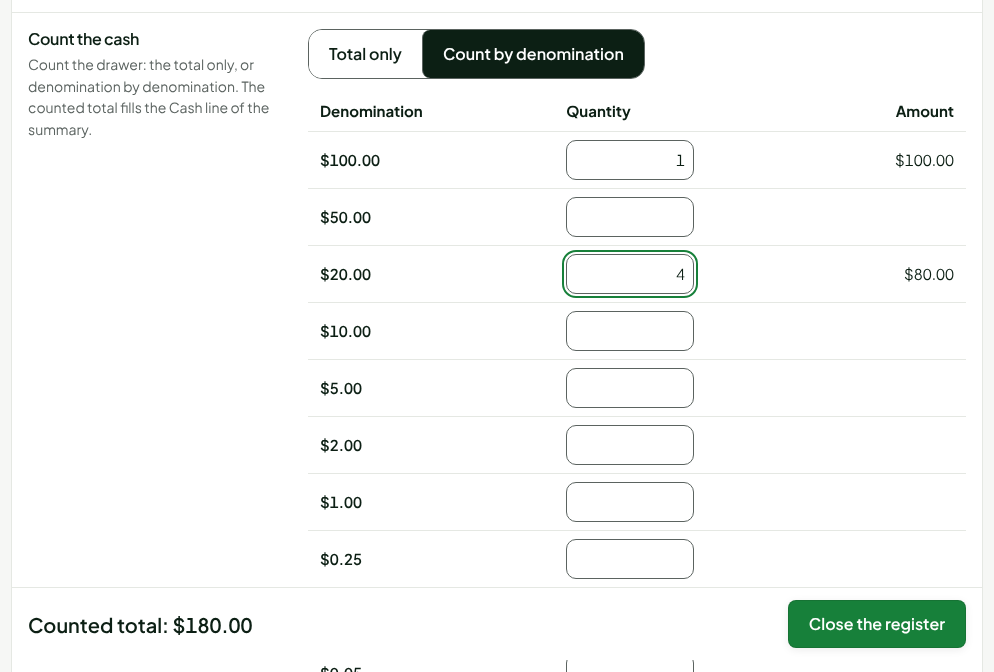
Click Count by denomination and type the quantity of each bill and each coin under Count the cash. Total only lets you type the total in one go; Custom amount is for coin rolls or foreign currency, and only the total is then sent.
Read Float left in drawer: it is prefilled with the opening float, and must be exact to the nickel. The rest is the Bank deposit. Clearing the field leaves everything in the drawer, with no deposit.
Read the Payment summary: Expected, Counted and Difference for each payment type. Clicking Cash shows the detail: cash movements, payments received and roundings. The Cash rounding is included in the expected cash: it only touches the part paid in cash.

If needed, type a Closing note (1000 characters at most), then click Close the register.
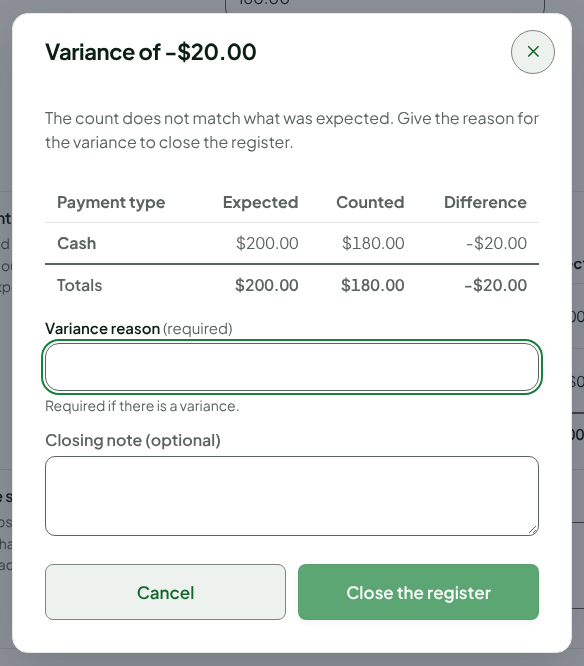
If there is a variance, the Variance of window opens with the amount: type the Variance reason, which is required, then click Close the register. Cancel goes back to the count: nothing is closed.
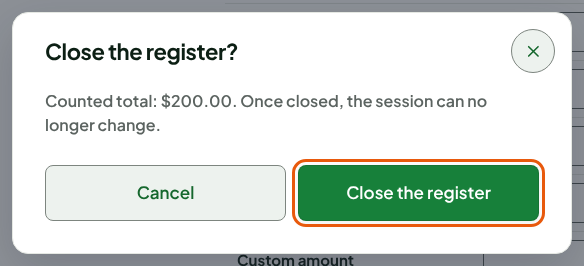
When the count is exact, the Close the register? window recalls the Counted total: click Close the register.
A message confirms: Register closed. The closing is saved and never changes.

A payment type that is not counted by hand (card, gift card, store credit) has no entry box: its expected amount is used in Counted, with the mention "not counted: expected amount used", and its difference is zero. The saved closing keeps this type as not counted.
Troubleshooting
"Cash was received for a sale that is not finished"
The web register refuses to close: go back to the sale, finish it, or give the cash back to the customer. Nothing is closed.
"A cash handover for a return is still waiting for a manager's decision"
The session stays open. A manager decides in the return window ("Cash handed over" or "Cash not handed over"), then you close.
"No answer received: the operation is not considered done"
The server did not answer. Wait for the connection to come back and click Send the same operation again: it is the same operation, it is not written twice.
The register was closed remotely
A manager can remotely close the backup register of a computer that has been out of contact. The sales that computer made offline arrive later, as adjustments to this closing.