Setting up a store's tax
- For
- Administrator
- Where
- Back office
- Permission
- Manage stores and settings
- Checked on
Each store charges its own taxes: a new store charges none until you set them. You check the store's taxes on a single screen, and you can change them later.
Before you start
- The store must exist (see Adding or editing a store), with its correct local time.
- Your taxes and tax classes must be added in Settings > Taxes (see Setting up taxes).
A tax change only applies to future sales. Past sales keep the tax they were made with: nothing is rewritten.
Seeing a store's tax
The list in Settings > Stores and registers shows, in the Default tax column, what each store charges. A new store shows "No tax configured".

Checking a store's taxes
Open Settings > Taxes.
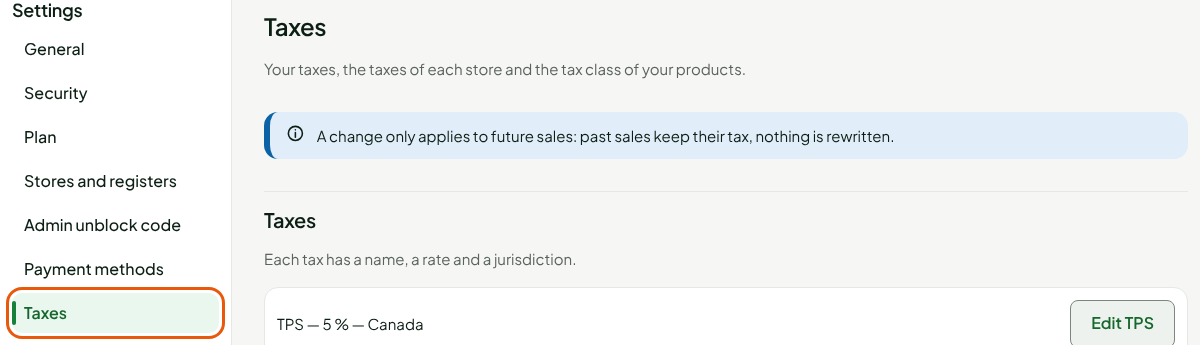
Find the store's box, under Stores. For a new store, it shows "No tax checked yet." Check a tax, for example TPS — 5 %.
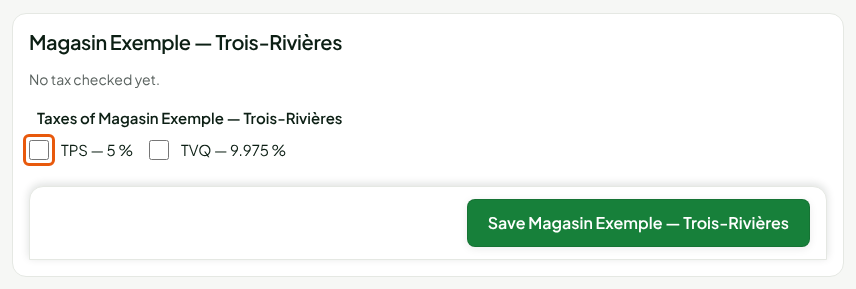
Check the other taxes the store charges, for example TVQ — 9.975 %.
Click Save followed by the store's name.
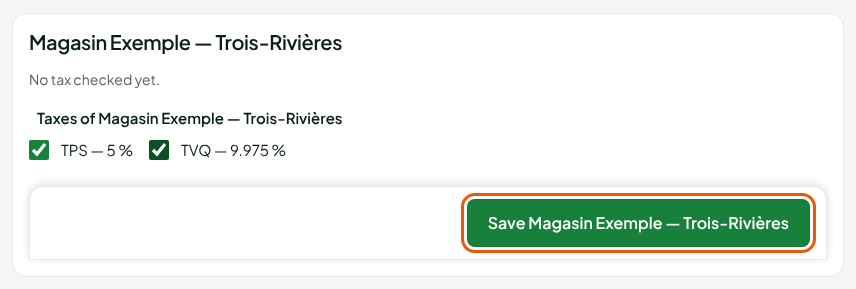
The screen shows "Taxes of Magasin Exemple — Trois-Rivières saved." The store's next sales take these taxes. On the receipt, each tax appears on its own line.

The store's next sales take the saved taxes right away. Check the boxes before you save a store that is already selling.
Changing a store's taxes
To make a store stop charging a tax, or charge one more:
Open Settings > Taxes.
Check or uncheck the taxes you want in the store's box, for example uncheck TVQ — 9.975 %.
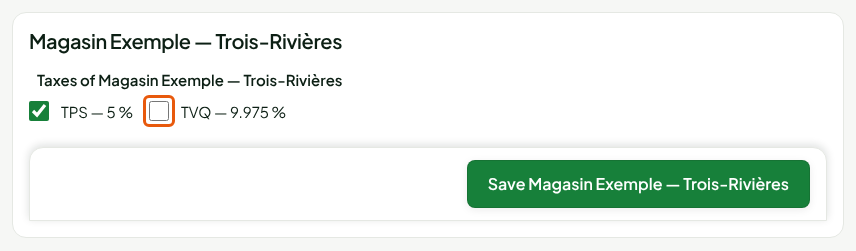
Click Save followed by the store's name.
The store now charges its new taxes. The Default tax column of Settings > Stores and registers shows them.

A store must charge at least one tax: with no box checked, the screen answers "Check at least one tax." To change a tax's rate in every store, see Changing a tax rate.
Troubleshooting
"This store's taxes are managed on the Taxes screen. Change them there."
This message appears when you change Default tax on the page of a store whose taxes are already set in Settings > Taxes. Change them in Settings > Taxes, as above.
"Add the tax classes of your products first (below) before saving a store."
No tax class exists yet. Add one in Settings > Taxes, then save the store.
"Saving refused: … active product(s) without tax in this store"
Some active products have no class that gives them a tax in this store. The message names these products: choose their tax class on their product page, then save the store again.