Receiving on a phone
- For
- Manager, Administrator
- Where
- Phone
- Permission
- Receive a delivery, Manage purchase orders
- Checked on
Standing at the pallet, the phone replaces the office: you look up each item by its code, note what arrived, then finish the receipt. The store's stock goes up at that moment, not before.
Before you start
- An expected receipt must exist. It is prepared at the office, from a purchase order (Receiving a purchase order) or on its own (Receiving stock without a purchase order). To start from the order, see "Receiving against an order".
- The phone must be online: nothing is kept on the device, and offline Finish the receipt stays disabled.
- Receiving takes the permission Receive a delivery; reading orders also takes Manage purchase orders. Without the second, only an expected receipt can be received.
A finished receipt goes into stock and can no longer be edited. A mistake is fixed by an adjustment (Adjusting stock).
Receiving an expected receipt
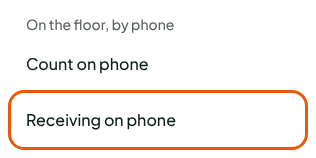
Open the menu, then tap Receiving on phone, under On the floor, by phone.
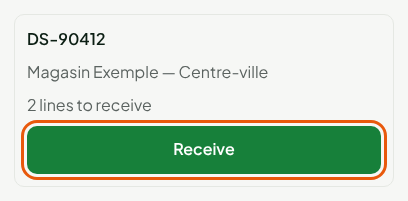
Tap Receive, on the card of the expected receipt.
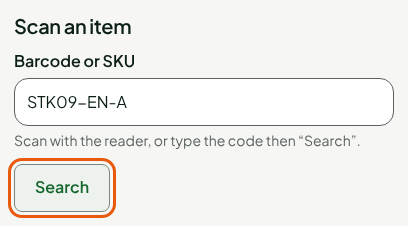
Scan the item, or type its code in Barcode or SKU, then tap Search.
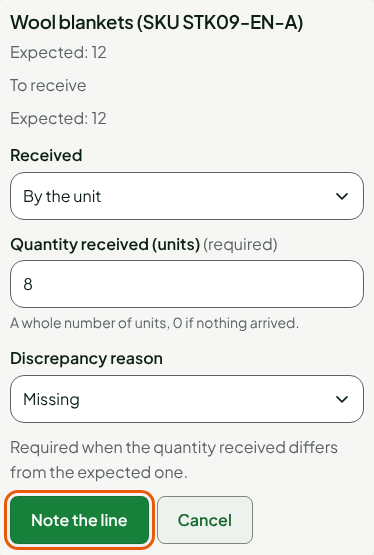
Type the counted quantity in Quantity received (units). For an item sold by weight, first choose By weight (kg) in Received: the quantity is then typed in kg, to the gram.
If the quantity differs from the expected one, choose the Discrepancy reason: Missing, Damaged (not put in stock), Received in excess or Other.
Tap Note the line.
Repeat steps 3 to 6 for each item. Without a code, tap Enter: followed by the item's name. For an item that is not there, note 0.
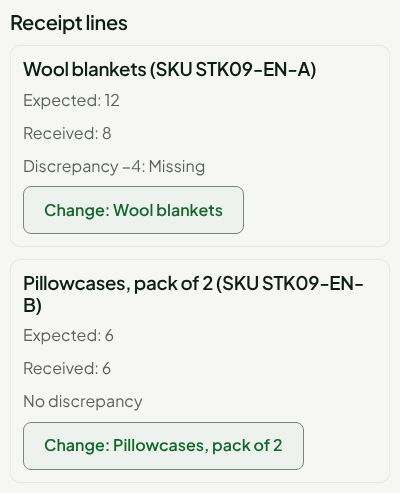
Check the lines: the received quantity and the discrepancy of each are shown. To correct one, tap Change: followed by the item's name.
Tap Finish the receipt, then Finish.
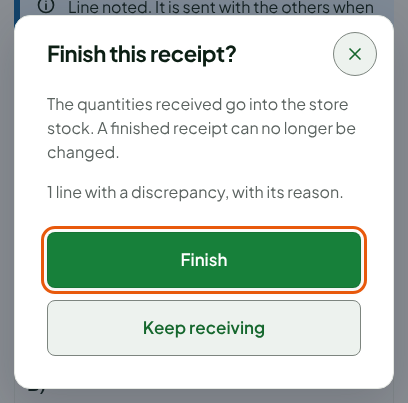
A line that is not noted prevents you from finishing: the screen says how many lines are left to receive.
Reading the result
The screen says the receipt is already received and the store stock is up to date. Each line shows what was received and, if there is one, the discrepancy with its reason.
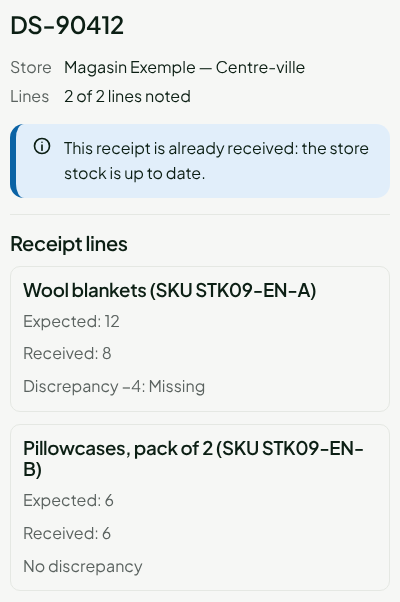
Finishing writes a Receipt stock movement for each line received at more than 0, in the receipt's store. A line noted 0 writes nothing. You see them in Stock > Inventory (Viewing stock levels and movements). A purchase order moves along by itself.
Receiving against an order
To start from the order rather than the receipt:
In Receiving on phone, tap Receive against a purchase order.
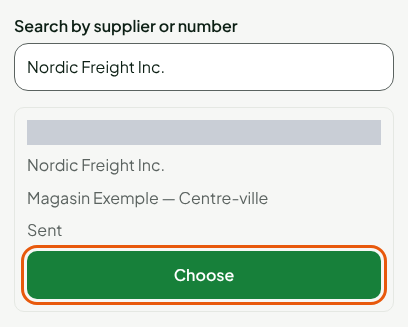
Search for the order by its supplier or number in Search by supplier or number, then tap Choose on its card. Only orders in the Sent or Partially received status are shown.
In What is arriving, choose Everything left, or Partial delivery slip to type the delivered quantity of each line in Delivered quantity: followed by the item's name. Leave a line empty if it is not in the delivery.
Type the Delivery slip number, if you have one. Without a number, the receipt uses the order's.
Tap Create the receipt.
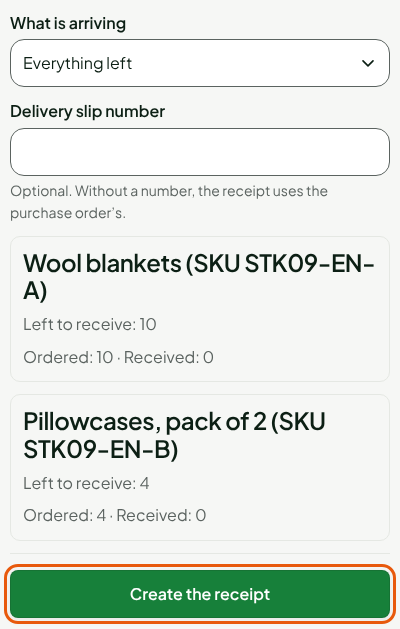
The receipt opens on the screen described above: pick up at step 3. An order has one open receipt at a time: if it exists, the screen offers Resume the receipt.
Troubleshooting
"Code …: no item of this receipt."
The item is not on this receipt. Set it aside and report it to the office: the phone never adds a line.
"This receipt is no longer expected (already received or cancelled): nothing was written."
Someone finished or cancelled it before you, at the office or on another phone. Nothing is counted twice. Go back to the list.
"The server's answer did not arrive"
This message shows when creating an order's receipt: the request may have been received. Tap Send again: it creates nothing twice.