About this help center
- For
- Cashier, Manager, Administrator
- Where
- Installed register, Web register, Back office, Phone
- Permission
- No permission required
- Checked on
This help center explains Braavu POS step by step: each guide describes a task, a setting or a report. This page shows how a guide is built, so you can read it quickly.
Finding a guide
Guides are grouped by section in the menu on the left (on a phone, behind the Menu button). The search at the top of the page looks in the language you are reading.
Click Search, at the top of the page.
Type a word from the task, for example “return”.
Choose a result with the mouse or the arrow keys, then press Enter.
Each step is a single action. Bold words are screen labels, exactly as they read on screen.
When a step depends on where you are
A guide is never split in two: when a step differs between the installed register and the web register, it appears in tabs. Choose the one for your register.
Without a network, the installed register keeps selling.
The web register only sells while the server answers. If the network goes down, switch to the installed register.
The installed register is the one on the checkout computer. Its top bar shows the state of the station: here, online, with an empty send queue (no sale waiting to be sent to the server).

Screenshots
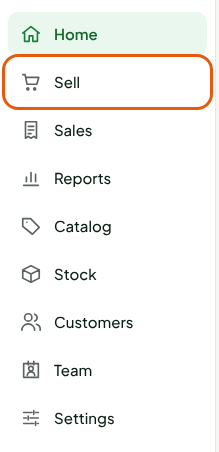
Screenshots show the software with demonstration data: a fictional store, with no real customer and no real amount. When a step is done with the mouse, the area to click is circled in orange. A screenshot is cropped to what matters, never the whole screen when a piece is enough.
To open the sale screen of the web register:
Open Sell in the menu on the left.
Choose your store's register. The sale screen opens: the product search on the left, the cart on the right.
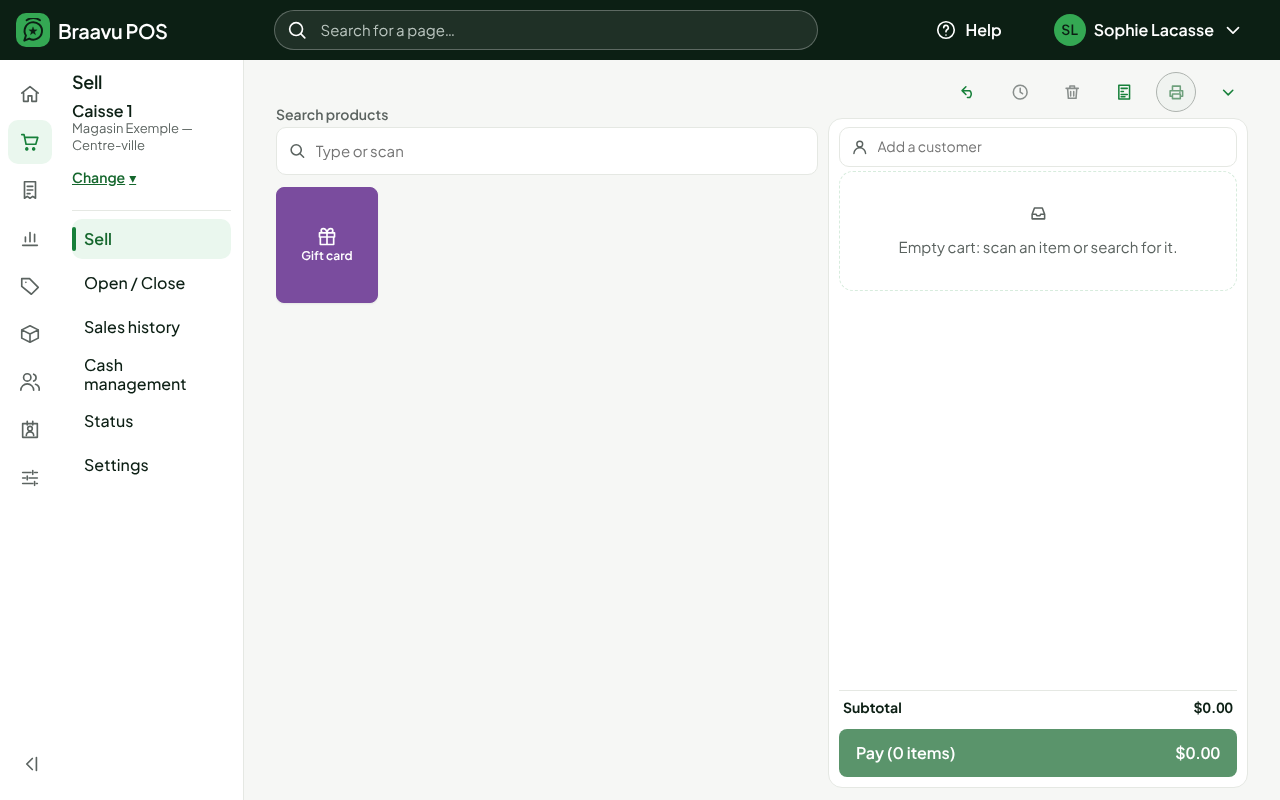
Search for a product to add it to the cart, then click Pay.
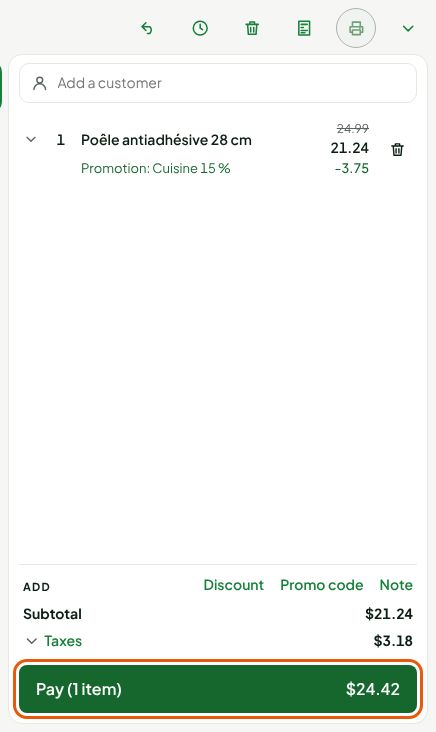
Each screenshot is produced by a test and redone with it: if the screen changes, the test breaks and the guide is fixed in the same change.
Callouts
Three kinds of callouts, no more.
A note gives a useful detail, with no risk.
An important callout reminds you of a rule of the software that can surprise you: a closed sale cannot be edited, it is corrected by adding an entry.
A warning callout warns about an action that touches money or cannot be undone.
Badges
A badge flags what has just changed: New for a recent guide or section, Updated for a guide whose steps have changed. It disappears after 60 days.
The header of each guide
Under the title, three lines tell you who the guide is for, where you do the task and which permission it needs. The checked date is the last day the steps were replayed on screen.