Importing products from a CSV file
- For
- Manager
- Where
- Back office
- Permission
- Manage the catalogue
- Checked on
To create several products at once, you prepare a CSV file in a spreadsheet and import it. The import happens in two steps: a trial run, which changes nothing and shows what will change, then the application, which you confirm. This guide creates products; to change existing products, see Editing products in bulk with a CSV file.
Before you start
- Your role must have the Manage the catalogue permission. Without Manage prices, lines that give a price are refused: the screen says so before the trial run.
- The file is a UTF-8 CSV, 4 MB and 10,000 lines at most. The first line holds the column names; the separator is the semicolon or the comma.
- Only the
skucolumn (the item code) is required. To create a product, the line also givesnameandtax_category_code(the code of the tax class, as the export gives it). A product is always created active. - Useful columns:
category_path(the category by its name,CuisineorAlimentation > Conserves),default_price(the selling price shared by every store),price:<store code>(a price specific to one store, for exampleprice:rive) andcodes(the barcodes, separated by a space). Amounts are written12.50or12,50, with no$and no thousands separator. - To start from a file of the right shape, see Exporting the product list; to prepare it in Excel, Preparing a CSV file in Excel.
Run the trial run
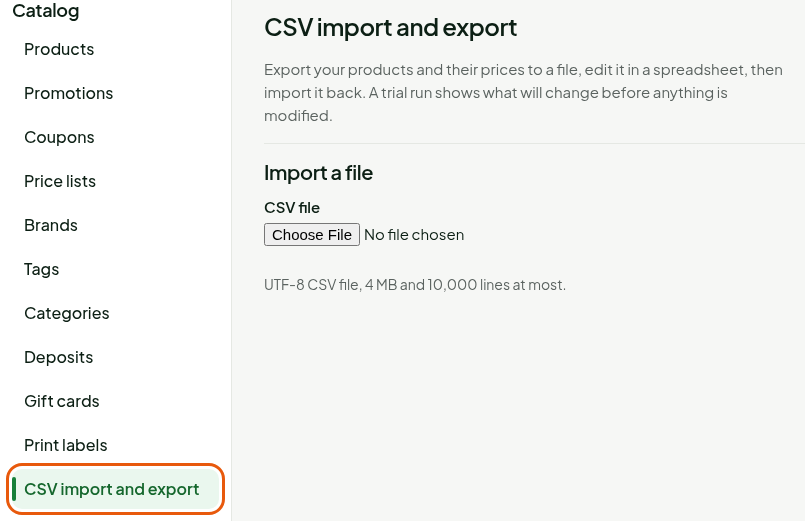
Open Catalog > CSV import and export.
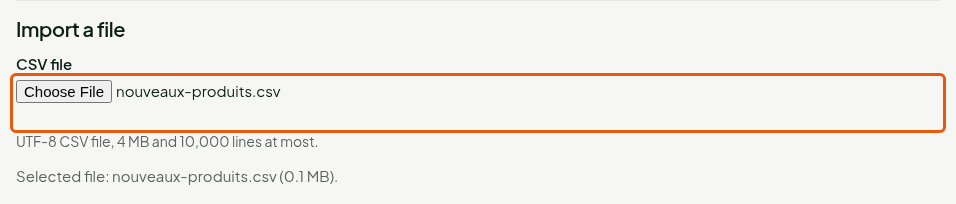
Click the CSV file field, under Import a file, and choose the file.
Click Start the trial run, at the top of the screen.

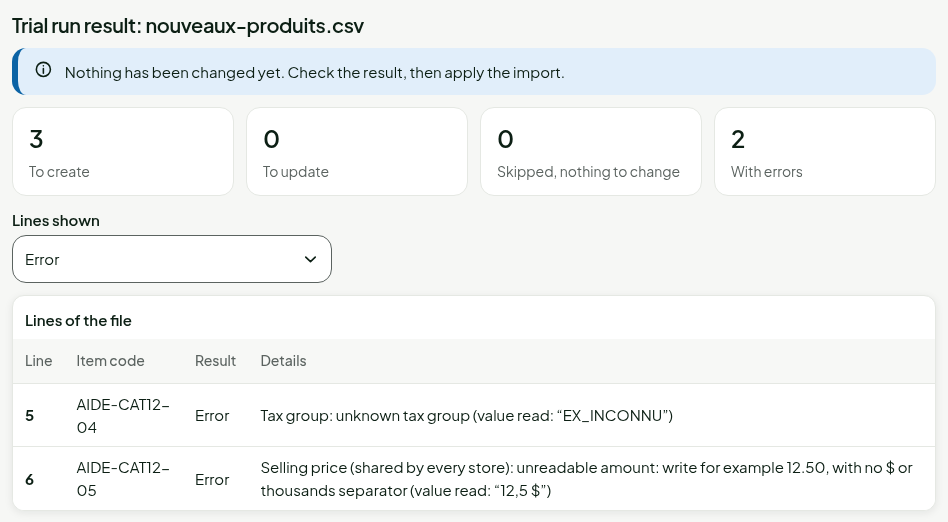
The screen shows “Nothing has been changed yet” and four totals: To create, To update, Skipped, nothing to change and With errors. If there are errors, the list first shows only those lines, with their number (the header is line 1), their item code and their reason.
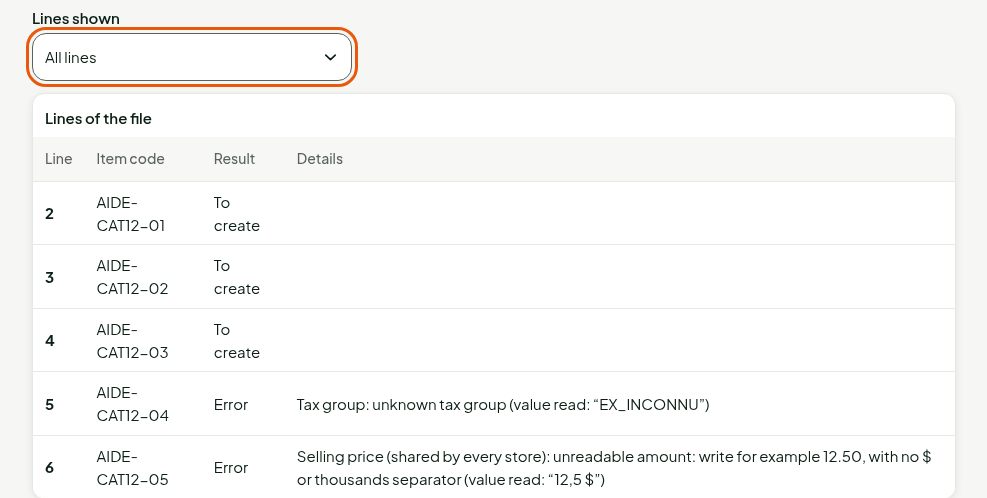
Choose All lines in Lines shown to see every line of the file with its result. An error's reason names the column, the rule and the value read.
To run the trial again with a corrected file, click Choose another file. Nothing is written until you apply.
Apply the import
Click Apply the import.
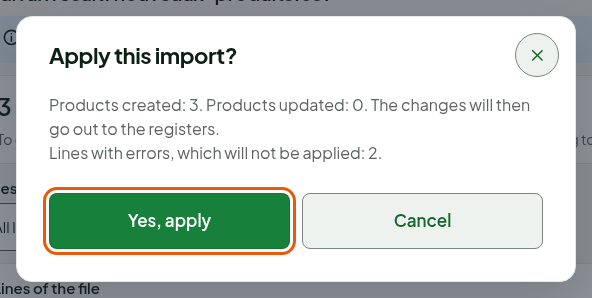
Check the numbers in the Apply this import? window, then click Yes, apply.
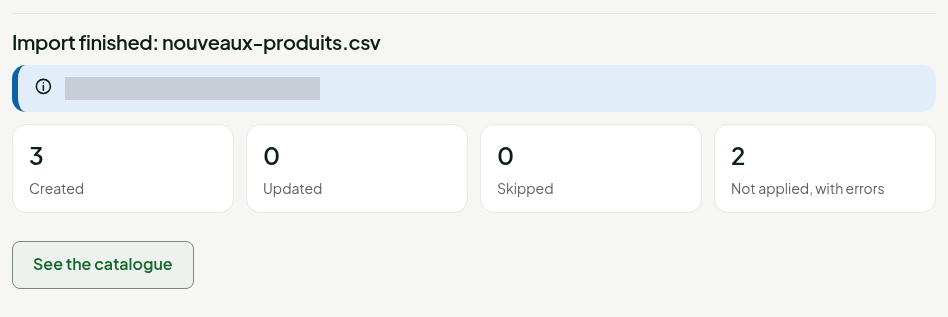
The screen shows “Import finished” with the file name, the date and four totals: Created, Updated, Skipped and Not applied, with errors.
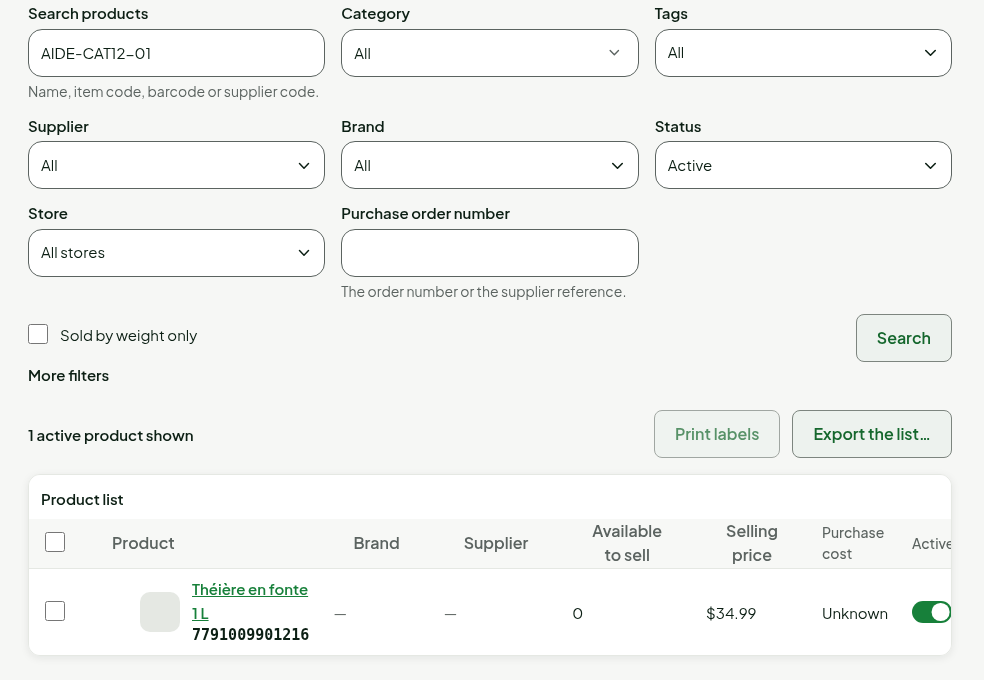
Click See the catalogue to find the products, or Import another file.
A line with an error is not applied, but it does not stop the others: only lines without errors create or change products. The confirmation window reminds you. The changes then go out to the registers.
What the import refuses
The whole file, without reading any line: an empty file; a file that is not in UTF-8; a file of more than 4 MB or 10,000 lines; a first line without a sku column, with a repeated column or a quote that is never closed; a price column that names an unknown store, or two columns for the same store.
One line, marked Error: a number of columns different from the first line; a missing name or tax class for a creation; an unknown tax class (never created); an unreadable amount; a category that cannot be found or that several categories share; a barcode that is malformed, repeated or carried by another active product; an item code already carried by another active product; a product present twice in the file; a price, without the Manage prices permission.
Troubleshooting
“This file is not in UTF-8.”
In your spreadsheet, save the file as “CSV UTF-8”, then choose it again.
“The catalogue changed since the trial run: nothing was applied.”
Someone changed the catalogue between the trial run and the application. Run the trial again: the file stays chosen.
“The response did not arrive: the import may have been applied.”
The network dropped during the application. Click Apply the import again: the same import is never applied twice.
The Apply the import button is greyed out
The file neither creates nor changes anything (“This file changes nothing in the catalogue”), or all its lines have errors.