Setting up payment methods
- For
- Administrator
- Where
- Back office
- Permission
- Manage stores and settings
- Checked on
Payment methods are the ways to pay that your registers offer: cash, card, cheque, store credit… You add, order and archive them on a single screen. Without a payment method, registers cannot take payments.
Before you start
- Decide the type of the new method: it is chosen at creation and never changes. The types are Cash, Card, Store credit, Gift card, Loyalty points, On account and Other. A cheque, for example, is of type Other.
- The type decides which settings are allowed: cash is always counted at register closing, and only one Cash method is active at a time. Card, store credit, gift card, loyalty points and on account are never accepted without Internet.
Adding a payment method
Open Settings > Payment methods.
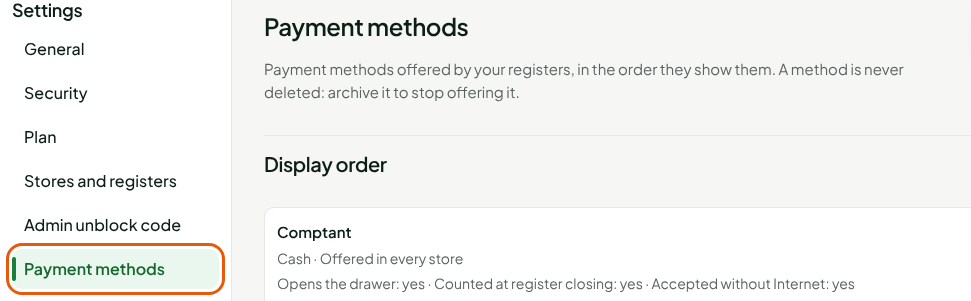
Click New payment method.

Type the method's name in Label, for example
Cheque. It is the name registers and reports show.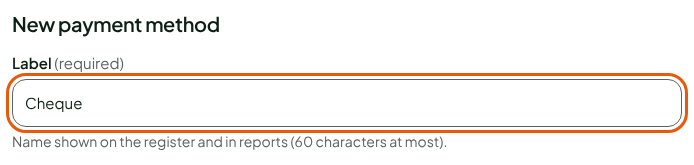
Choose the type in Payment type, for example Other.

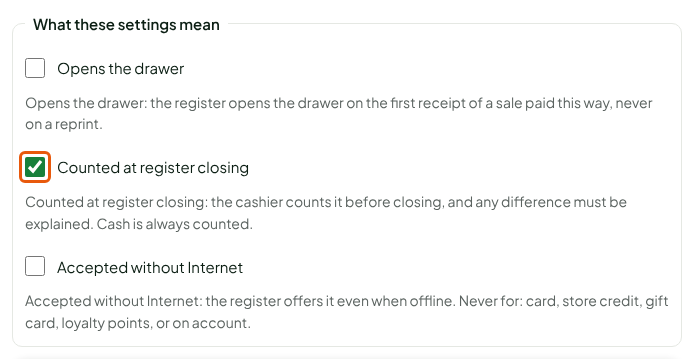
Check the settings you want, under What these settings mean:
- Opens the drawer: the register opens the drawer on the first receipt of a sale paid this way, never on a reprint.
- Counted at register closing: the cashier counts this method before closing, and any difference must be explained.
- Accepted without Internet: the register offers this method even when offline.
Click Create the payment method.

The screen shows "Payment method created." The method is added at the end of the list, offered in every store.

Changing the order of the methods
Registers show the methods in the order of the list, under Display order.
Open Settings > Payment methods.
Click Move up or Move down, in the row of the method to move.

The screen announces the new place: "Order saved: Cheque is now in position… of…"
Editing or archiving a method
A method is never deleted: archive it to stop offering it.
Open Settings > Payment methods.
Click Edit, in the method's row. The label and the three settings can be changed here; the type never changes.
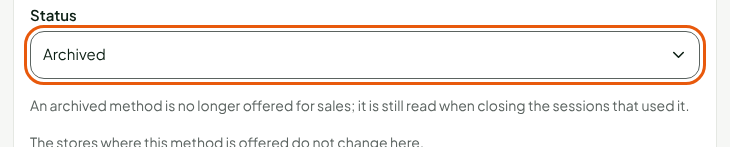
To archive it, choose Archived in Status.
Click Save.
The screen shows "Payment method saved." The method stays in the list, followed by "(Archived)".

An archived method is no longer offered for sales. It is still read when closing the register sessions that used it: its past sales do not change.
Troubleshooting
"An active cash payment method already exists: only one at a time."
Only one Cash method can be active. Archive the other one first, then reactivate this one.
"The order has changed since it was read."
Someone moved a method at the same time. Click Reload the list, then start over.