Disabling an employee
- For
- Manager, Administrator
- Where
- Back office
- Permission
- Manage employee records
- Checked on
When someone leaves the team, disable them: they can no longer sign in anywhere, and their open sessions are closed. An employee is never deleted, because their sales stay under their name. A disabled person is reactivated with one click.
Before you start
- Your role needs the permission Manage employee records.
- A person is one account, one record and one state, active or disabled: disabling them also closes their back-office access, if they have one.
You cannot disable your own record, nor the last active administrator. The switches on those rows are locked, with the reason in a tooltip.
Disabling an employee
To disable a person from the list:
Open Team > Employees.

Type the name in Search a name or an email.
On the person's row, click the switch in the Status column (its name is "Disable" followed by the person's name).
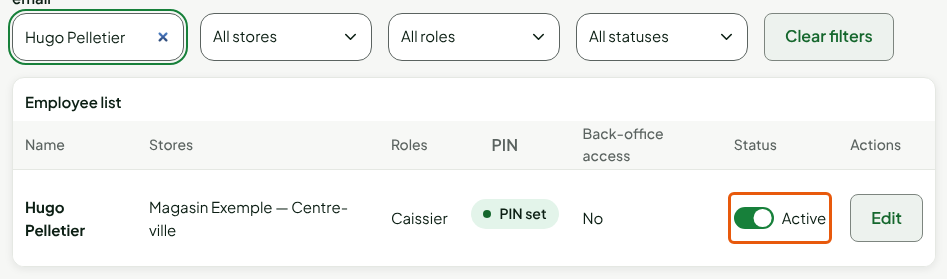
The row's status changes from Active to Disabled. The person can no longer sign in anywhere.
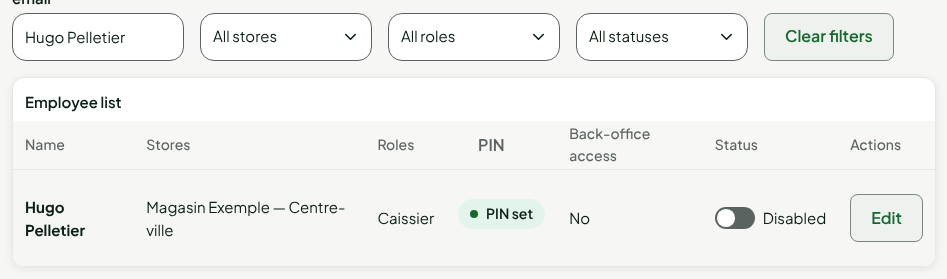
They stay in the list, with their name, roles and stores. Their sales stay under their name.
Finding disabled people
To see who is disabled:
In Team > Employees, choose Disabled in the Status list.
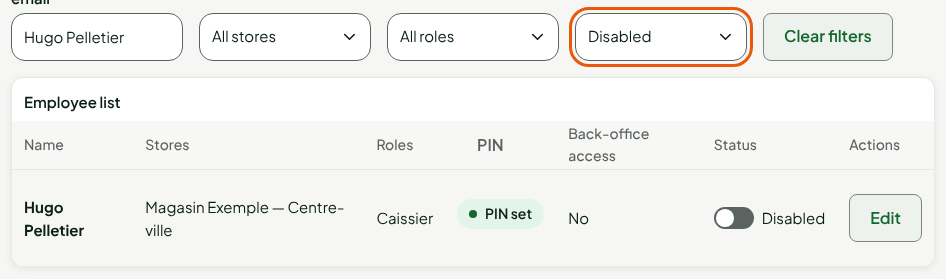
To see everyone again, choose All statuses, or click Clear filters.
Disabling from the record
The record has the same option. Click Edit on the person's row, then, in the Status section, untick Active person (uncheck to disable: they can no longer sign in anywhere and their sessions are closed), and click Save. To reactivate, tick the box and save.

Reactivating an employee
For a disabled person to go back to work:
- In Team > Employees, find the person.
- Click the switch in the Status column (its name is "Reactivate" followed by the person's name).
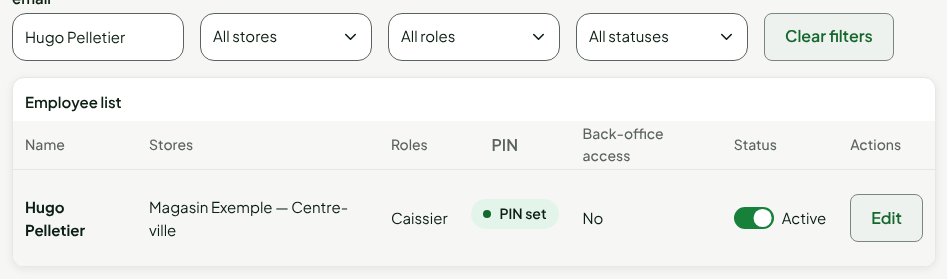
The record is Active again. Check the PIN column: if it shows To set, give the person a PIN (Setting or resetting an employee's PIN).
Troubleshooting
The switch is greyed out
Hover over it: the tooltip gives the reason. "You cannot change your own status.": ask another administrator. "The last active administrator cannot be disabled.": first give the Administrateur role to someone else. "Your role does not allow you to change this status.": you lack a permission.
"This person has been anonymized (Law 25)"
The record of an anonymized person is closed: it can no longer be reactivated, renamed or given a PIN.