Confirming balances migrated from a former system
- For
- Administrator
- Where
- Back office
- Permission
- Confirm migrated balances
- Checked on
When a business leaves its former point-of-sale system, its customers' store credit balances are migrated into Braavu POS. A balance above $1,000 does not go to the customer's account right away: it waits here for a person's decision. Confirm it, correct it downward, or refuse it.
Before you start
- Your role must have the Confirm migrated balances permission. It is reserved for administrators.
- A migrated balance of $1,000 or less goes to the customer's account without a decision. Only balances above $1,000 go through this page.
- Have the proof of the balance in the former system at hand: a decision cannot be undone.
A waiting balance counts in what the business owes the customer, but the customer cannot spend it before your decision.
Reading the list of waiting balances
To see what is waiting:
Open Customers > Migrated balances to confirm.

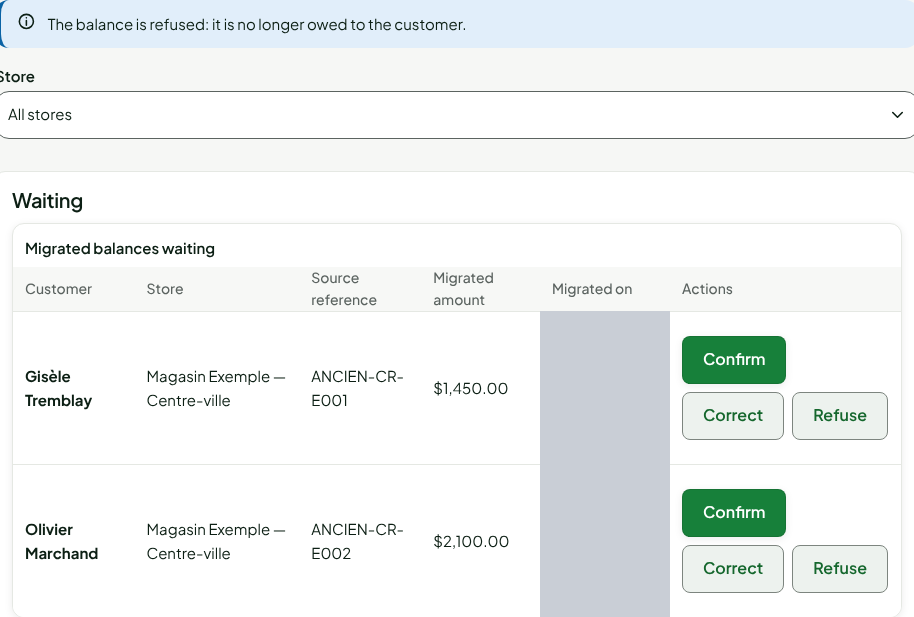
Read the Waiting section. Each row gives the Customer, the Store, the balance's Source reference in the former system, the Migrated amount, and the date it was migrated (Migrated on, in your browser's time).
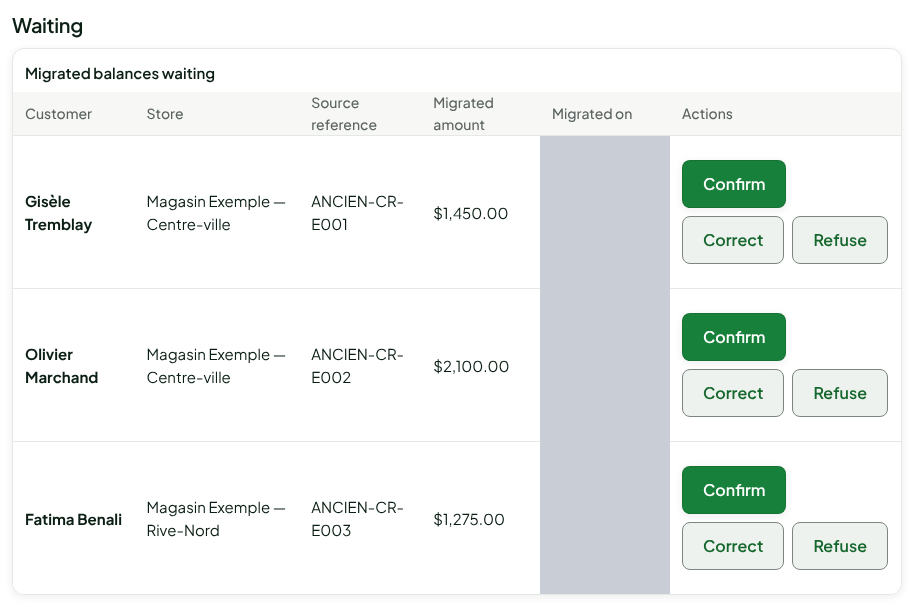
To see only one store, choose it in Store.
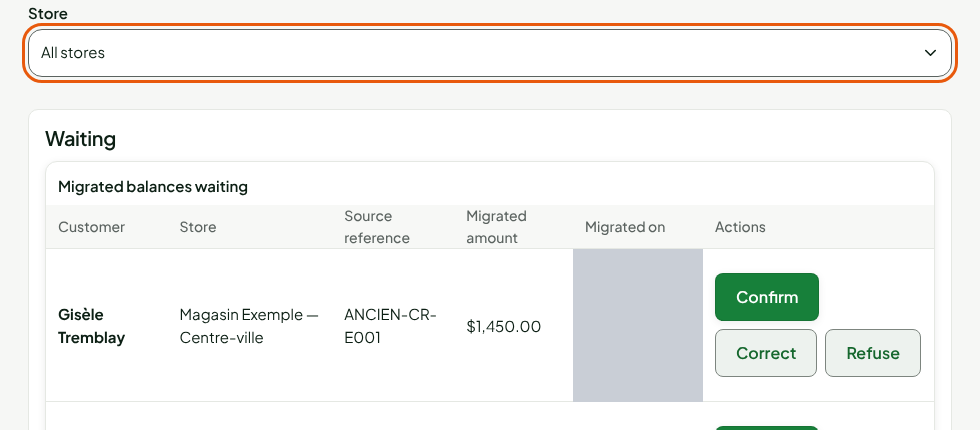
The oldest balances are at the top. When the list is long, the screen says how many balances are shown out of how many are waiting; the next ones appear once these are handled.
Confirming a balance
Confirm a balance when the migrated amount is right. It goes to the customer's account and can be spent right away.
Click Confirm on the balance's row.
Read the summary: customer, store, amount, and reference.
Click Confirm the balance.
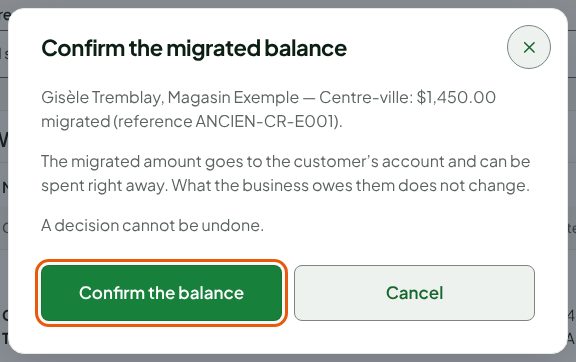
The screen shows "The balance is confirmed: it can be spent right away." The credit appears in the customer's Store credit tab, labeled "Taken over from the old system".
Correcting a balance
Correct a balance when the migrated amount is too high. Only the corrected amount goes to the account; the difference is no longer owed to the customer.
Click Correct on the balance's row.
Type the Confirmed amount. It must be at least $0.01 and lower than the migrated amount.
Type the Reason, from 3 to 500 characters. It is kept with the decision: do not write any personal information in it.
Click Correct the balance.
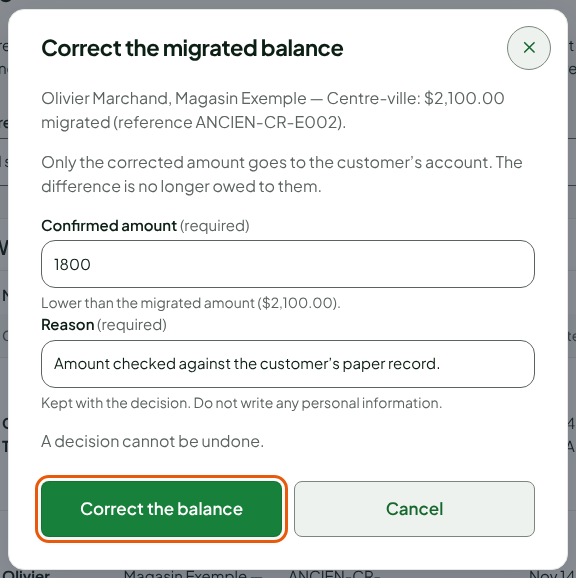
The screen shows "The balance is corrected: the confirmed amount can be spent right away."
Refusing a balance
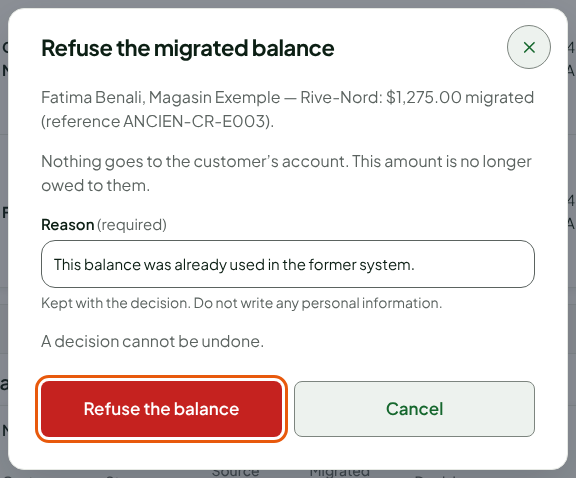
Refuse a balance when it is not owed, for example because the customer already used it in the former system. Nothing goes to the customer's account and the amount is no longer owed to them.
Click Refuse on the balance's row.
Type the Reason.
Click Refuse the balance.
The screen shows "The balance is refused: it is no longer owed to the customer." and the row leaves the list.
Every decision goes to Latest decisions, below the list: the customer, the store, the decision, the amount put on the account, the reason, who decided, and when.
A decision cannot be undone. Confirming or correcting puts credit on the customer's account, and the customer can spend it right away; check the amount in the former system before you click.
Troubleshooting
"This balance has already been handled: the list is read again."
Another person decided on this balance while you were looking. The list reloads: read the decision in Latest decisions.
"The corrected amount must be lower than the migrated amount."
A balance can only be corrected downward. To keep the migrated amount, confirm the balance.
"This customer’s record is anonymized or merged: no credit can be added to it."
The customer has been anonymized: no credit is added to their record any more, and the decision is not saved.
"This store is not in your access."
Your access does not cover this balance's store. Ask an administrator who covers it to decide.