Making a sale
- For
- Cashier
- Where
- Web register
- Permission
- Sell at the register
- Checked on
A sale takes four steps: choose your register, put the items in the cart, take payment, then hand over the receipt. This guide follows a simple cash sale from start to finish, on the web register of the back office.
Before you start
- The register must be open. If the Sell screen shows Open the register, count the cash float and open it first (guide "Opening a register").
- The Sell screen is shown in the language of your employee profile; if it has none, in the store's language.
The web register only sells while the server answers. If the network goes down, switch to the installed register on the computer: it keeps selling offline.
Choosing your register
The first time, the browser asks which register to use. It remembers it afterwards.
Open Sell > Sell.
Click your store's tab, under Choose a register.
Click your register's tile.
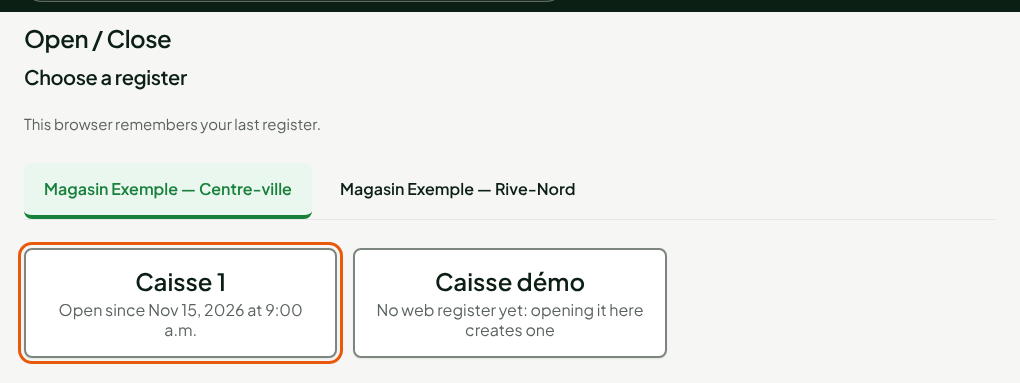
The register and store names appear at the top of the Sell menu. To take another register, click Change.
A register opens in only one tab at a time. If the screen shows Only one register open at a time, click Use this tab; a sale started in the other tab stays there, on hold.
Putting items in the cart
To add an item:
Open Sell > Sell.
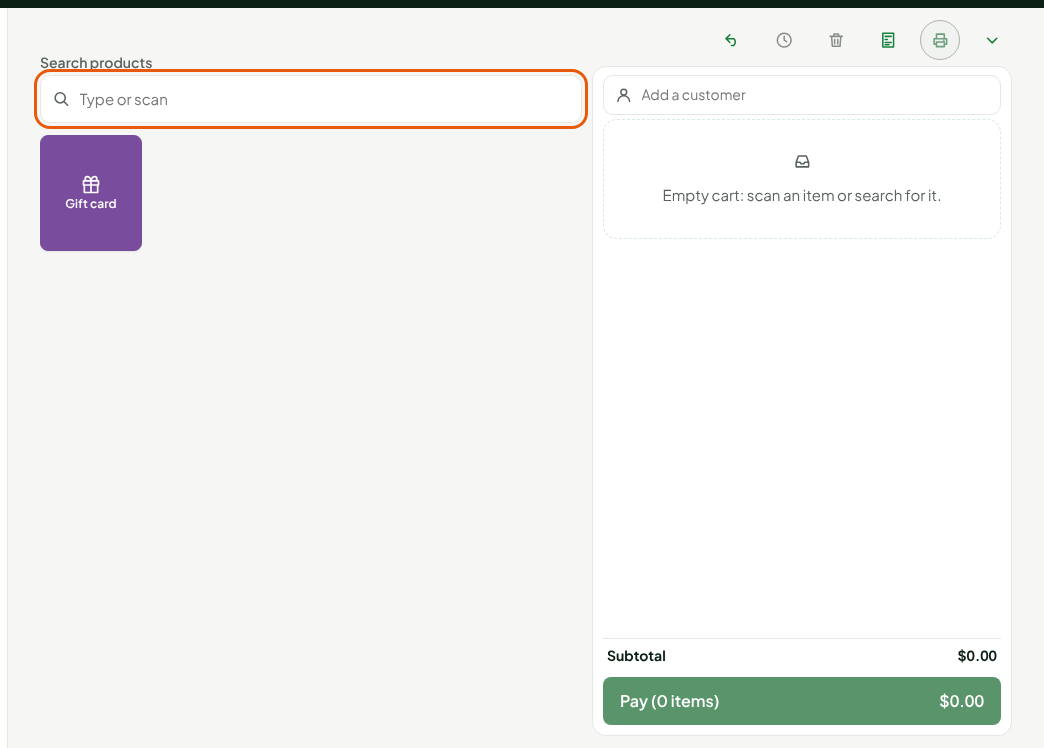
Scan the item's barcode, or type its name or code in Search products.
Click the item in the list that opens, if you typed.
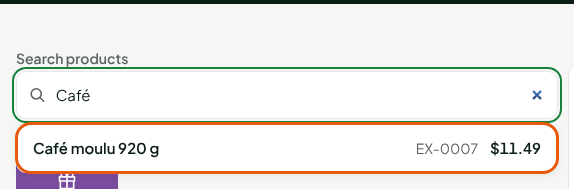
The item goes into the cart, on the right, with its quantity and price. The search field clears: scan the next item.
To change an item's quantity:
Click the item's line in the cart.
Type the new quantity in Quantity.
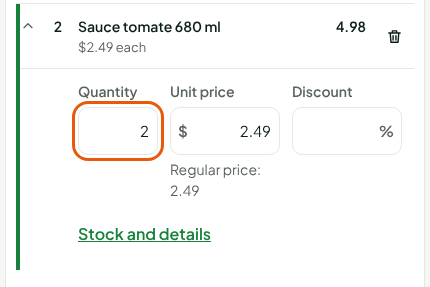
To remove an item, click the trash can at the end of its line.
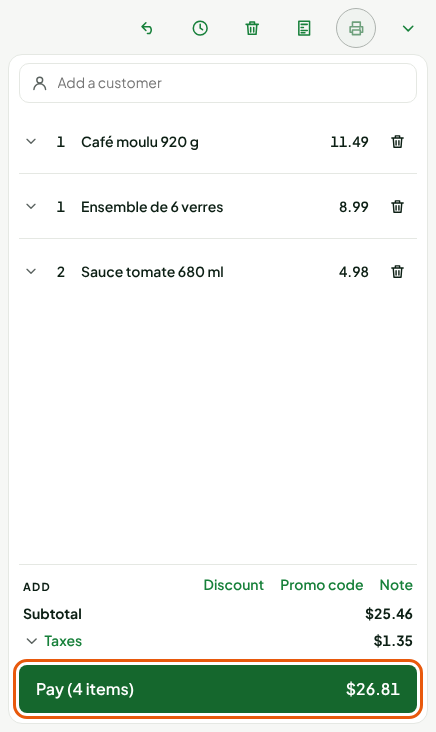
Below the cart, the screen shows the Subtotal, the Taxes and the Pay button, with the number of items and the total to collect. Taxes come from the store's settings: you do not choose them at the register (Setting up taxes).
Taking a cash payment
To take payment:
Click Pay.
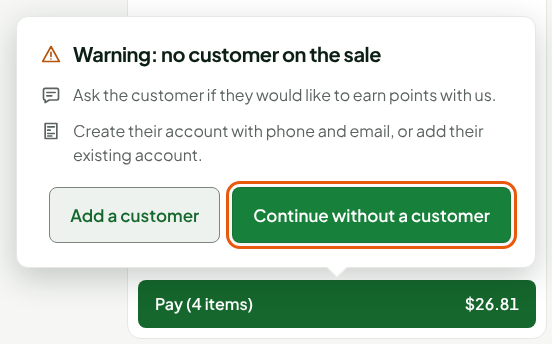
Ask the customer whether they have an account when the Warning: no customer on the sale window opens. Without one, click Continue without a customer. To add their account, see the guide "Adding a customer to a sale".
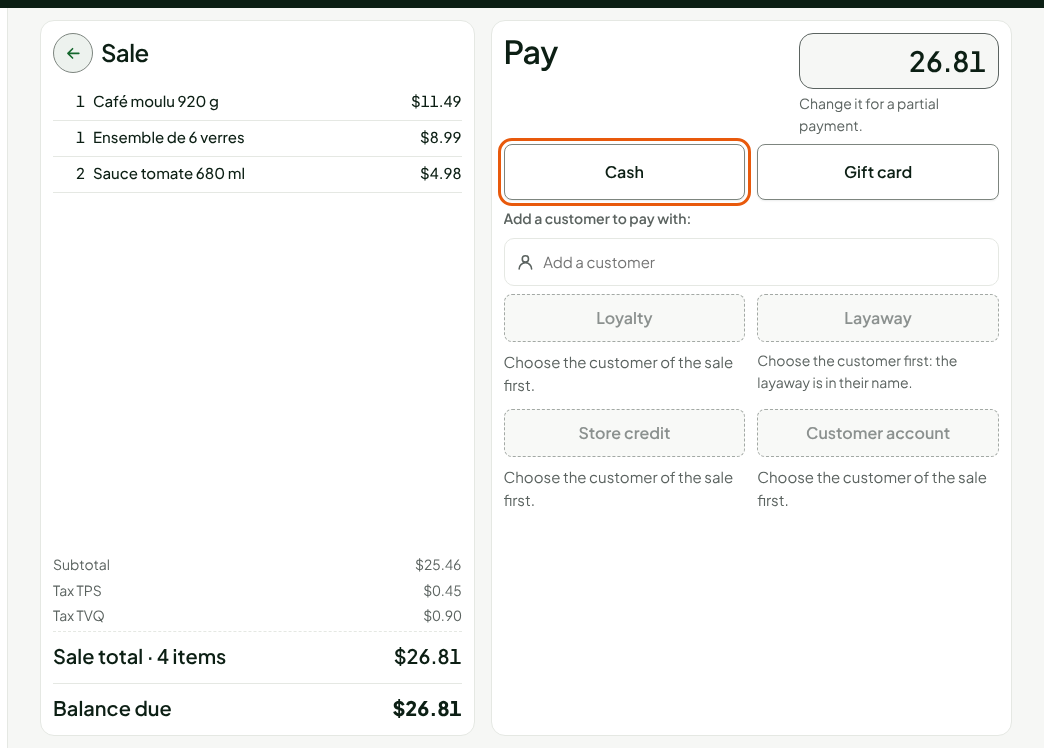
Click Cash, under Pay.
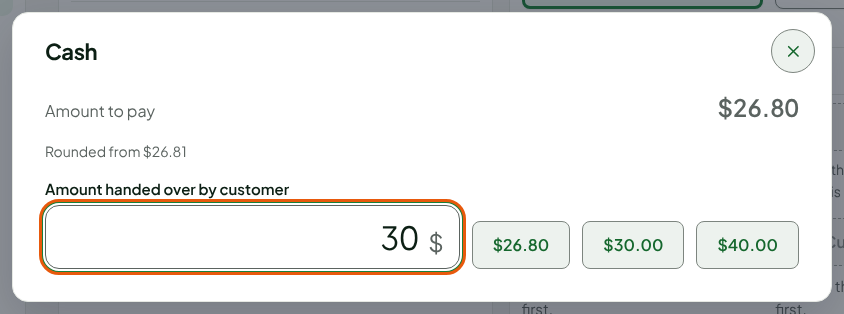
Type the amount the customer gives you in Amount handed over by customer, or click one of the amounts offered beside it.
Press Enter.
The screen shows the Change due in large print. The sale is paid and saved.
For cash, the total is rounded to the nearest 5 cents: the Cash window shows the rounded Amount to pay and, below it, the exact total ("Rounded from $26.81"). The rounding also appears on the receipt.
The Pay window only offers the methods allowed for this sale. Without a customer: Cash, Gift card and the other payment methods your business has added in its settings. Loyalty, layaway, store credit and customer account first need a customer on the sale.
Handing over the receipt and finishing
Once the change is given:
Click Finish and print to print the receipt, or Finish without receipt if the customer does not want one.
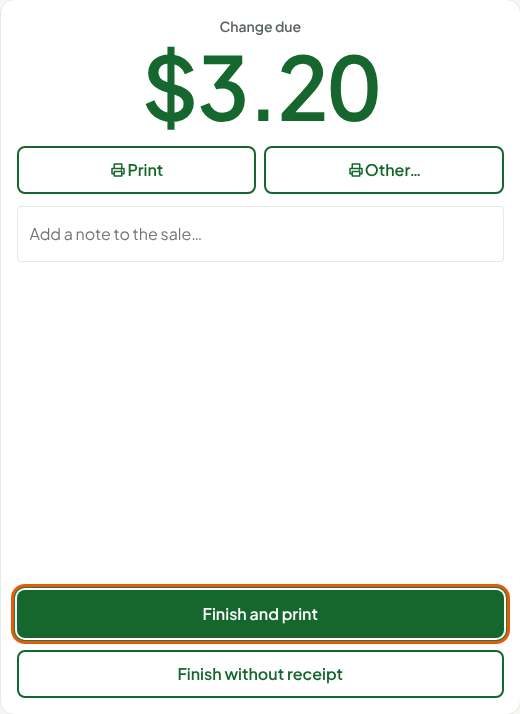
The Sell screen comes back with an empty cart, ready for the next customer. Before finishing, you can also add a note in Add a note to the sale…, or click Other… to choose another receipt template.
A paid sale can no longer be changed. A mistake is corrected with a return, linked to the original sale (guide "Processing returns and refunds").
Troubleshooting
The screen shows "This register is in use on another screen."
Another screen or computer holds the register. Check that nobody is selling on it, then click Take it over here.
The Pay button does not respond
The cart is empty, or an item still needs information (its serial number, for example). Read the message shown under the item.