Following and collecting an account balance
- For
- Manager, Administrator
- Where
- Back office
- Permission
- Manage customer credit accounts
- Checked on
A B2B account is settled by payments received: a cheque, transfer, card or cash handed to the manager. This guide shows where to read what a customer owes, how to record their payment and how to void it when it is wrong.
Before you start
- Your role must have the permission Manage customer credit accounts.
- The account must be active or closed: an archived account is read-only.
Reading an account's balance
To see what a customer owes:
Open Customers > B2B accounts. The list shows, for each account, the Credit limit, the Balance due and the Available credit.

Click the account's name.
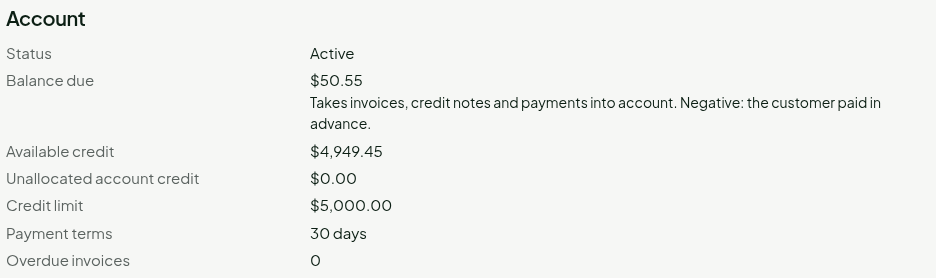
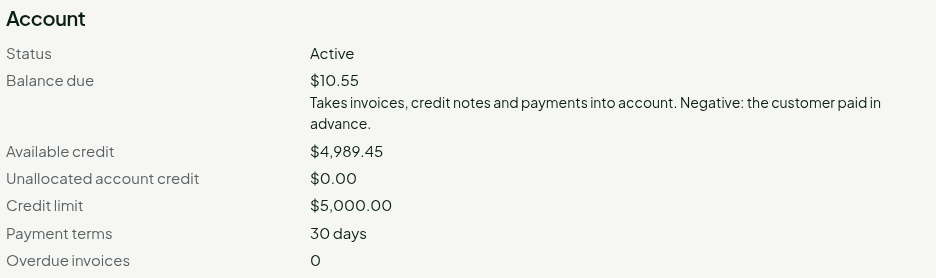
The Balance due takes invoices, credit notes and payments into account. If it is negative, the customer has paid in advance. Further down, the Invoices table gives, for each one, its due date, what is paid and what is left to pay. Its status is Open, Partially paid, Paid, or Overdue when an amount is left to pay after the due date printed on the invoice.
Recording a payment received
To record a payment:
On the account's page, click Record a payment received.
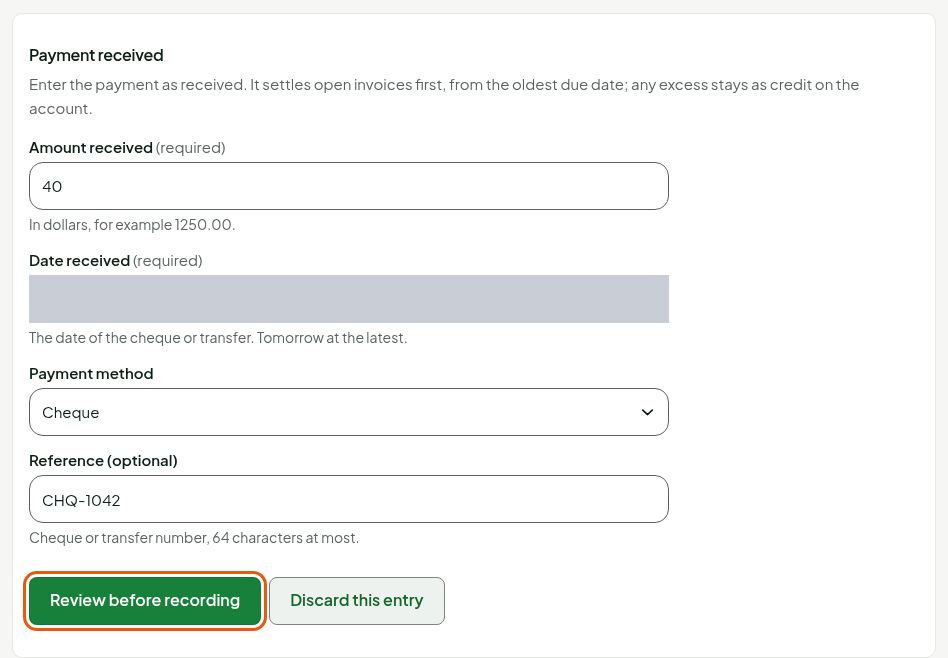
Type the amount in Amount received, choose the Date received (that of the cheque or transfer, tomorrow at the latest) and the Payment method. Type the cheque or transfer number in Reference (optional).
Click Review before recording.
Check the entry under Review the payment. The open invoices are listed in the order they will be settled.

Click Confirm and record.
The screen shows Payment recorded and the allocation: the payment settles first the invoice with the oldest due date; any excess stays as credit on the account.

The account's page shows the new balance: here, $40.00 paid the first invoice in full and part of the second.
A recorded payment is never edited or deleted. If the server's answer is lost, click Send the same payment again, never a new payment: a payment that already arrived is not recorded a second time.
Voiding a payment
To correct an amount or a payment the bank refused, void the payment, then record the right one:
In the payments table, click the Void the payment of button followed by the amount and the date.
Type the reason in Reason for the void (required).
Click Void this payment.
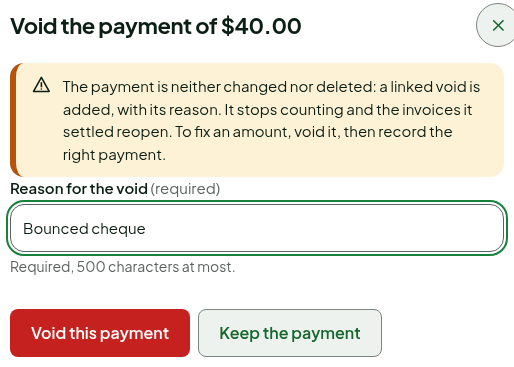
The payment stays visible, marked as voided, with its reason. It stops counting and the invoices it settled reopen.

A void is added to the payment, it does not erase it. A payment whose credit was already refunded to the customer can no longer be voided.
Handling an excess and reading the statement
When a payment is more than the customer owes, the excess stays on the account under Account credit. It never applies itself: click Apply to an invoice, or Refund the credit (never in cash).
Under Statement, choose the dates From and To (366 days at most), then click Show the statement: the opening balance, each entry and the closing balance.