Printing price labels
- For
- Manager
- Where
- Back office
- Permission
- Manage the catalogue
- Checked on
A price label shows the product name, its price in your store and its barcode. You print labels when a product arrives, when its price changes or when a label gets damaged. This guide explains which products to choose and what they give. For the paper and the printer, see Printing price labels on Avery sheets.
Before you start
- A product only gets a label if it is sold in the store whose prices you print.
- The Print labels page does not choose products itself: you reach it from the product list or from a receipt.
Label chosen products
For new products or products whose price has changed:
Open Catalog > Products.
Choose the store in Store, then type a name, an item code or a barcode in Search products and click Search. The labels page will use this store.
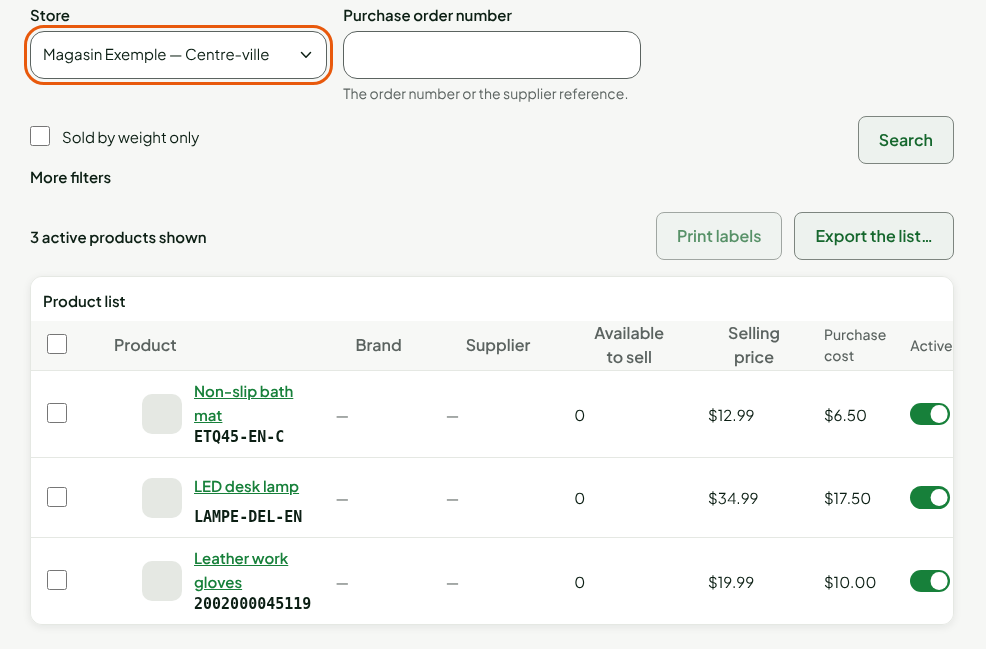
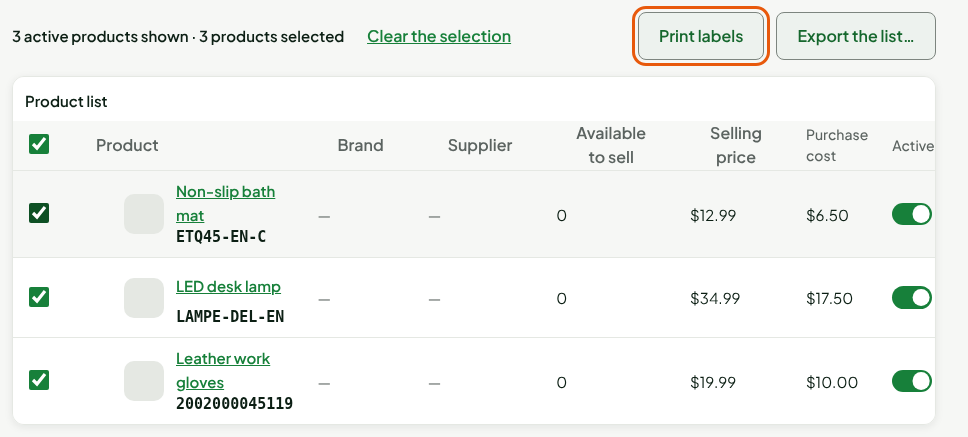
Check the products you want.
Click Print labels.
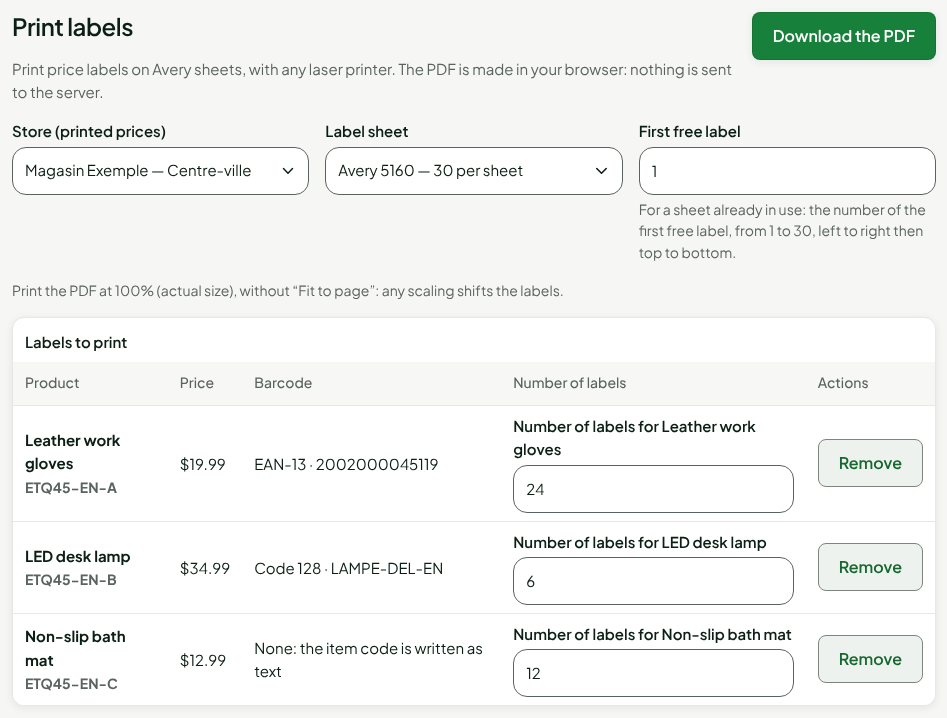
The page opens with one line per product and 1 label each. Change the Number of labels on each line as needed.
With no store chosen in the list, the page takes the first store of its list. Check Store (printed prices) before you download the PDF.
Label received goods
To label what has just arrived:
Open Stock > Stock receipts, then open the receipt.
Click Print labels, under the receipt actions.
The page opens with the receipt's store and one label per unit received, or expected while nothing is received. A product sold by weight gets a single label.
What the label shows
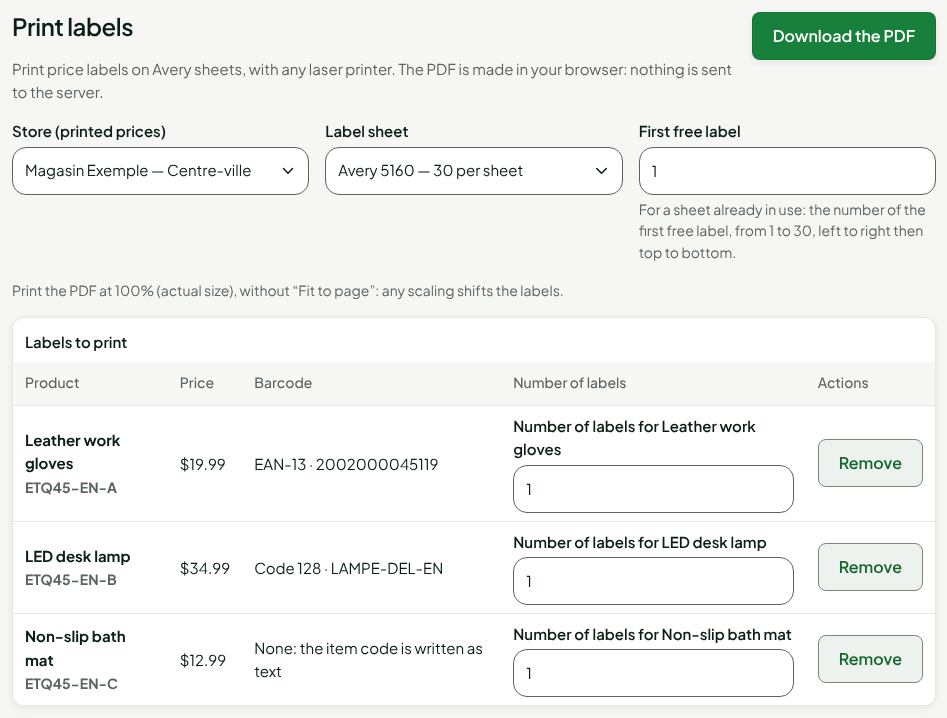
- The name of the product, followed by its variant if it has one.
- The price for the chosen store: its own price in that store, otherwise the price on the product sheet. A promotion in progress does not appear.
- The barcode of the product: its EAN-13 (or its UPC-A, printed as an EAN-13) if it has a valid one, otherwise another of its codes as Code 128. A product with no code has no bars: its item code is written as text, and the Barcode column says so.
Products that get no label
Change Store (printed prices) to print the labels of another store: the prices update. A product that is not sold in that store shows Not sold in this store and gets no label. The page announces it above the table.
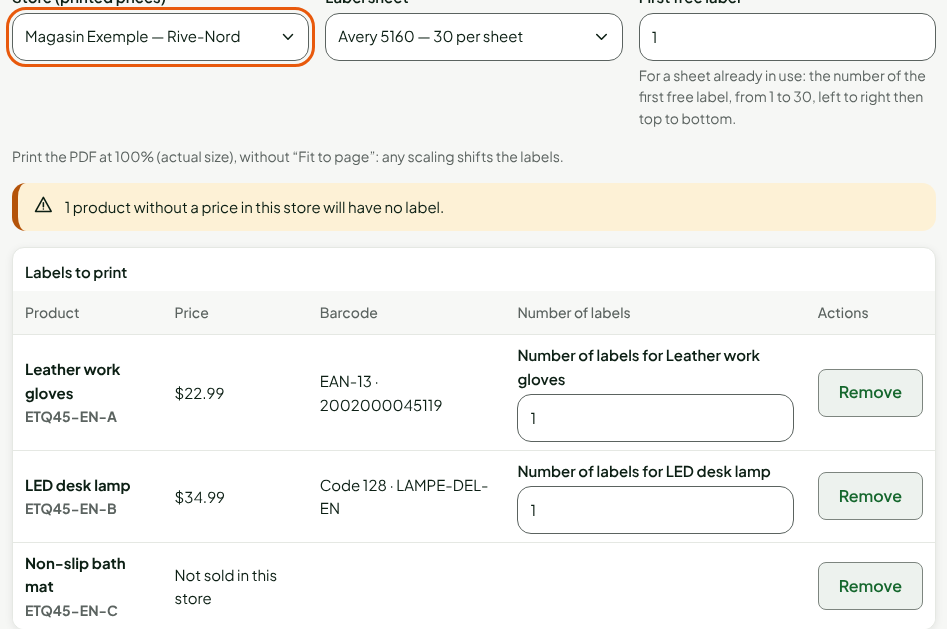
To give it a label, add it to that store on its product sheet, or choose another store.
Troubleshooting
The page shows “No product to print.”
You opened it from the menu. Check products in Catalog > Products, or open a receipt.
A product has no label
It is not sold in the chosen store: see above.