Setting an account's credit limit
- For
- Manager, Administrator
- Where
- Back office
- Permission
- Manage customer credit accounts, Manage customers
- Checked on
The credit limit is the most a business customer can owe at one time. You set it when you open their B2B account, and change it when your trust in them changes.
Before you start
- Opening an account requires the permission Manage customer credit accounts. Editing an account also requires Manage customers: editing sends the account's contact person back.
- Have the customer's legal name, their contact person's name and the agreed payment terms at hand.
Opening an account with its limit
To open a business customer's account:
Open Customers > B2B accounts, then click Open an account.

Fill in Legal name and Contact person’s name.
Type the amount in Credit limit, in dollars (for example 2000). Type 0 so that no sale on account is allowed.
Type the number of days in Payment terms, in days, from 0 (due on receipt) to 365.

Click Open the account.

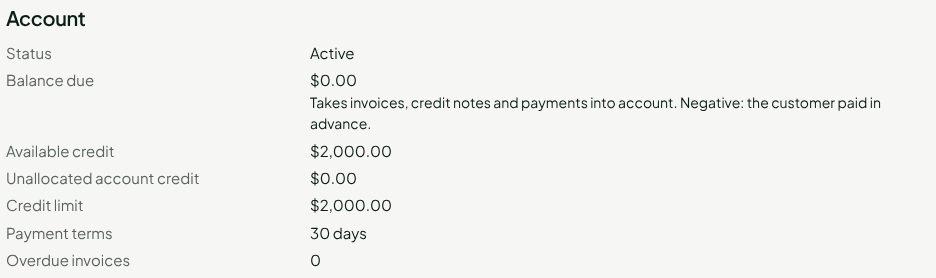
The account's page opens. The Balance due is $0.00 and the Available credit equals the limit.
For the register to offer this account when the customer is on a sale, copy the identifier of their customer record into Linked customer identifier (optional). Without that link, the sale on account is not offered at the web register.
Changing an account's limit
To change the limit of an existing account:
Open Customers > B2B accounts, click the account's name, then Edit the account.
Type the new amount in Credit limit.

Click Save.
The screen shows "Account saved." The limit and the available credit show the new amount.
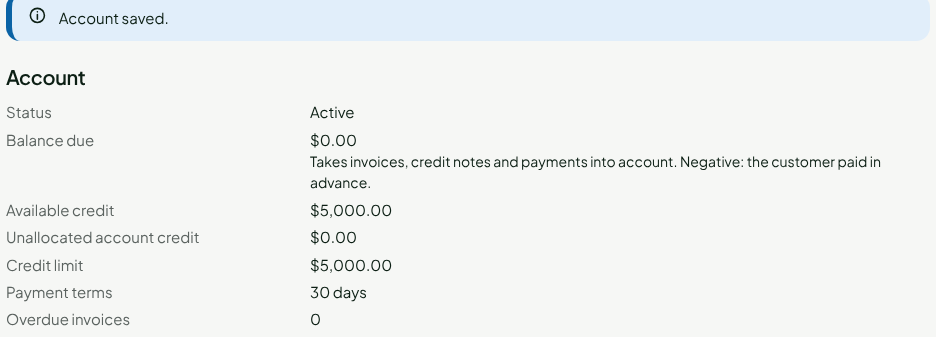
The Available credit is the limit minus the Balance due. If you lower the limit below the balance due, it becomes negative: the register refuses any sale on account larger than what is still available, until the customer has paid.
The new limit and payment terms apply to the next sales on account. An invoice already issued keeps its due date.
The Status field of the same form closes an account: a Closed account no longer sells on account, but still receives payments.
Troubleshooting
"The account was changed elsewhere since it was read"
Someone else saved the account while you were editing it. Nothing was overwritten. Click Reload the account, then redo your change.
The Edit the account button is missing
Without the permission Manage customers, the page shows "Editing sends the contact person back: it also requires the permission to manage customers." Ask an administrator for the permission.