Setting up commissions
- For
- Manager, Administrator
- Where
- Back office
- Permission
- Manage employee records
- Checked on
A commission rule gives the rate an employee earns on their sales: for one employee, for a product category, for both, or for everyone. On each sold line, the most specific rule wins. Without a rule, a sale earns no commission.
Before you start
- Your role needs the permission Manage employee records.
- Decide who is targeted (one employee or All employees), which category (one category or All categories), the rate and the start date.
A rule is never edited: you add a new version to it, and older ones stay in the history. A sale's rate is fixed when the sale is received: a sale already received does not change.
Creating a rule
To give an employee 2.5% on a category:
Open Team > Commission rules.

Click New rule.
In Employee, choose the person, or leave All employees for a general rule.
In Category, choose a category, or leave All categories.
In Rate (%), type the rate: from 0 to 100%, four decimals at most, for example
2.5.In Start, choose the first day the rule applies. In End, choose the last day, or leave it empty for a rule with no end.
Click Create the rule.
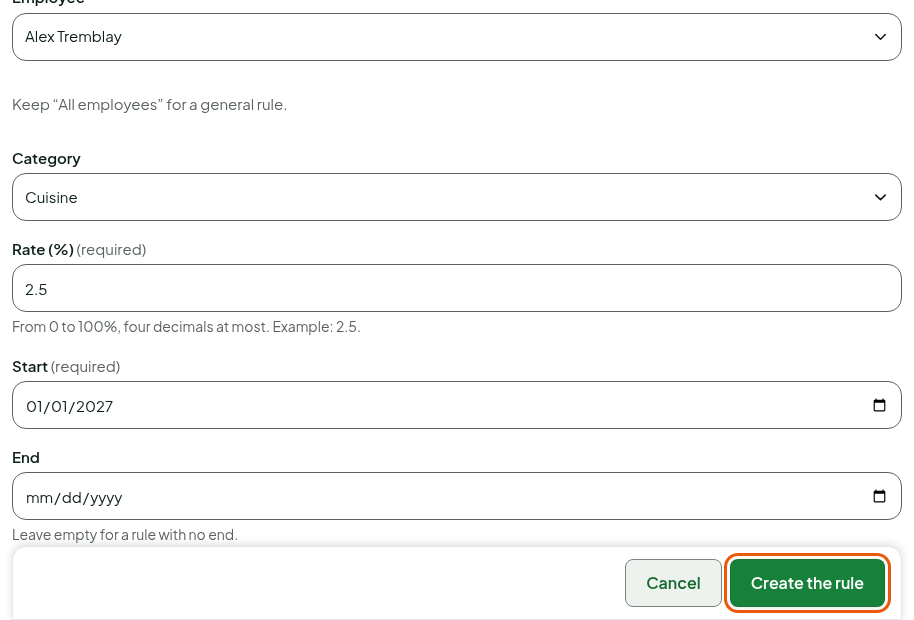
The screen shows "Rule created." The rule appears in the list, with its employee, category, rate, dates and version.

Two rules with the same target do not overlap. If the screen shows "Another rule already targets this employee and category on some of these dates. End it first, or change the dates.", end the first one or change the second one's dates.
Changing a rule's rate
To change a rate on a chosen date, end the rule by giving it an End date, then create another one that starts the next day: past sales keep their rate.
To correct the rule itself on all its dates, add a new version. It applies to sales received from now on: a sale already received keeps the rate set when it was received. The screen reminds you with the warning A new version replaces the rate on all of the rule’s dates for sales received from now on.
In the list, click New version on the rule's row.
Change the Rate (%), the Start or the End.
Click Save the version.
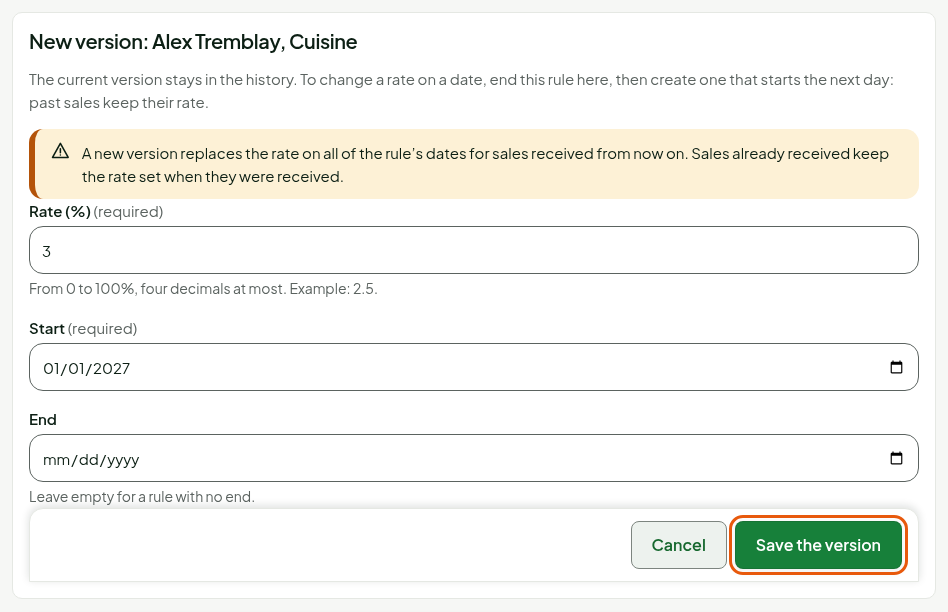
The screen shows "New version saved." The row carries version 2 and the new rate.

Reading a rule's history
Click History on the rule's row.
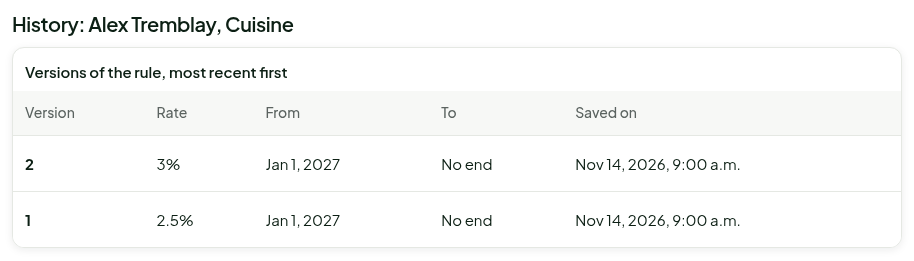
To return to the list, click Close.
How commission is worked out
- It is worked out per sold line: the line's amount after discounts, before taxes and without deposit, times the rate. It is rounded to the cent.
- When several rules target a line, the most specific wins: employee and category, then employee, then category, then the general rule.
- A return takes back the commission of the returned line, in proportion to what is refunded.
- A rule that has not started does not apply yet. A rule that has ended no longer applies.
Commissions are settled by period (Closing a pay period).
Troubleshooting
"No rule: no sale earns a commission."
The list is empty. Create at least one rule, for example a general rule (All employees, All categories).
"Enter a rate from 0 to 100%, four decimals at most"
The rate is empty, negative, above 100 or has more than four decimals.
"The end must follow the start"
The End date is before the Start date.