Exchanging an item
- For
- Cashier, Manager
- Where
- Web register
- Permission
- Sell at the register, Process a return and refund
- Checked on
A customer brings an item back and takes another one instead. An exchange is a return and a sale made in the same cart: the return is refunded first, then the new items are collected.
Before you start
- Your role must allow selling and refunding (permissions Sell at the register and Process a return and refund). The return rules apply as they are: see Returning items and refunding.
- An exchange carries only one return, so only one original sale.
The exchange changes no sale. The return and the sale of the new items are two separate facts, linked: the new sale carries the return's number in its note, and the original sale stays as it is.
Exchanging an item
To exchange an item from the sales history:
Open Sell > Sales history, find the original sale by its receipt number, then click Return items (Finding a sale in the history).
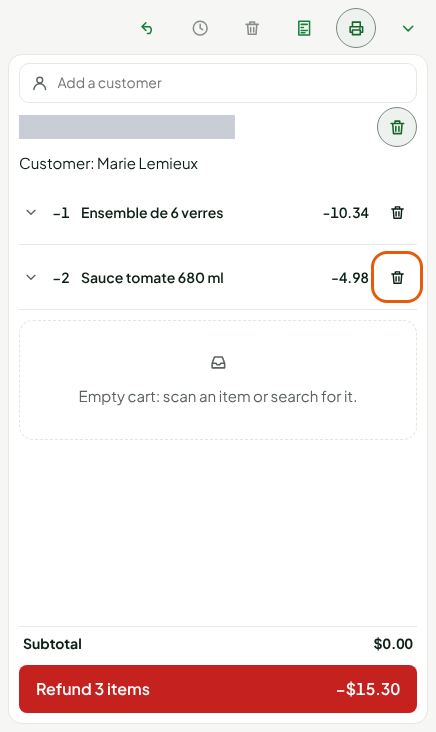
Remove from the return the items the customer keeps, with the trash can at the end of their line.
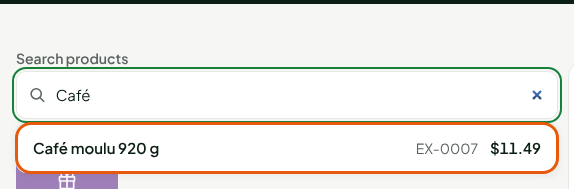
Type the new item's name in Search products, then click the item in the list.
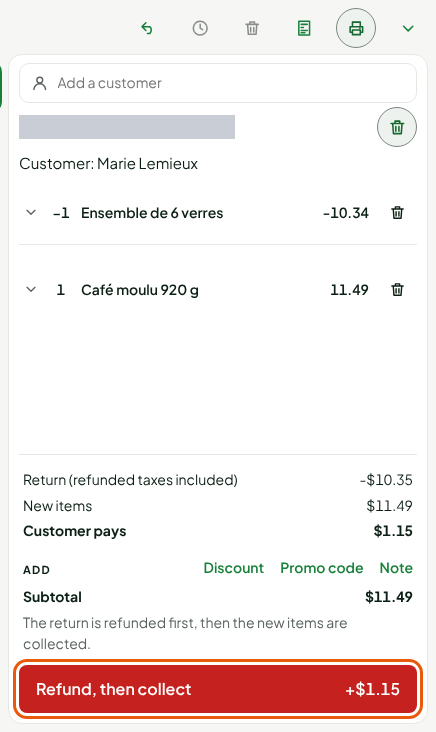
The cart shows the returned item in negative and the new item in positive. At the bottom, the screen gives the Return (refunded taxes included), the New items and Customer pays: the difference between the two.
Click Refund, then collect.
Refunding the return
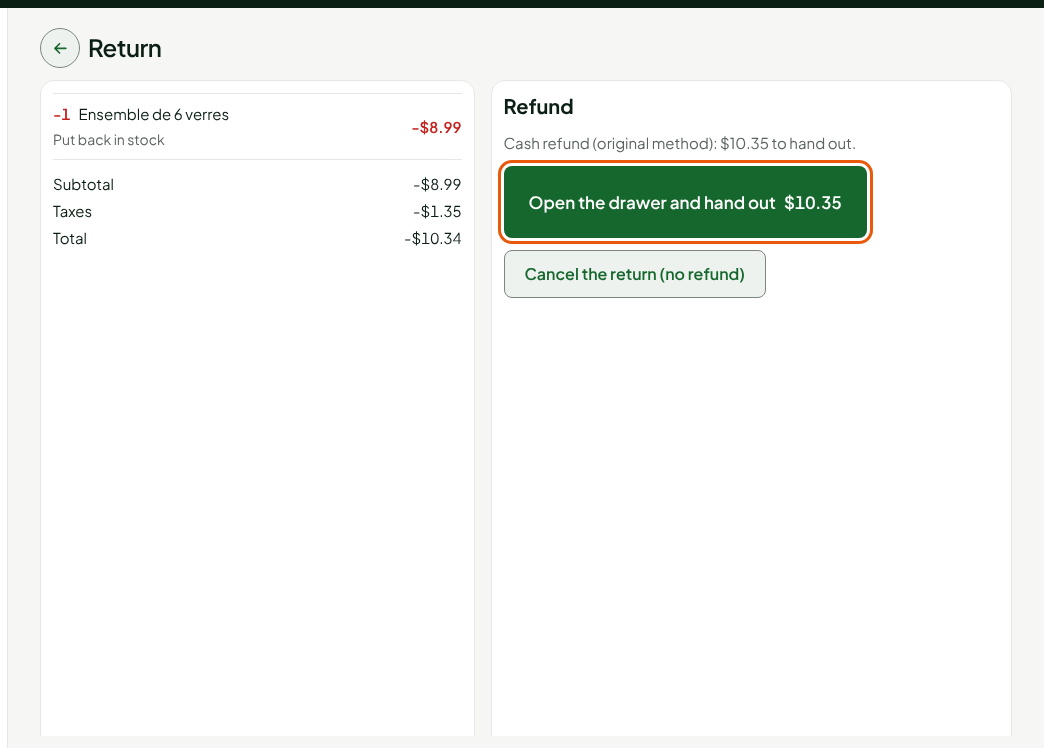
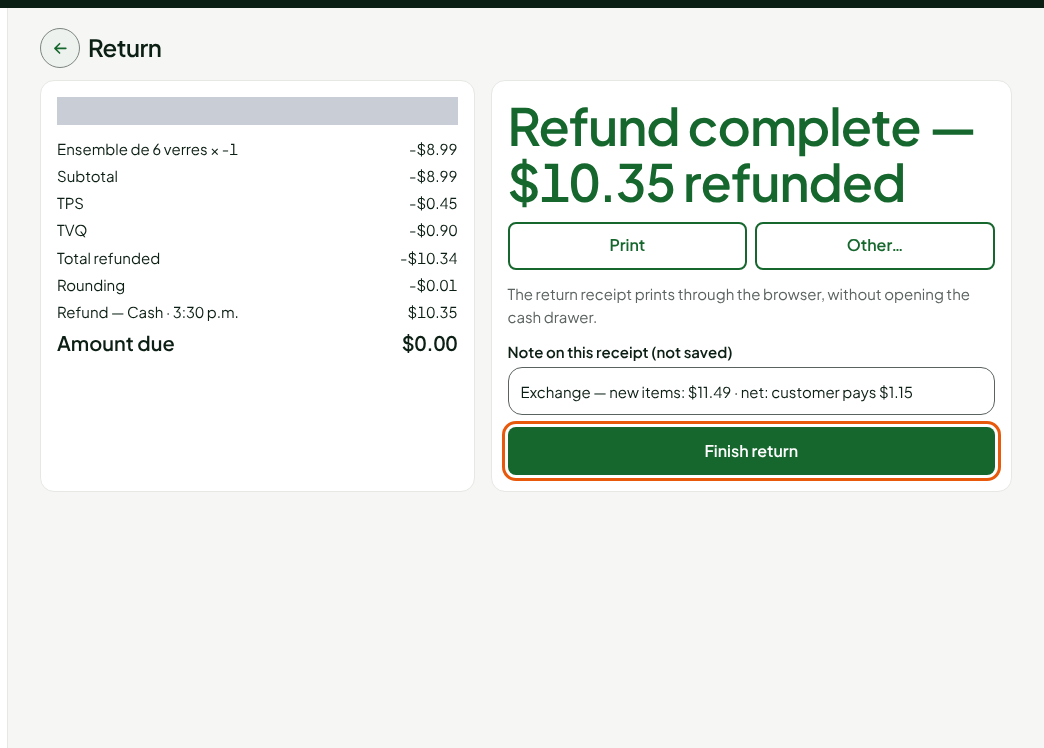
The return is refunded like an ordinary return, to the original payment method: in cash for a sale paid in cash, on the gift card or as store credit for a sale paid that way (Returning items and refunding). For a sale paid in cash:
Click Open the drawer and hand out, then hand the amount to the customer.
Click Cash handed to the customer.
Click Finish return when Refund complete appears.
Collecting the new item
The Sell screen comes back with the new items in the cart and a message: the return is refunded and the new items are still to be collected. Their price is collected in full; the exchange net is what the customer paid in all, once the refund is deducted.
Click Pay.
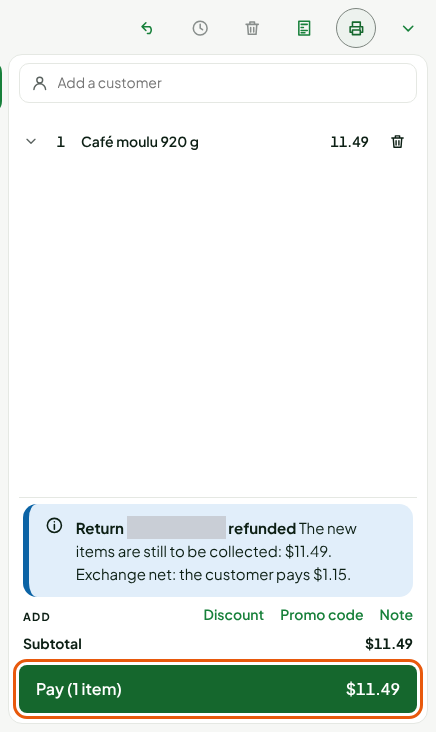
Click Continue without a customer if the Warning: no customer on the sale window opens, or add the customer to the cart first.
Click Cash, type the amount the customer hands over in Amount handed over by customer, then press Enter.
Give the change, then click Finish and print or Finish without receipt.
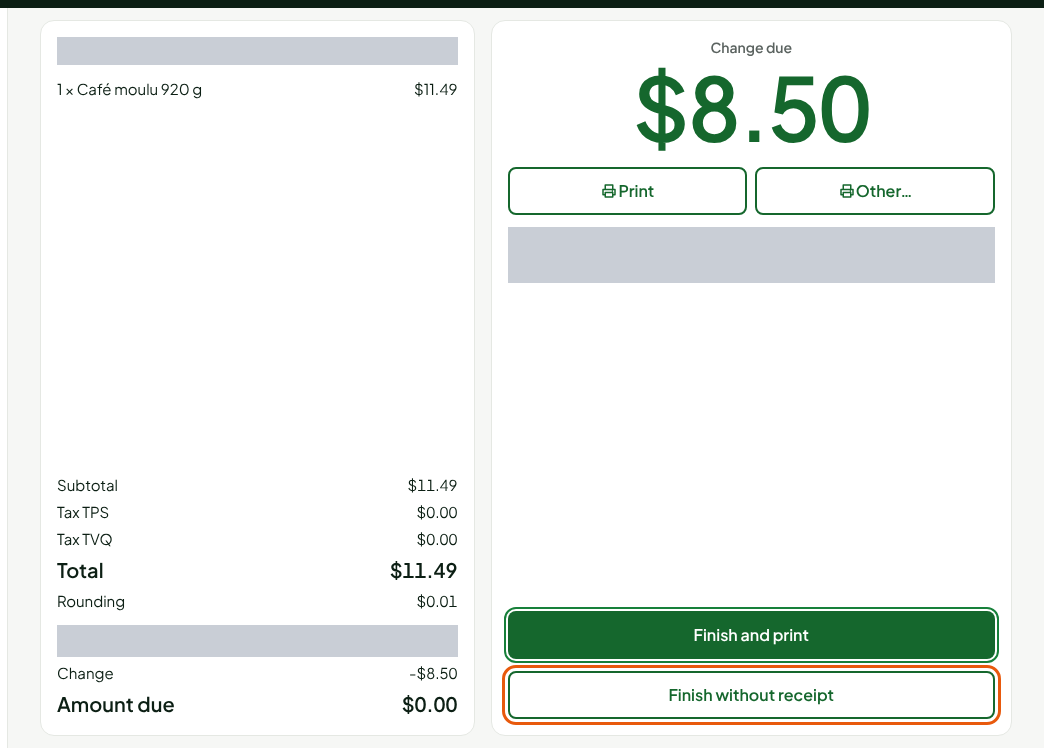
The new sale's note, Exchange — return followed by the return's number, is already written: it links the exchange to the return in the history.
Troubleshooting
"A gift card is in the cart"
A gift card to sell and a return do not go in the same cart. Sell the card first, or remove it from the cart, then add the return.
"A return is already refunded in this exchange"
An exchange carries only one return. Collect the new items before making another one.
"Nothing to pay: the return covers the new items"
The return is worth as much as the new items. If it is worth more, the screen shows Refund to the customer in place of Customer pays.