Setting up replenishment for a product
- For
- Manager, Administrator
- Where
- Back office
- Permission
- Manage the catalogue, Adjust stock
- Checked on
Replenishment says from which level a product should be reordered in a store, and how much to order. You set it product by product, store by store, in the product's page. The Stock > Reorder screen and the low-stock notices then rely on these settings.
Before you begin
- Your role must have the Manage the catalogue permission to open the product page, and Adjust stock to see the Stock levels section. Without the second, the section does not appear.
- To change stock tracking or the method, you need access to all stores: someone limited to some stores can only change the values of their stores.
Available to sell is the stock on hand minus what is reserved (layaways, orders). This is the level, not the stock on hand, that is compared with the threshold.
Open the Stock levels section
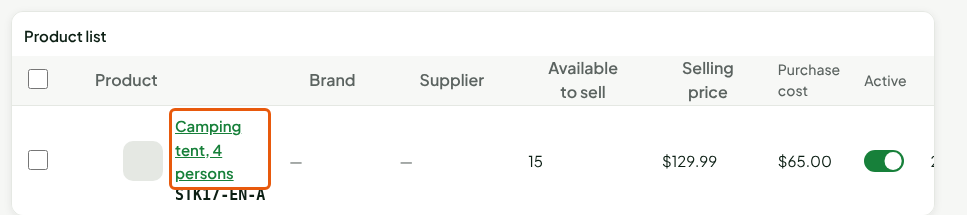
Open Catalog > Products, search for the product, then click its name.
Scroll down below the product form to Stock levels.
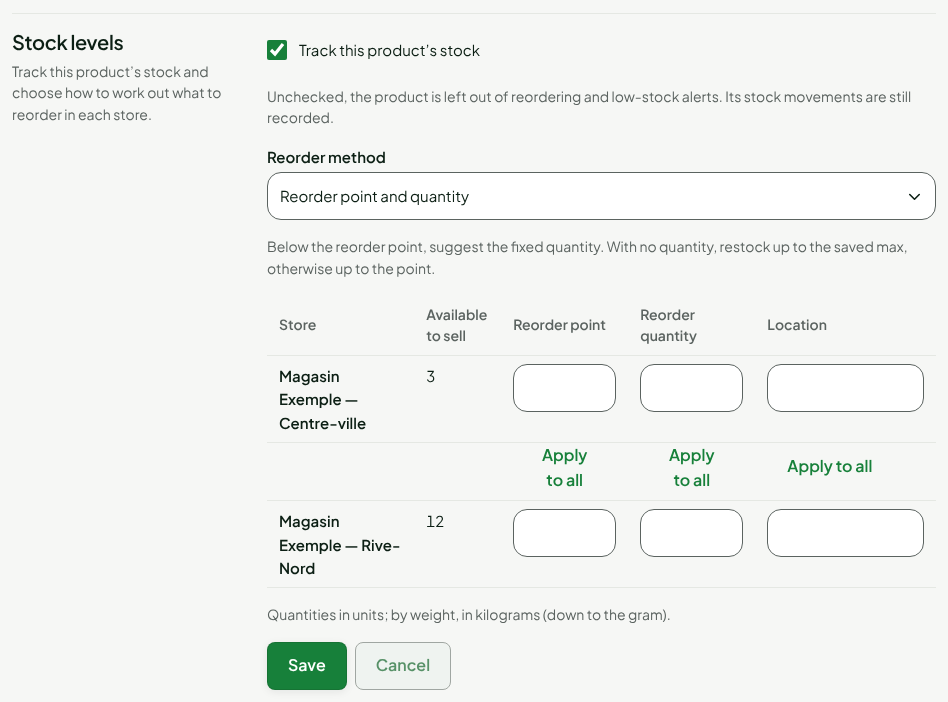
The section has its own Save button, separate from the product page's.
Choose the reorder method
The method is chosen per product. It decides which columns are used and how the quantity to order is worked out.
| Method | The product is to be reordered when… | Suggested quantity |
|---|---|---|
| Min and max | the available quantity is strictly below the Min | Max minus the available quantity; with no max, Min minus the available quantity |
| Reorder point and quantity | the available quantity is strictly below the Reorder point | the Reorder quantity, whatever the level; with no quantity, up to the saved max, otherwise up to the point |
A level equal to the threshold is not below the threshold.
With Min and max
Choose Min and max in Reorder method.
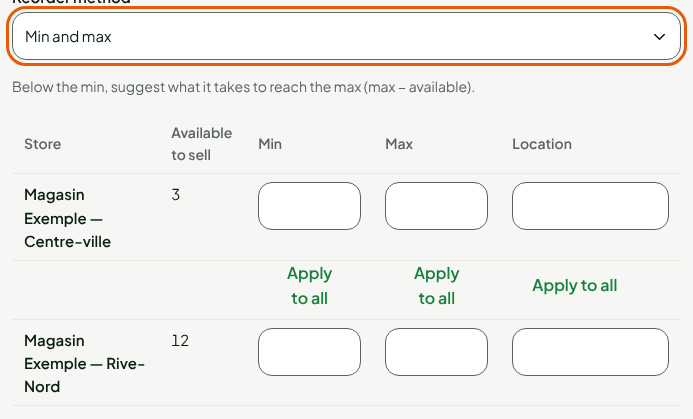
Type the Min and the Max of each store. To copy the first row's value into every store, click Apply to all under the column.
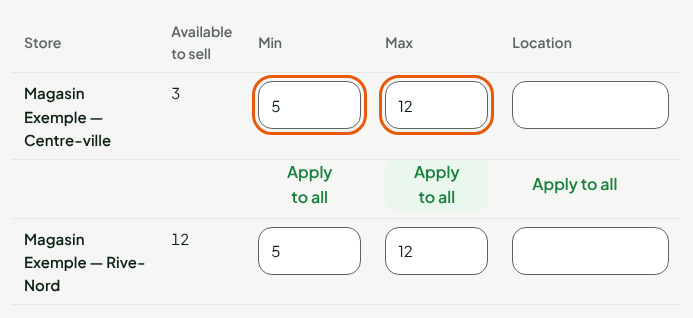
Example: with a Min of 5 and a Max of 12, the tent (3 in stock at Centre-ville) is to be reordered; the suggestion is 12 − 3 = 9. At Rive-Nord, 12 are left: nothing to order.
With Reorder point and quantity
Choose Reorder point and quantity in Reorder method.
Type the Reorder point and the Reorder quantity of each store.
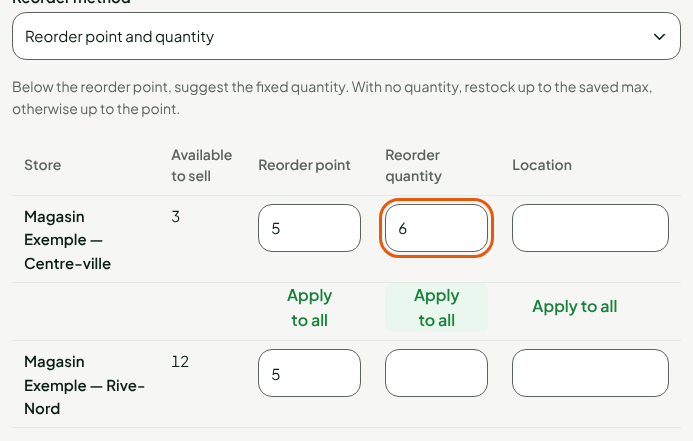
With a point of 5 and a quantity of 6, the tent is suggested by 6 at Centre-ville, whether the available quantity is 3 or 0.
The values of both methods are kept side by side: changing method clears nothing. Clearing a store's Min or Reorder point removes its threshold.
Note the location
In Location, type the shelf, aisle or bin of the product in that store (64 characters at most). Locations already entered in the store are suggested as you type.
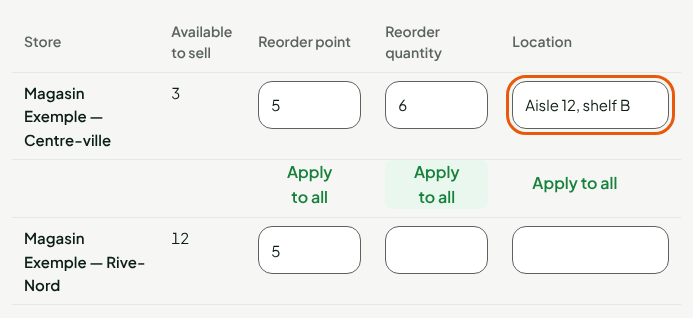
Save
Click Save, under the table.
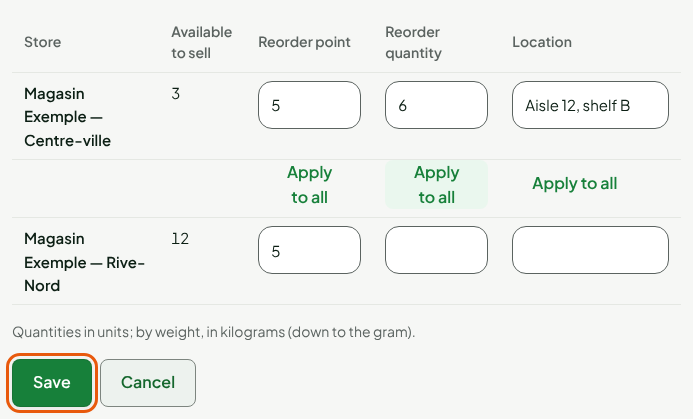
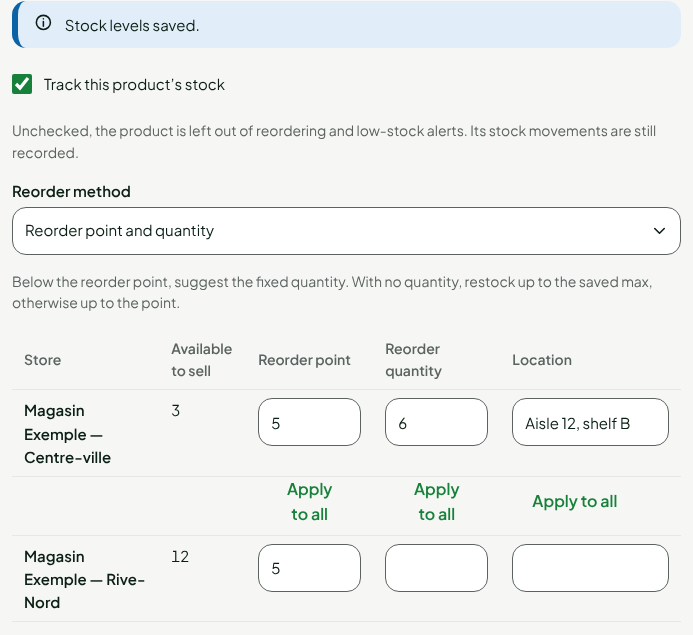
The screen shows "Stock levels saved." and reloads the saved values. Cancel puts back the values read before your changes.
Stop tracking a product's stock
Uncheck Track this product’s stock, then click Save. The product is left out of reordering and low-stock notices; the screen says "This product’s stock is not tracked: it is neither suggested for reorder nor flagged as low stock."

Not tracking a product does not touch its stock: its movements are still recorded and its level stays exact.
Troubleshooting
"The max must be at least the min"
The Max is below the Min. Fix one of the two.
"Enter this store’s threshold first, or clear this value."
A Max or a Reorder quantity with no threshold makes no sense. Type the Min or the Reorder point, or clear the value.
"These settings have changed"
Someone changed the replenishment since you read it. Nothing was written: click Reload, then redo your changes.