Ordering from replenishment
- For
- Manager, Administrator
- Where
- Back office
- Permission
- Adjust stock, Manage purchase orders, Manage suppliers, Manage stores and settings
- Checked on
The Reorder screen lists the items of a store whose available stock has fallen below their threshold, with the quantity to order. You tick the items to order and turn them into a draft purchase order, supplier by supplier.
Before you begin
- The items must have their replenishment set in their product page (Setting up replenishment for a product). An item with no threshold, or whose stock is not tracked, never appears here.
- Each item must be linked to its supplier (Managing suppliers): the order only takes the chosen supplier's items.
- To create the order, you need the Adjust stock and Manage purchase orders permissions, plus the ones to manage suppliers and settings. Without them, the Create a purchase order button is grayed out and the screen says which are missing.
See the items to order
Open Stock > Reorder.
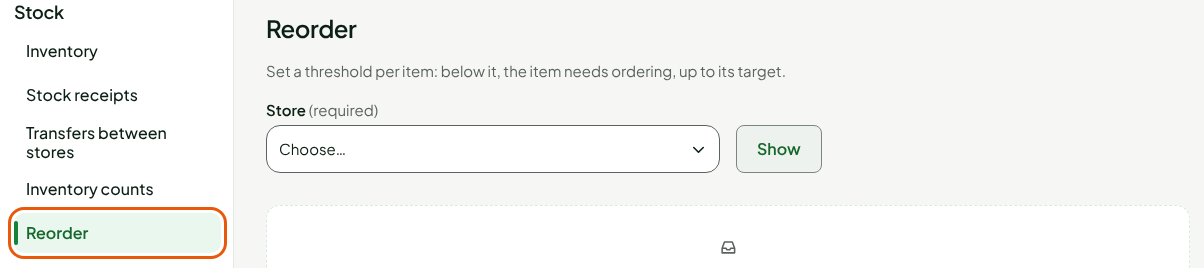
Choose the store in Store, then click Show.

The Items below their threshold section lists the items to order.
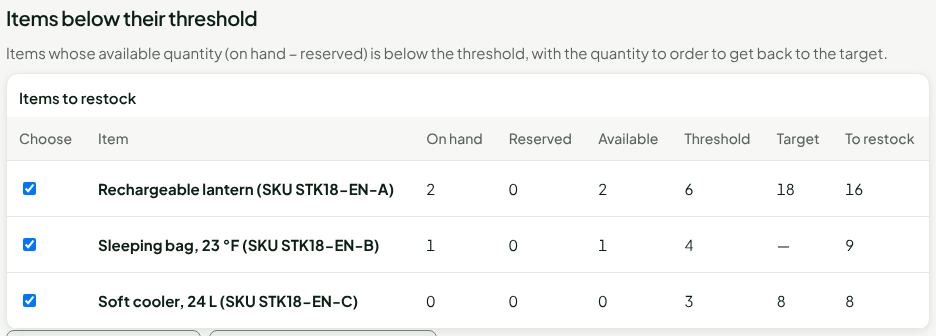
| Column | What it says |
|---|---|
| On hand | The store's stock. |
| Reserved | What is set aside or promised (layaways, orders). |
| Available | On hand minus Reserved. This is the level compared with the threshold. |
| Threshold | The level below which the item is to be ordered (the Min or Reorder point of the product page). |
| Target | The level to reach (the Max of the product page). Empty with the Reorder point and quantity method when a quantity is set. |
| To restock | The quantity to order. |
The To restock quantity follows the product page's method. With Min and max, it is the Target minus the Available: 18 − 2 = 16 for the lantern. With Reorder point and quantity, it is the product page's fixed quantity: 9 for the sleeping bag, whatever its level. The screen does the math: you type nothing.
An item is only in the list if its Available is strictly below its Threshold. A reserved item can therefore enter it while the stock on hand stays above the threshold.
Choose the items
All the rows are ticked to begin with. To leave an item out, untick its box in the Choose column.
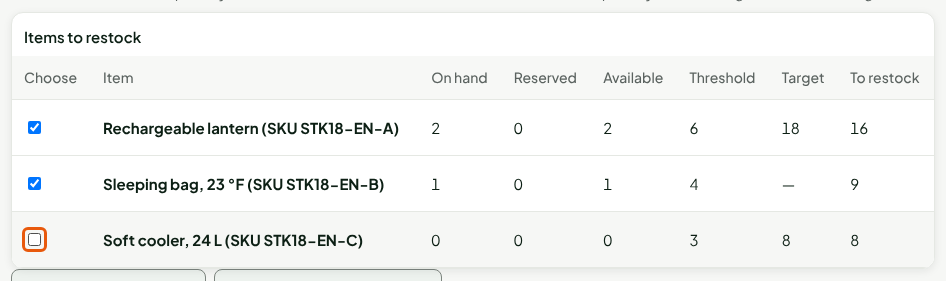
The Export the list (CSV) button downloads, as a CSV file, the list of items below their threshold, with their stock, threshold, target and the quantity to restock.
Create the purchase order
Click Create a purchase order, under the table. A sentence says how many ticked items go on the order.

Choose the Supplier. The store is already the reorder's store.
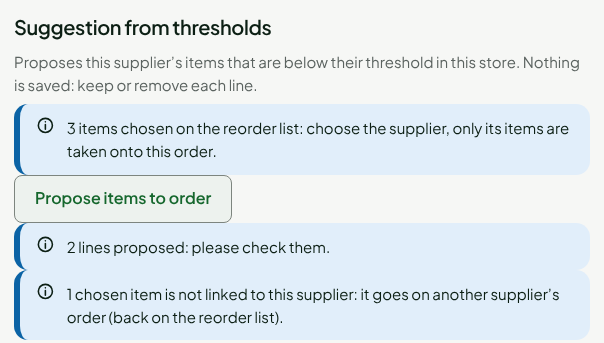
Only this supplier's ticked items go on the order. Each line gets the quantity to order, rounded up to the supplier's order multiple: the lantern, 16 short, is ordered by 18 because the supplier sells it by 6.
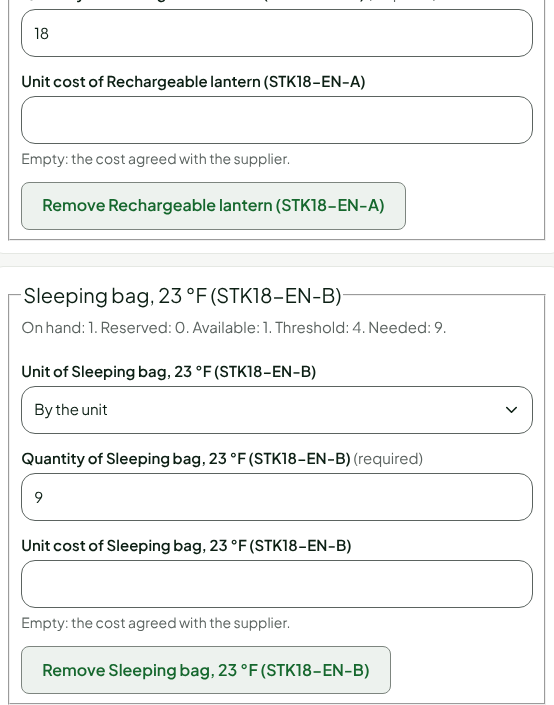
- Check the lines, then click Create the draft (Creating a purchase order).
An item that is not linked to this supplier is not lost: the screen says "1 chosen item is not linked to this supplier: it goes on another supplier’s order (back on the reorder list)." Go back to the reorder, choose the other supplier and start again.
A draft order orders nothing: the supplier is only notified when you send it (Sending and tracking a purchase order).
Troubleshooting
"No item below its threshold in this store."
No item of this store has its available quantity below its threshold. Also check that the items' stock is tracked in their product page.
"Tick at least one item to create a purchase order."
All the boxes are unticked. Tick the items to order.
"None of the items chosen on the reorder list is linked to this supplier"
Choose another supplier, or add the items to this order yourself.