Navigating the back office
- For
- Manager, Administrator
- Where
- Back office
- Permission
- Sign in to the back office
- Checked on
The back office works the same way on every page: a menu on the left, a bar at the top. This guide shows how to find a page through the menu or by its name, where help is, and how to change the language of the screen.
Before you start
Sign in to the back office (Signing in to the back office). The menu only shows the pages your role allows: two people with different roles do not see the same menu.
Opening a page from the menu
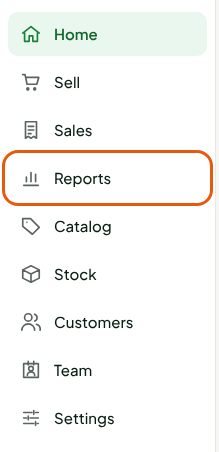
The left menu groups pages into sections: Home, Sell, Sales, Reports, Catalog, Stock, Customers, Team and Settings.
Click a section in the left column, for example Reports.
Click a page in the section's list, for example Payments.
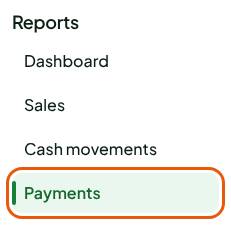
The page opens on the right. The section first opens on its first page, here Dashboard. In the list, its name is marked with a green line: you always know where you are. The column of sections shrinks to its icons; click an icon to move to another section.

In the guides, the path to a page is written with >: Reports > Payments means "the Reports section, then the Payments page". To go back to the home page, click the Braavu POS name, at the top left.
Finding a page by its name
The search in the top bar finds a page without knowing which section it is in.
Click in Search for a page…, at the top of the screen.
Type part of the page name, for example
tax.Click the page you want in the list.
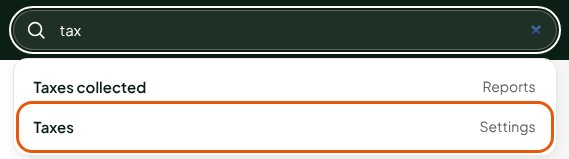
Each page found is followed by the name of its section. Accents and capitals do not matter. The search only reads page names, not their content: to find a product or a customer, use the search on its page. Esc clears the search.
Opening help
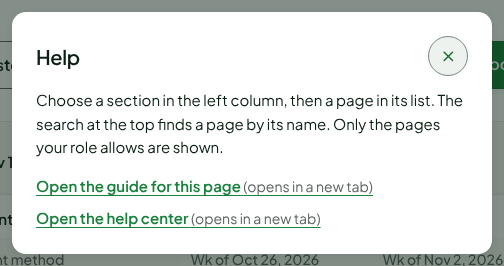
Click Help, in the top bar. A window reminds you how to use the menu and the search. When the page shown has its guide, Open the guide for this page opens it in a new tab; Open the help center opens the home page of this help center. To close the window, click the cross or press Esc.
The step-by-step guides are in this help center, arranged by topic: selling, catalog, stock, customers, team, settings, reports and hardware.
Changing the language of the screen
The back office is shown in French or in English.
Click your name, at the top right.
Choose French in the Language list.
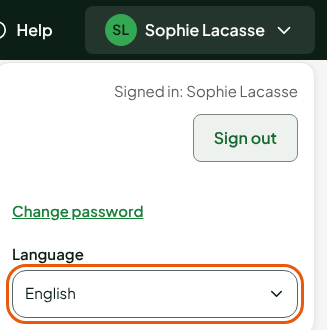
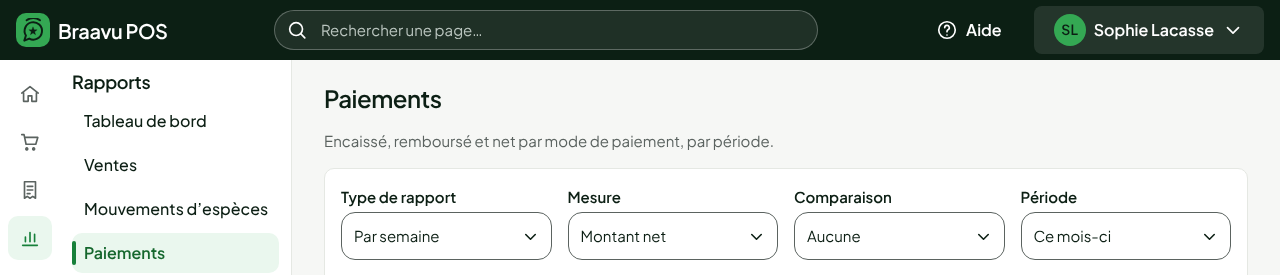
The whole screen switches to the other language at once: the top bar, the menu and the open page. Click your name again to fold the panel.
The language of the register does not follow the back office: it comes from the employee's record. The details are in Changing the language.
The same panel leads to Change password and Sign out.
Troubleshooting
A page from a guide is not in my menu
Your role does not have the permission for that page: the menu hides it, and the search does not find it either. The permission required is written under the title of each guide. Ask an administrator to add it to your role.
"No page matches."
No page name allowed by your role contains what you typed. Type fewer letters, or another word from the page name.