Following register uploads
- For
- Administrator
- Where
- Back office
- Permission
- View logs
- Checked on
Each register sends its sales and actions to the server, in order, even after an Internet outage. The Register uploads screen shows what could not be recorded. Keep an eye on it: when it says "All good", nothing is missing.
Before you start
- The register always sells, even without Internet: a late upload never blocks a sale. The register sends again what it kept as soon as the connection returns.
- This screen is for reading. To replay an operation or settle a differing copy, see the guide Handling an anomaly.
An operation the server refuses for good is set aside on its own. It is kept as it was, shown here, and can be replayed. The register's following operations keep being recorded. The server never skips a missing operation: it waits for it.
Opening the screen
Open Settings > Register uploads.
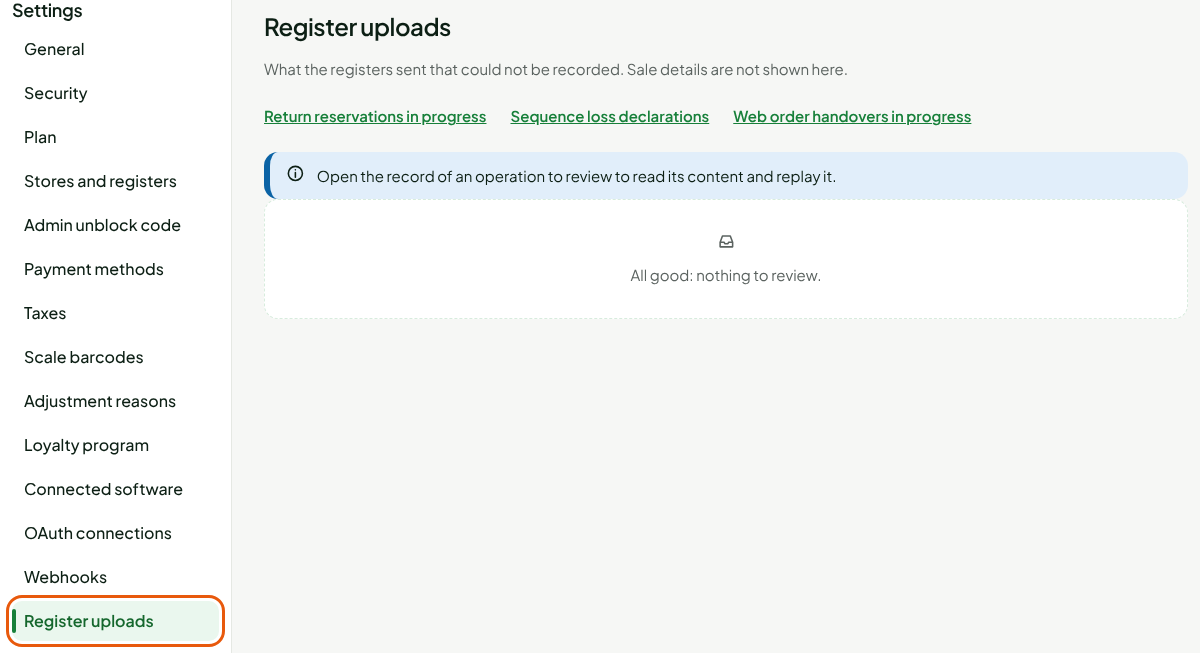
When nothing needs attention, the screen shows "All good: nothing to review." Otherwise it lists the problems. The back-office home page leads here too: a banner there flags what is waiting (see the guide Reading security alerts).
Reading the totals and filtering the list
Under the title, two lines count the problems: To review, Differing copies and Total, then the Flow problems (missing sends and registers out of touch).
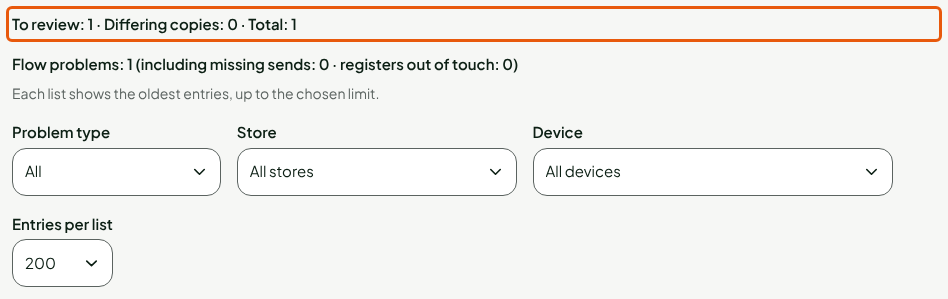
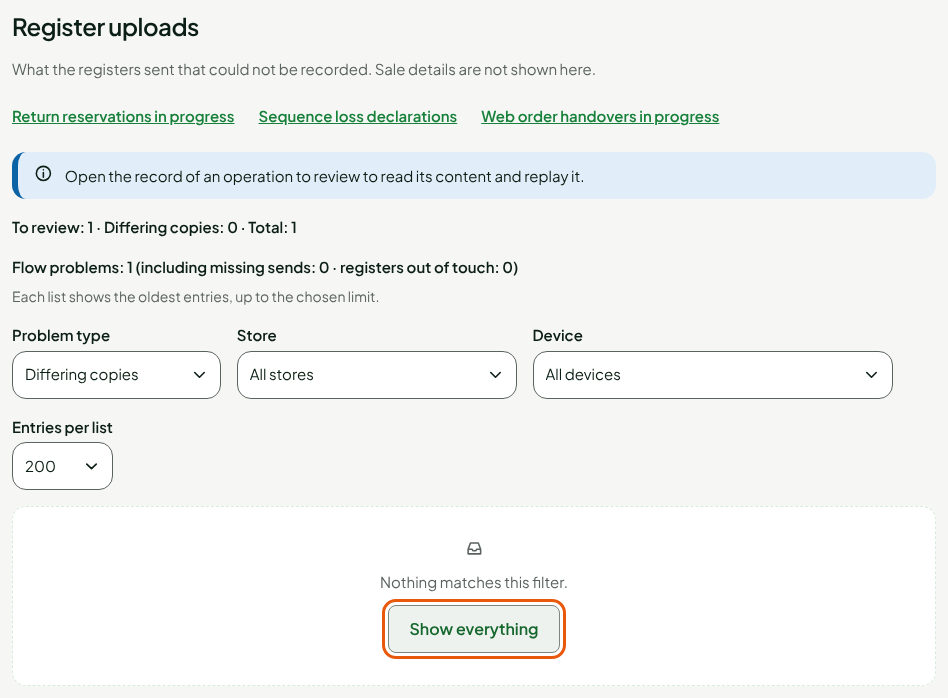
Four filters narrow the list: Problem type, Store, Device and Entries per list. When no problem matches, the screen says so. Click Show everything to see it all again.
Reading an operation to review
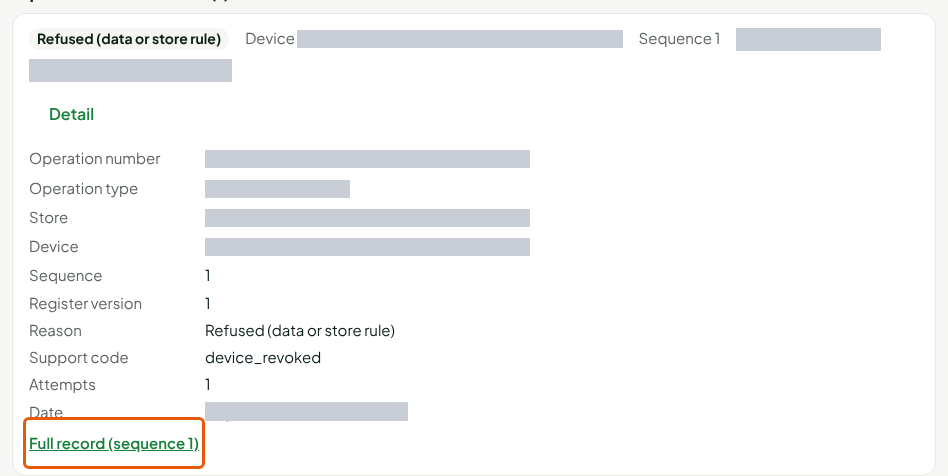
Under Operations to review, each card is an operation the server could not record. It gives the reason, the device, the sequence number and the date.
Find the card, under Operations to review.
Click Detail.
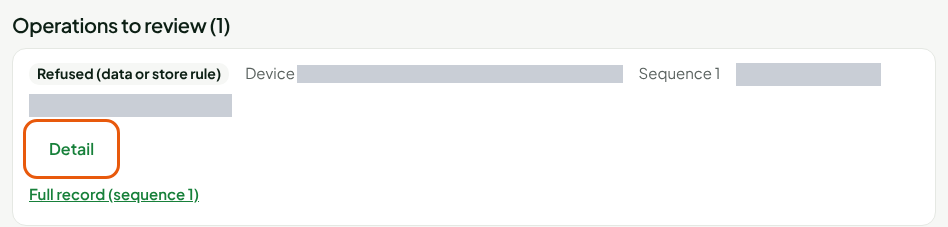
The detail adds the store, the Reason, the Support code and the number of Attempts.
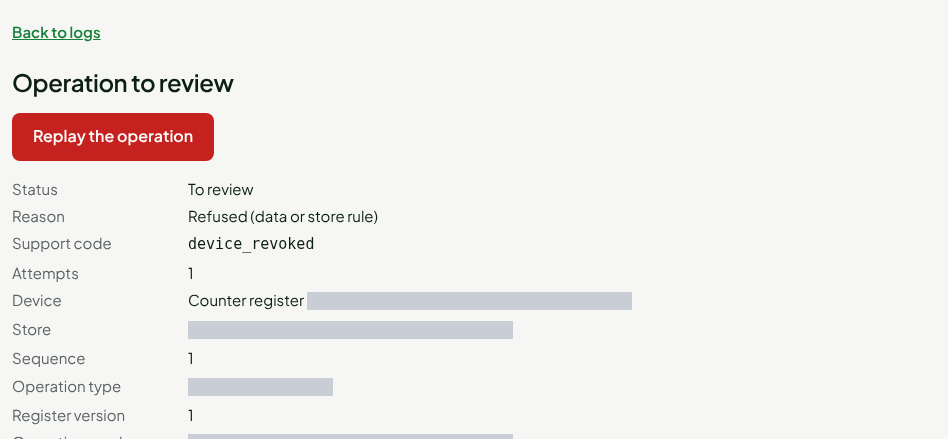
Click Full record to open the operation's record.
The Operation to review record shows the Status (To review, or Applied once replayed), the Reason, the Support code, the Attempts, the Device and the Store. The Replay the operation button is there.
Further down, Logged replays lists each replay attempt, with its author and result. Each consultation of an operation's content is also noted: who, when.

An operation's raw content may contain personal information. Open it only to review it.
Releasing a web order left on a lost register
Before handing over a web order, a register reserves it: no other register can hand it over, and the others show "Being handed over at another register." If that register will not come back, only an administrator can release the order, with proof that it was not handed over to the customer. The permission Resolve an orphaned return, which also covers these orders, is also needed.
First revoke the lost or stolen register (Settings > Installed registers, the workstation's record). While it is active, it can still release or hand over the order, and the server refuses to release it in its place. For a Replaced computer, wait until all its pending uploads have arrived before revoking it: its queue may hold the order's handover, and what it sends after the revocation is set aside, to be replayed by hand.
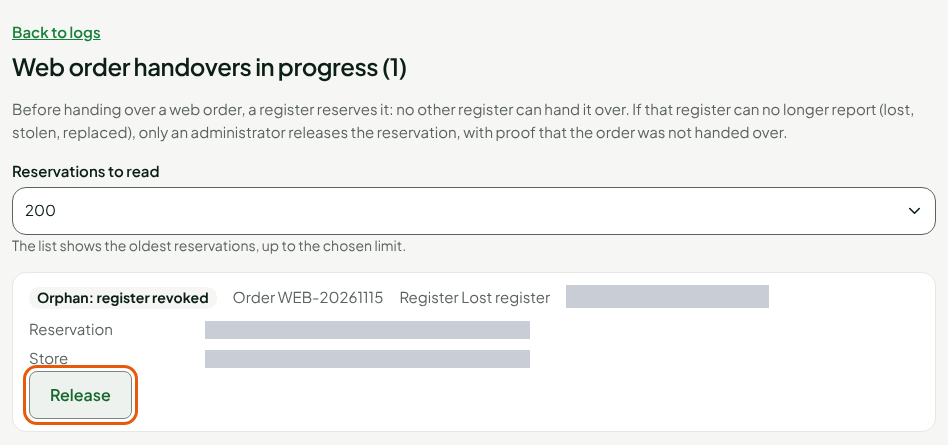
Open Settings > Register uploads, then click Web order handovers in progress. Each card gives the order number, the register that holds it and its status.
On an Orphan: register revoked card, click Release.
Write the Reason and the Proof reference (for example: goods found on the pickup shelf), then click Release the reservation.
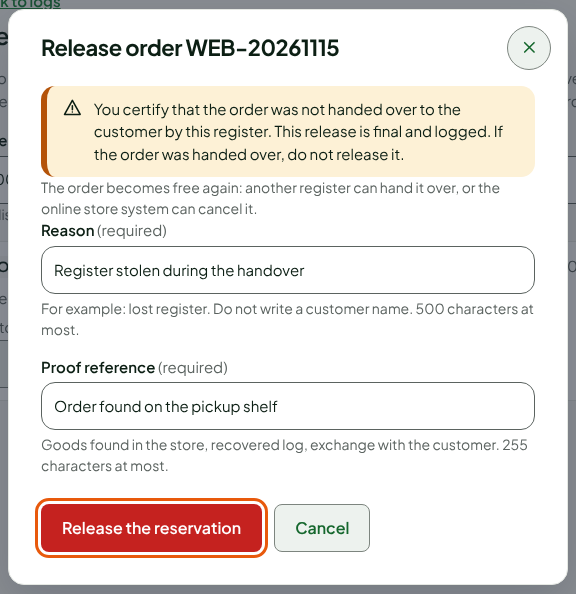
The order becomes free again: another register can hand it over, or the online store can cancel it. The release is final and kept in the log, with your name, the reason and the proof.
Never release an order the customer took away. If the card says "A handover from the register can still be replayed", open the operation's record and replay it: that is what records the handover.
Understanding the lists
| List | What it means | What to do |
|---|---|---|
| Operations to review | The server refused an operation for good. It is kept aside. | Open its record. If the reason is unclear, call support with the Support code. |
| Differing copies | The server received the same operation twice with different content. The copy is kept, never applied. | See the guide Handling an anomaly. |
| Missing sends | Sends are waiting for an older send that never arrived. | Call support. Do not try to fill the gap yourself. |
| Registers out of touch | A register has not contacted the server for over 24 hours. It does nothing until contact returns or a manager unblocks it. | Check the store's Internet. If the register stays out of touch, call support. |
| Stopped sends (old) | Old information, normally empty. | Nothing. If it is not empty, call support. |
Troubleshooting
"All good", but a register says it has uploads waiting
The register has not reached the server yet. The uploads leave on their own as soon as the connection returns. Check the Internet at the store.
"View only: your role does not allow replaying an operation."
Your role can read the screen but not replay. Ask an administrator for the permission.