Returning goods to a supplier
- For
- Manager, Administrator
- Where
- Back office
- Permission
- Manage purchase orders, Manage suppliers, Manage stores and settings, View purchase costs
- Checked on
When goods go back to their supplier (a damaged item, a delivery error), you take them out of stock with a supplier return. You prepare a draft, then you send it: it is sending that takes the goods out of stock.
Before you start
- Your role needs the permission Manage purchase orders, which also covers returns. To create a return without starting from an order, it also needs Manage suppliers and Manage stores and settings: without them, the screen says so in place of the form.
- Costs (Unit cost, Value at cost, Total at cost) are only shown with the permission View purchase costs.
- The supplier must be active and linked to the items to return (Managing suppliers).
A return that is sent can no longer be edited, and only a draft can be cancelled. A mistake is fixed by an adjustment (Adjusting stock).
Creating the return
Open Stock > Supplier returns, then click New return. If no return exists yet, the button is called Create a first return.

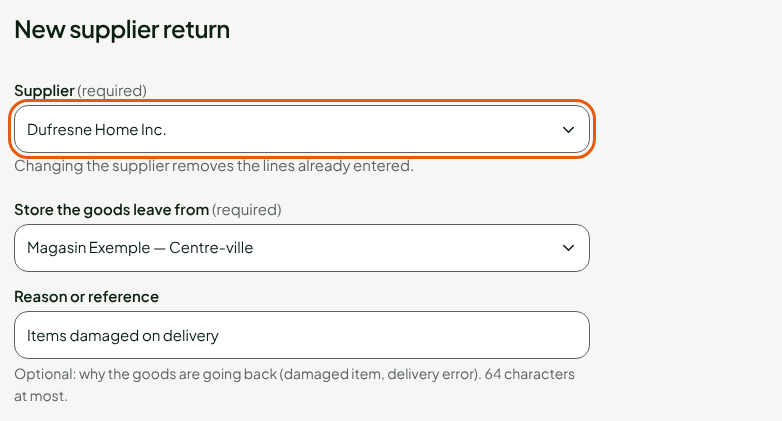
Choose the supplier in Supplier. Changing the supplier removes the lines already entered.
Choose the store whose stock goes down in Store the goods leave from.
Type why the goods are going back in Reason or reference, if you want to: 64 characters at most, no person's name.
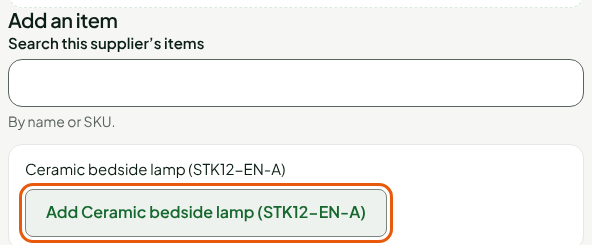
Click Add followed by the item's name under Add an item. For a long list, type a name or a SKU in Search this supplier’s items. Repeat for each item.
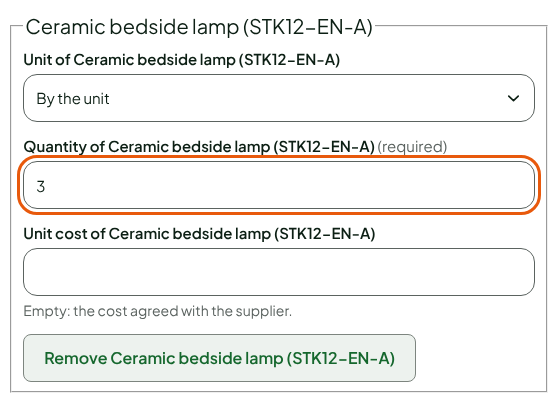
Type the quantity returned in Quantity of followed by the item's name. For an item sold by weight, first choose By weight (kg) in Unit of followed by the item's name.
Leave Unit cost of followed by the item's name empty to keep the cost agreed with the supplier, or type another amount in it.
Click Create the draft.
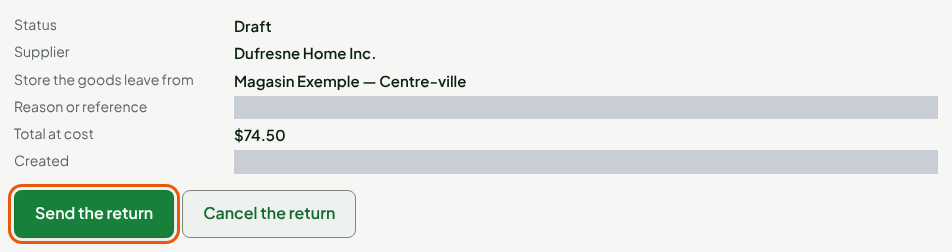
The return opens with the status Draft, with its Total at cost if you see costs. Stock has not moved: you can still send it, or cancel it with Cancel the return.
Sending the return
When the goods leave:
Open the return, from Stock > Supplier returns if it is no longer on screen.
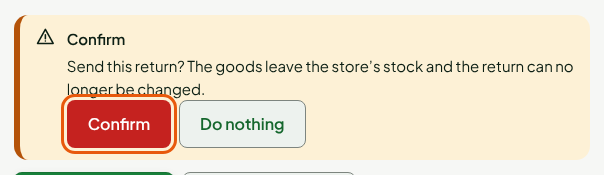
Click Send the return, then Confirm. The screen reminds you that the goods leave the store's stock and that the return can no longer be changed.
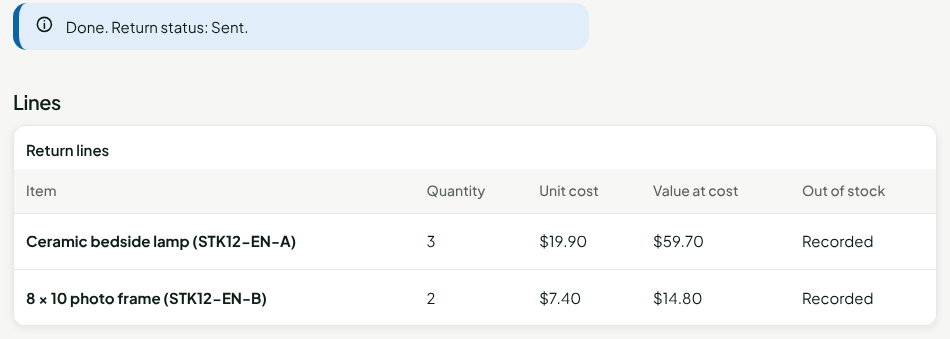
The screen shows Done. Return status: Sent. In the lines table, the Out of stock column says Recorded for each item.
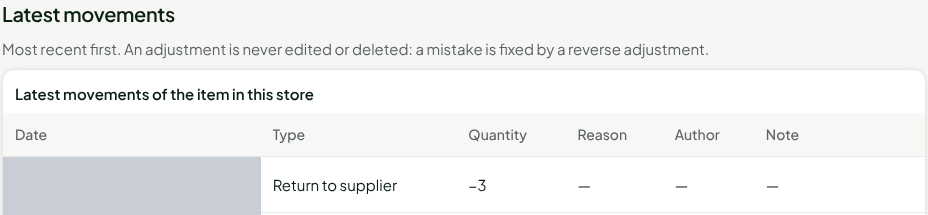
Each line writes a negative Return to supplier stock movement in the chosen store's stock. You see it in Stock > Inventory (Viewing stock levels and movements).
Returning items from an order
For a return that starts from a purchase order, open the order (Sending and tracking a purchase order) and click Return items from this order. This link shows on an order that is Partially received or Received. The supplier and the store come from the order. Under Add an item, the order's items are offered at their cost on the order: click Add followed by the name of each item to return, then type the quantities. Steps 6 to 8 then apply, followed by sending.
Troubleshooting
"This supplier is deactivated: it no longer receives orders or returns."
Reactivate the supplier on its record (Managing suppliers), then try again.
"An item is not linked to this supplier: enter its unit cost."
The item has no cost agreed with this supplier. Type its Unit cost of, or link the item on the supplier's record.
"This action is no longer possible in the document’s current status."
The return was already sent or cancelled, on another screen. Nothing left stock twice: reopen the return to see its status.