Issuing and using store credit
- For
- Cashier, Manager
- Where
- Web register, Installed register
- Permission
- Sell at the register
- Checked on
A customer who has store credit spends it like a payment method. When a sale paid with credit is returned, the register gives it back as credit. This guide follows the web register for paying; credit is given back at the web register or at the installed register.
Before you start
- The customer must have a record, and credit: see Understanding store credit.
- The register must be open and online: credit always needs the server (see Store credit offline: what is allowed).
Paying a sale with store credit
To pay all or part of a sale with the customer's credit:
Open Sell > Sell, then add the customer and the items to the cart. Add the customer in Add a customer, above the cart (guide "Adding a customer to a sale").
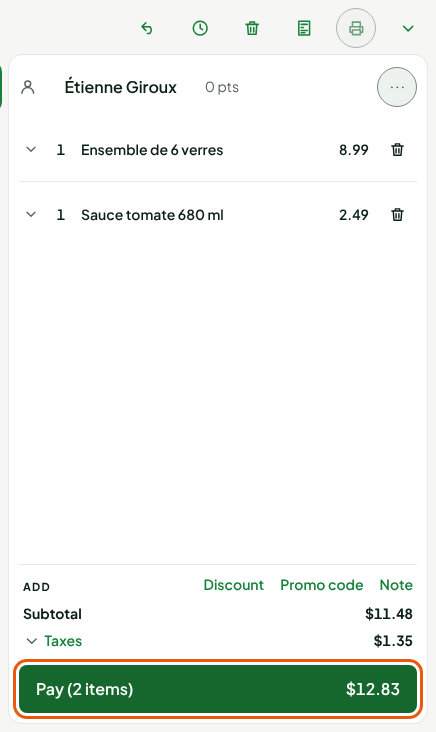
Click Pay, then Store credit.
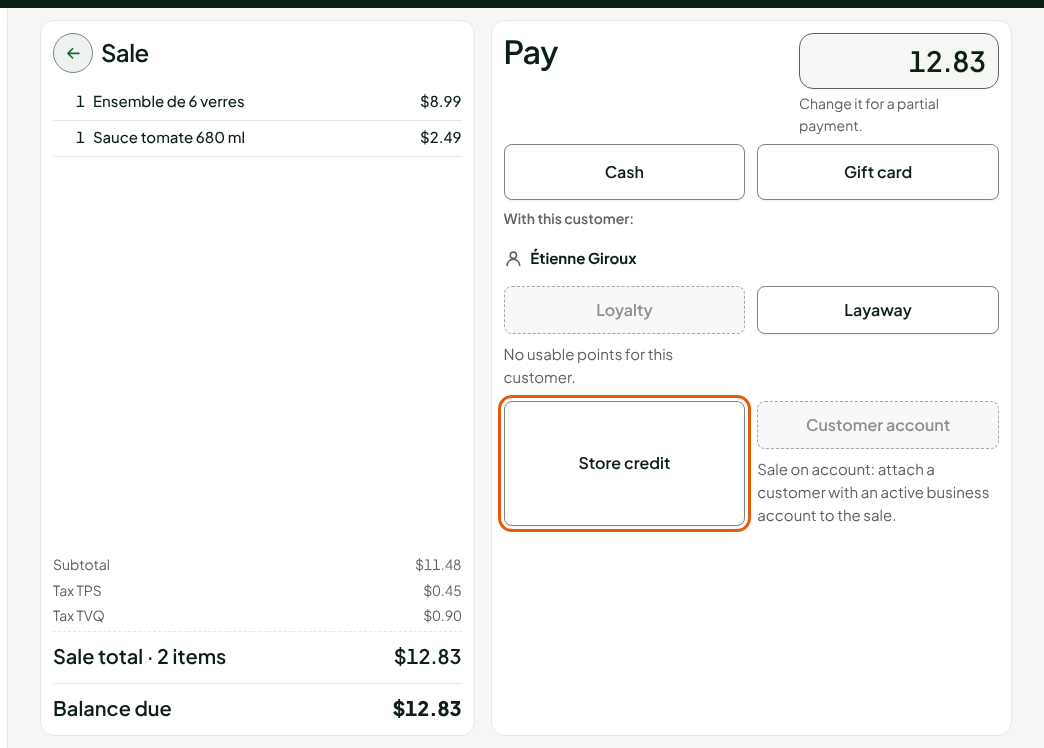
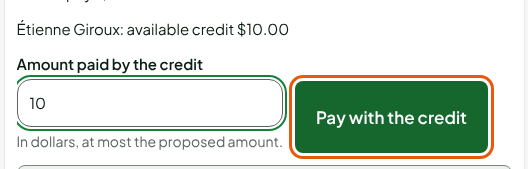
Read the customer's available credit, just below the button. In Amount paid by the credit, keep the suggested amount or type a smaller one.
Click Pay with the credit.
The amount is held on the customer's account, and the screen shows Credit held. The Balance due drops by the same amount. Nothing is spent until the whole sale is paid: Cancel this payment releases the amount.
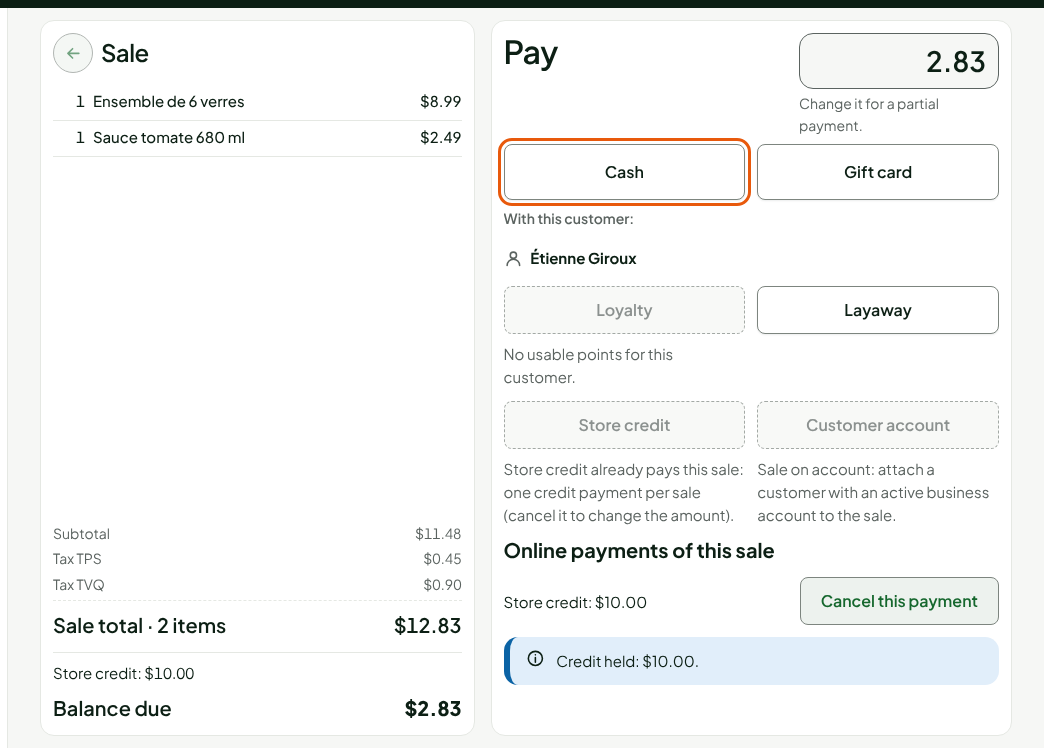
Click Cash, or another method, to pay the rest.
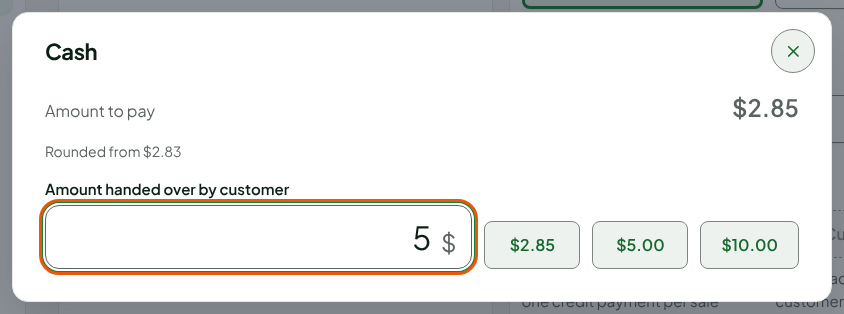
Type the amount received in Amount handed over by customer, then press Enter.
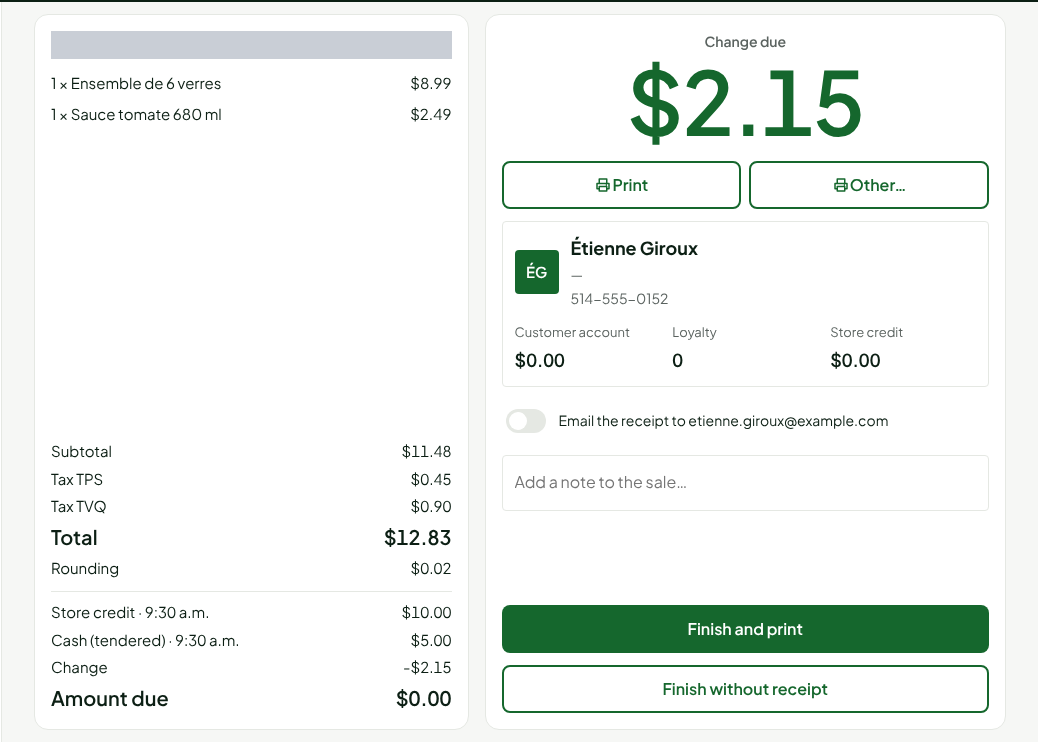
The screen shows the Change due. The receipt lists the store credit and the cash, each with its amount. Click Finish and print or Finish without receipt.
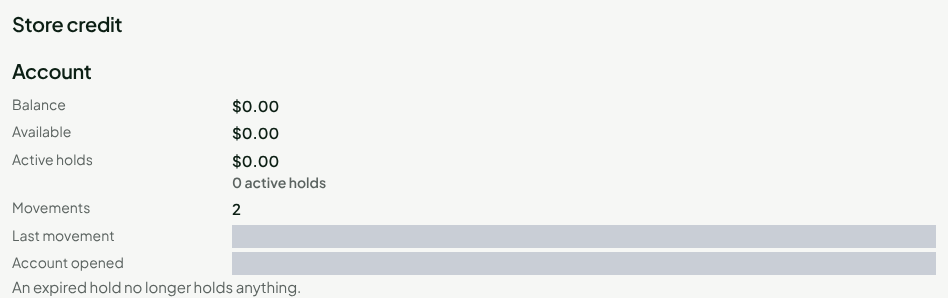
The customer's account drops right away. On their record, in the Store credit section, the Balance is up to date and the history shows the spend.
Only one credit payment per sale. To change its amount, cancel it first, then start again. A sale with no customer cannot be paid with credit: the Store credit button is offered only once a customer is attached.
Giving credit back after a return
A refund follows the original payment method. If the customer paid with store credit, the part paid in credit goes back to them as credit: it is added to their account, not paid out in cash. The return is made with the original sale, at the web register or at the installed register online (guide "Making a return and refunding").
At the web register, the refund screen shows Give back to the store credit of the sale's customer, followed by the amount: click Issue the credit. The credit goes to the sale's customer, with no name to type. Up to $200, the employee issues alone; above that, only an employee who can confirm store credit issues it.
At the installed register, when the return has a credit part:
- On the refund screen, read Give back to the customer's store credit, followed by the amount.
- Type the customer's name in Customer name.
- Click Issue the credit.
- Click Issue the credit in the Issue credit section that opens. The credit part is marked as given back, and the notice Credit issued. takes the place of the section.
- Click Finalize the return, which becomes available. The return cannot be finalized until the credit is given back.
Up to $200, the cashier issues alone. Above that, the screen says Above $200, a manager's PIN is required: the manager picks their name in Manager, types their PIN in Manager PIN, and clicks Confirm. A daily limit also applies to credit issued without a manager.
A sale paid with store credit without a customer cannot be refunded at any register: the credit cannot be given back to anyone.
Troubleshooting
"Not enough store credit available: cancel this payment and use a smaller amount."
The customer has less credit than the amount requested, or another sale is holding part of it. Cancel the credit payment and redo it with a smaller amount.
"Store credit only pays a customer's sale: attach the customer."
The sale has no customer. Add one in Add a customer, then go back to Pay.
"This customer's credit ceiling is reached: refund another way."
The return would take the customer over $1,000 of credit. Refund the rest by another method.
"Manager PIN refused."
The PIN does not match the chosen manager, or that manager does not have the permission to approve a large credit. Have another manager enter it.