Taking a deposit
- For
- Cashier
- Where
- Web register
- Permission
- Sell at the register
- Checked on
A deposit is an amount the customer pays before picking up their items. It is taken when the layaway is created, then each time the customer comes back to pay another. The balance is paid at pickup.
Before you start
- Your role must allow selling (permission Sell at the register) and the register must be open: the money goes through the open session.
- A deposit is optional and never exceeds the balance. A layaway receives at most three deposits: the initial deposit and two further payments. The balance at pickup is never limited.
- To learn how to create a layaway, see Creating and managing layaways.
Taking a deposit when creating the layaway
To put items on layaway with a $20 deposit:
Open Sell > Sell, put the items in the cart, add the customer and click Pay.
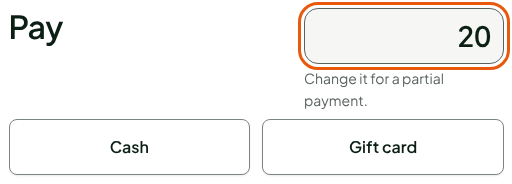
Replace the Amount to collect with the deposit amount.
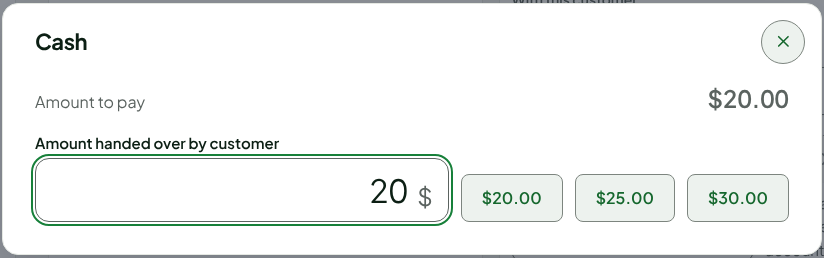
Click Cash, type the amount the customer hands over in Amount handed over by customer, then press Enter.
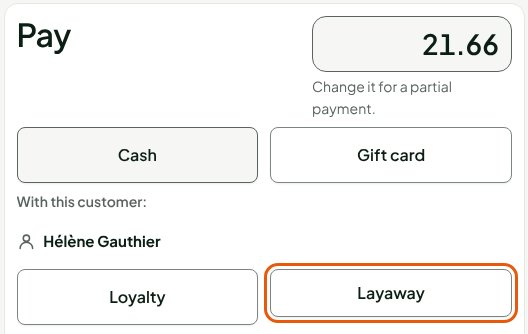
The amount left to pay goes down by the same amount: here, $21.66.
Click Layaway.
The screen shows the layaway summary: the total, the deposit paid and the Balance due at pickup. Click Finish without receipt, or Finish and print to give the receipt.

In cash, the amount is rounded to the nearest 5 cents, as for any sale. A cash deposit of 1 or 2 cents, which would round to $0, is refused.
Taking another deposit later
When the customer comes back to pay a deposit:
Open Sell > Sales history, choose Layaways in progress in Status, then click Search.
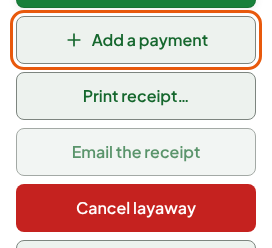
Click the layaway's receipt number, then Add a payment.
Type the amount in Deposit to collect.
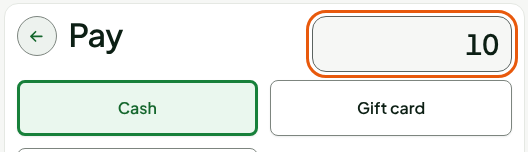
Click Cash (or Gift card, or Store credit), type the amount handed over, then press Enter.
The summary shows the deposit and the Balance due at pickup: here, $11.66.

If the screen refuses the amount ("Invalid amount: enter a positive amount no greater than the balance"), correct it in Deposit to collect.
Giving deposits back
Cancelling the layaway refunds all the deposits, with no fee, to the original payment method. The cancellation screen shows the amount to refund and the cash to hand over.
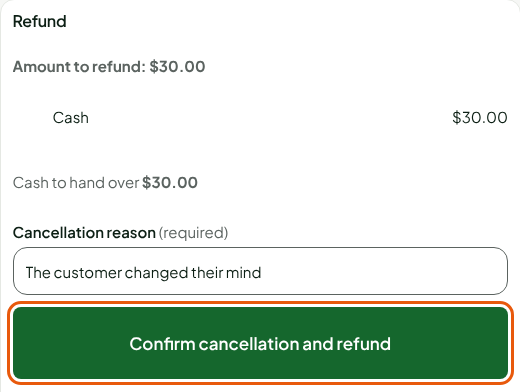
Hand the cash to the customer before clicking Confirm cancellation and refund.
A deposit that has been paid is never edited: it is given back by cancelling the layaway. A special order also accepts deposits, up to three, in cash only at the web register (Taking and handing over a special order).