Welcome to Braavu POS
- For
- Cashier, Manager, Administrator
- Where
- Back office, Web register, Installed register, Phone
- Permission
- No permission required
- Checked on
Braavu POS is the point-of-sale software of your stores. It sells at the counter, keeps your catalog, your stock, your customers and your team, and gives you your reports. This guide presents its four faces: the back office, the web register, the installed register and the phone.
The back office
The back office is where the business is managed. It opens in a web browser, at your business's address, with an email and a password. Managers and administrators create products there, receive stock, follow customers, add employees, set up stores and read reports.
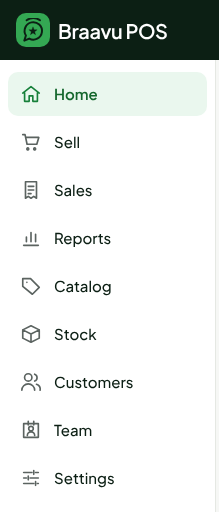
Each person only sees what their role allows. This help center covers the topics of the menu: selling, catalog, stock, customers, team, settings and reports. To find your way, read Signing in to the back office and Navigating the back office.
The web register
The web register is the everyday register. It is in the back office, under Sell: you search for or scan a product, it is added to the cart, then you click Pay.
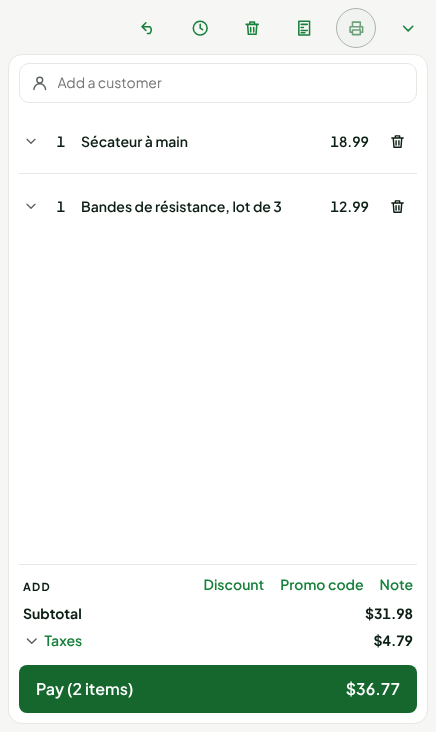
The web register needs the Internet and the server. It calculates the same taxes and the same total as the installed register: a sale costs the same price at both registers. The guide Making a sale shows a sale from start to finish.
The installed register
The installed register is a Windows application, installed on the counter computer, the workstation. It is the backup register of each workstation: it prints receipts, opens the cash drawer and sells even without the Internet.
Each employee chooses their name there, then types their PIN.

Its sale screen has quick keys on the left and the cart on the right. The product and employee names are data of the demonstration register: they stay in French.
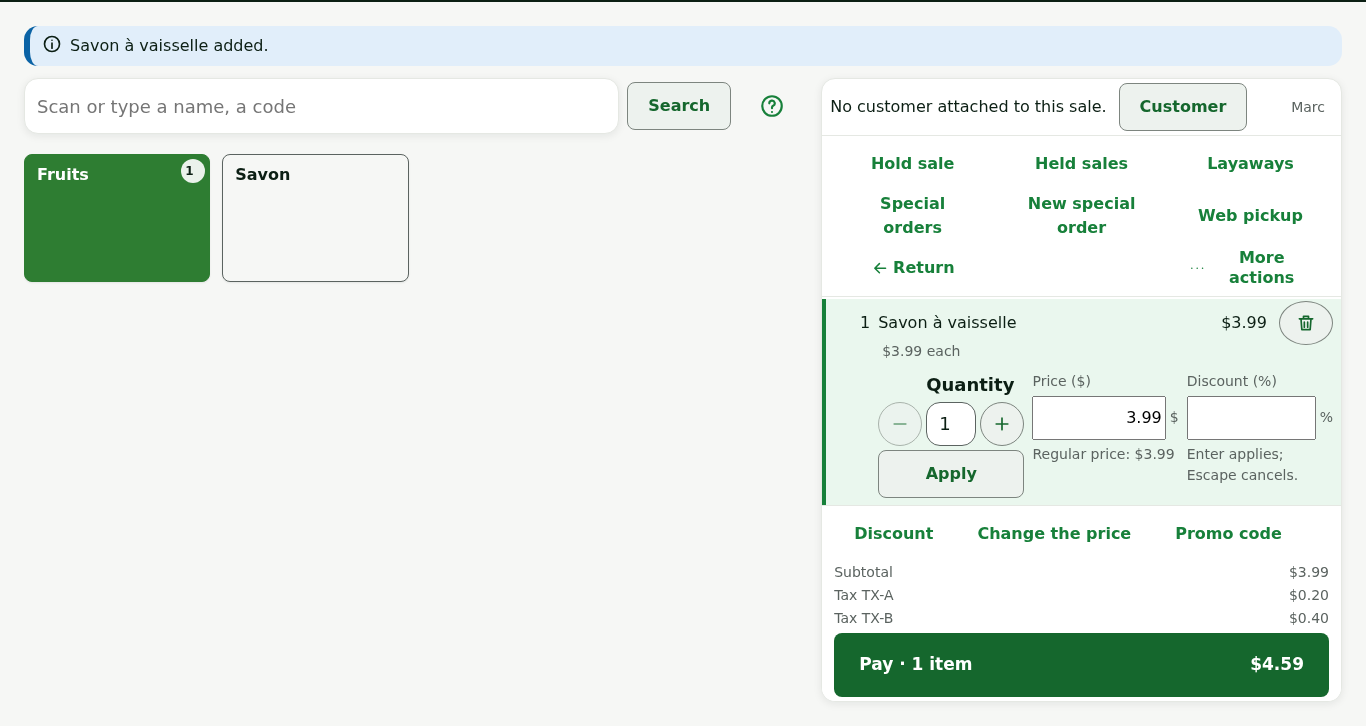
Without a network, the installed register keeps selling. Its header says since when it has been offline and how many operations are waiting to be sent to the server. Sales leave on their own when the network comes back.

Offline, anything that touches a balance shared between workstations, such as store credit or a gift card, waits for the network to come back. A workstation that has gone more than 24 hours without contact with the server locks itself, until the network comes back or a manager unlocks it.
When to use one register or the other: Installed register and web register: which one to use.
On the phone
The back office also opens on a phone. On the floor, it is used to count stock, receive merchandise and transfer items between stores, by scanning barcodes.
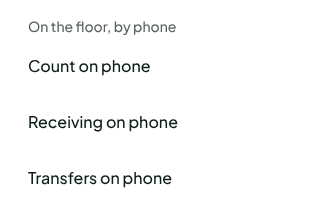
The guide Counting on a phone shows how to use it.
Where to start
Setting up is done in the back office, in this order. Each guide sums up its steps and points to the guide that details them.
- Sign in: Signing in to the back office.
- Set up the business, its stores and its taxes: Getting started: your business settings.
- Add the products and count the opening stock: Getting started: your catalog and opening stock.
- Add your customers: Getting started: your customer list.
- Add your employees and their roles: Getting started: your team.
- Install the hardware and the register on each workstation: Getting started: hardware and workstations.