Taxes collected
- For
- Manager
- Where
- Back office
- Permission
- View reports, All sales at assigned stores
- Checked on
The "Taxes collected" report gives, component by component (TPS, TVQ or any other configured tax), the taxes collected on sales and refunded on returns over a period, to the cent. Use it to prepare tax returns.
Before you start
Your role needs two permissions: View reports and All sales at assigned stores.
The taxes in this report are the ones that were recorded on each sale and each return. They are never recalculated: applying the rate to the base in the table can give a few cents of difference.
Showing the report by period
To see the taxes of a period:
Open Reports > Taxes collected.
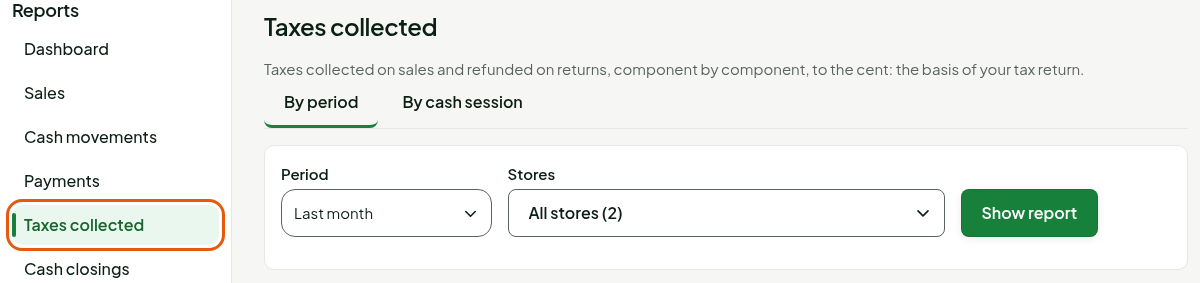
Under Period, choose the period of your return. At first, the report shows Last month. With Custom, enter the From and To dates.
Under Stores, keep All stores or choose a store (guide "Choosing the period and the stores of a report").
Click Show report.

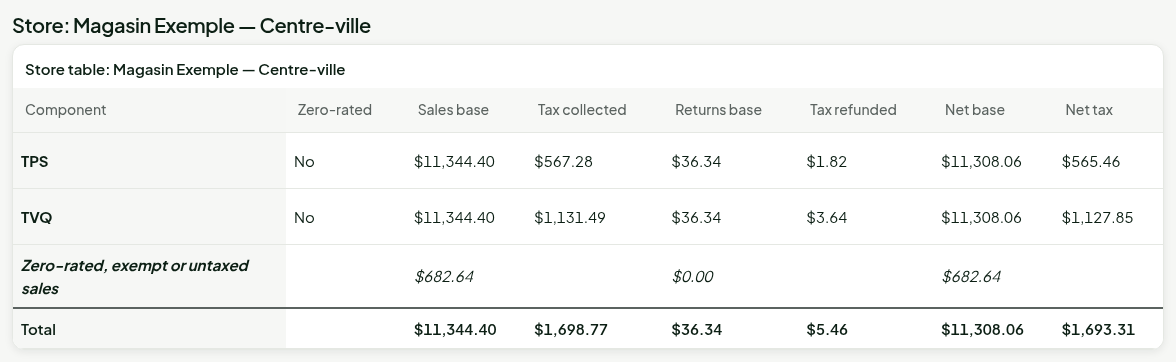
The By period tab shows one row per tax component, then a Total row.
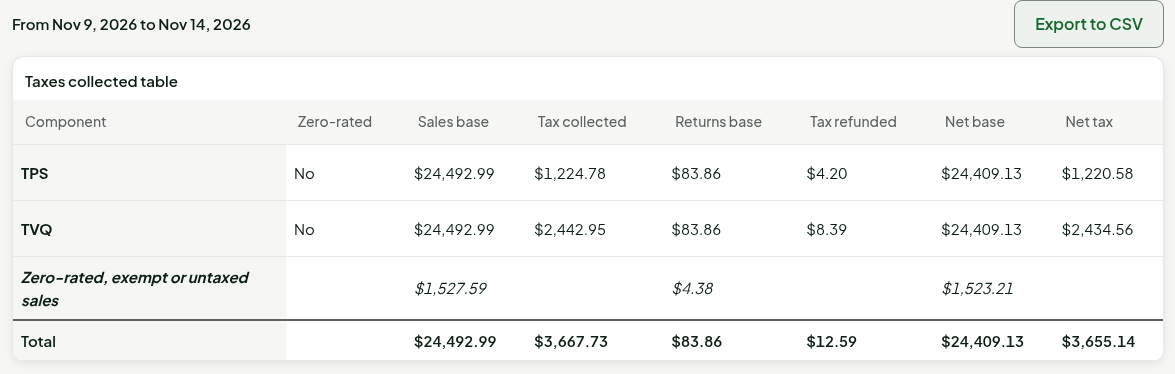
The Zero-rated, exempt or untaxed sales row, in italics, shows the sales on which no tax was collected, with their base only.
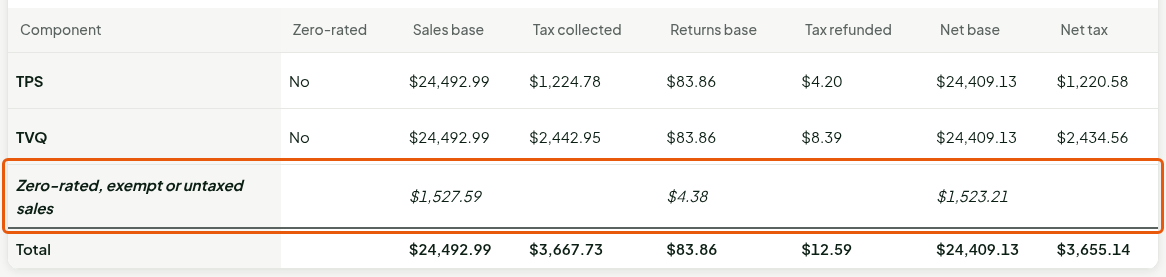
Taxes are read in the Tax collected, Tax refunded and Net tax columns. A sale exempted by an exemption certificate appears in an Exempted sales section, under the table, with the uncollected tax given for information.
Reading the registration numbers
Under the table, Store registration numbers gives the tax number of each store, for the return. When a store has none, the report says "No number saved for this store." If your role can set up the stores, a Set up the stores button then opens Settings > Stores and registers.

Seeing the taxes by cash session
To match the taxes with the cash closings:
Click the By cash session tab.

Click Show report if you changed the criteria.
The report shows one section per store, with the same table as By period.
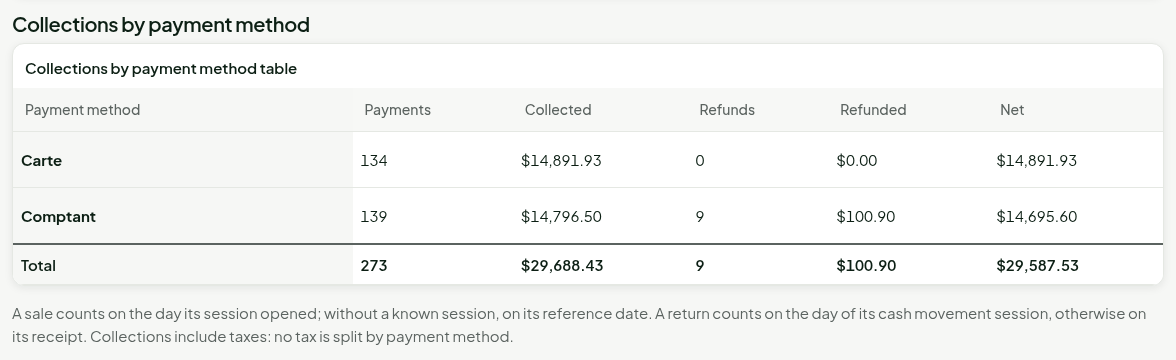
It then shows All stores, then Collections by payment method: the number of payments, what was collected, the number of refunds, what was refunded and the net, method by method. These collections include taxes: no tax is split by payment method.
Understanding the columns
| Column | What it shows |
|---|---|
| Component | A configured tax, for example TPS or TVQ. |
| Zero-rated | Yes when the tax is configured at a rate of zero, otherwise No. This is configuration information: it changes no amount. |
| Sales base | The amount of sales the tax applies to. |
| Tax collected | The tax collected on those sales. |
| Returns base | The amount of returns the tax applies to. |
| Tax refunded | The tax refunded on those returns. |
| Net base | The sales base minus the returns base. |
| Net tax | The tax collected minus the tax refunded. |
Voided sales do not count. The bases in the Total row count each sale line once, even if it carries several components: the total is therefore not the sum of the bases of the rows.
In By period, a sale counts on its reference date and a return on its receipt, by each store's day. In By cash session, a sale counts on the day its session opened and a return on the day of the session of its cash movement. The two views answer two different questions: a sale made after midnight in a session opened the day before counts on two different days. For the same dates, their totals can therefore differ.
The Payments report dates each payment on the day of its sale, whereas the By cash session view dates the sale on the day of its session: their net amounts differ when those days differ. The Net tax of the total in the By period view is the Taxes row of the Sales report.
Troubleshooting
"No sales or returns for this period."
No sale or return was made in the period, in the stores you chose. At first, the report shows last month: if the business sold nothing that month, it is empty. Click Change the criteria and choose another period. In the By cash session view, the message says "No cash session, no sale and no return for this period."