Editing variant products
- For
- Manager
- Where
- Back office
- Permission
- Manage the catalogue
- Checked on
Each variant of a family is a product in its own right, with its own sheet, item code, price and stock. This guide changes the value of a variant (its colour, its size) and its price, finds the other items of the family, and adds a variant to an existing family.
Before you start
- Your role must have the Manage the catalogue permission. To change the price you also need Manage prices.
- The family must already exist: see Adding a product with variants.
The attributes of a family (Couleur, Taille) can no longer be changed once the family is created. What differs from one variant to the next is their values (Vert, Gris, M, L).
Open a variant
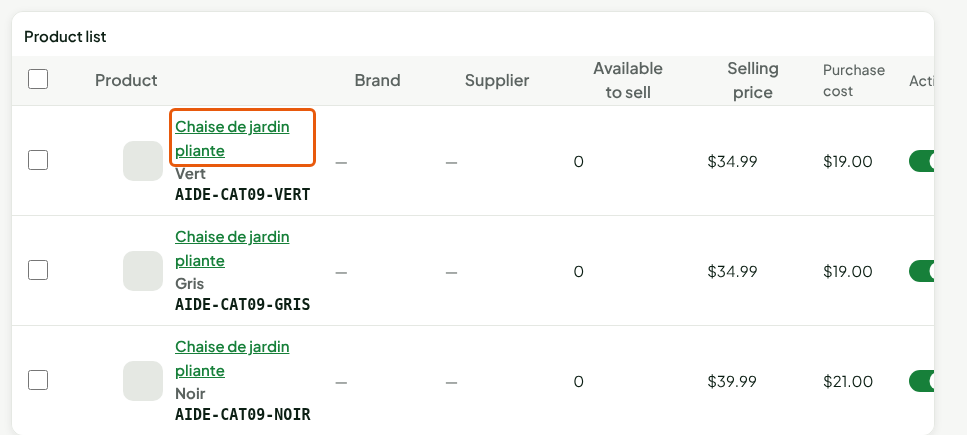
Open Catalog > Products.
Type the start shared by the variants' item codes, for example
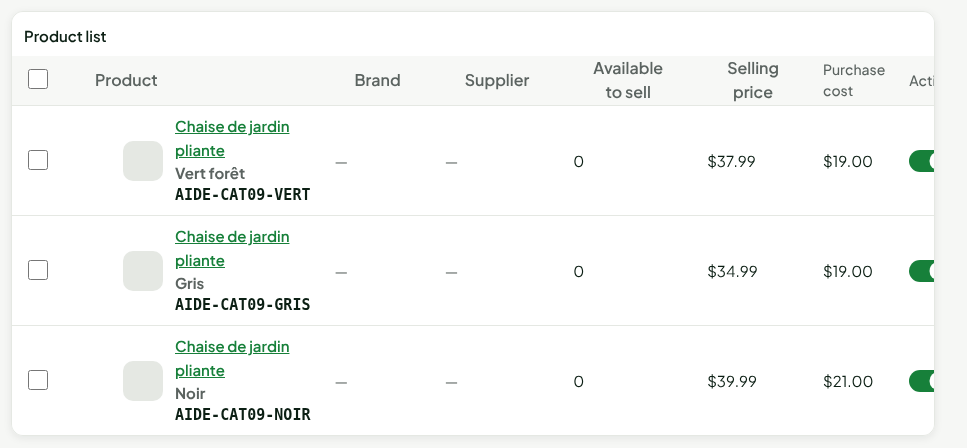
AIDE-CAT09, in Search products: the list shows one row per variant, with its value under the name.Click the name of the variant to edit.
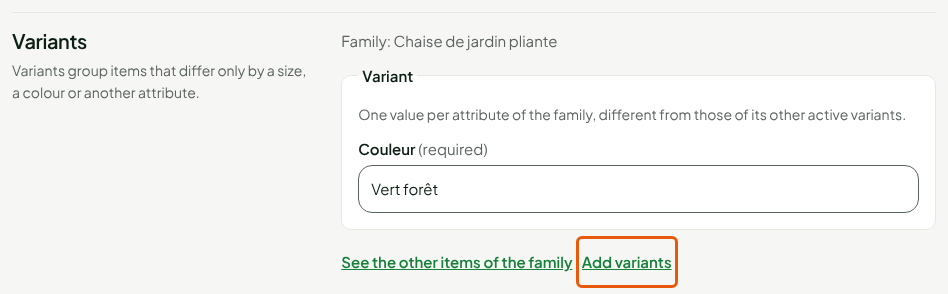
The variant's sheet opens. In the Variants section you see its family and the value of each attribute, with two links: See the other items of the family and Add variants.
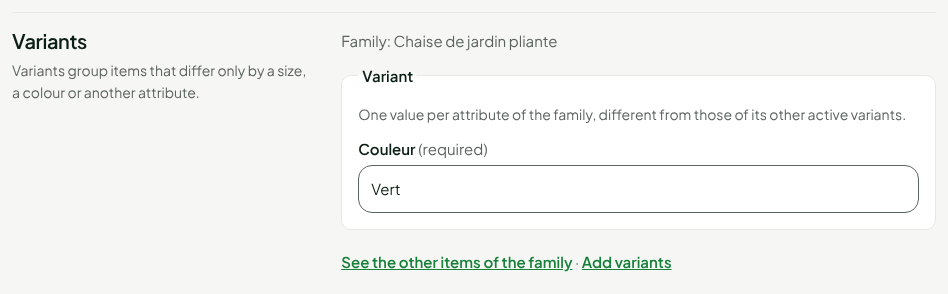
Change a variant's value and price
Change the value, in the Variants section, for example
Vert forêtin place ofVert. The value must differ from those of the family's other active variants.Change the Selling price, in the Pricing section, for example
37.99. The other variants keep theirs.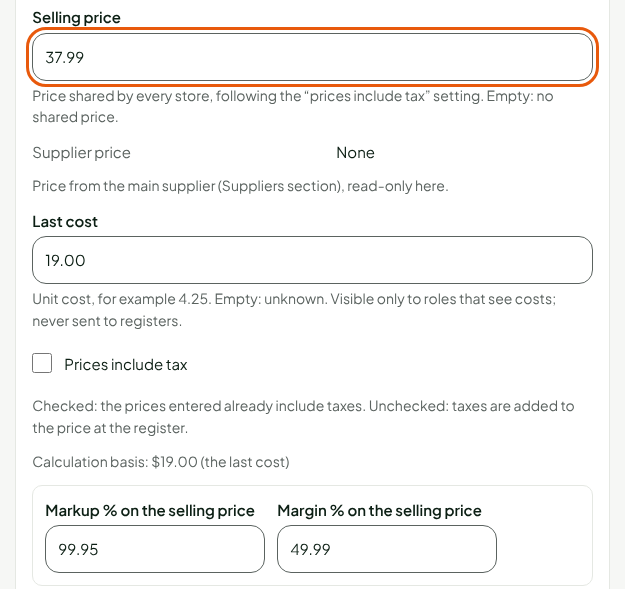
Click Save, in the bar at the top of the sheet.
The sheet shows “Product saved.” Only this variant has changed.

The item code, the barcodes, the cost, the tax class, the weight and the dimensions are also specific to each variant: change them the same way, on the variant's sheet.
Four things are shared by the whole family: the category, the brand, the tags and the description. Changing them on one variant changes them for all the others.
See the other items of the family
Click See the other items of the family, in the Variants section.
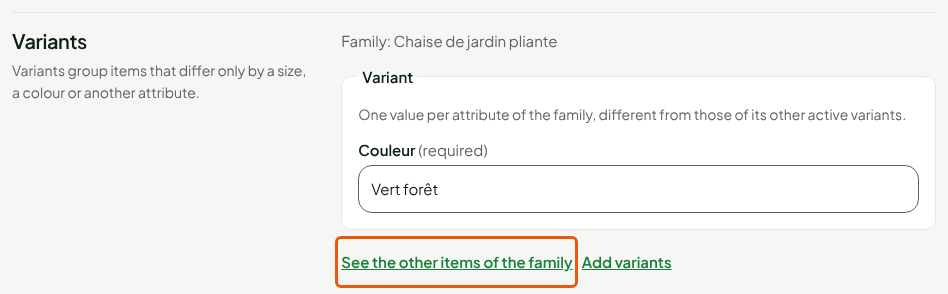
The product list now shows only the family's items, with their value, price and, if your role has View purchase costs, cost. Click Show all families to go back to the whole list.
Add a variant to the family
Open the sheet of a variant of the family, then click Add variants, in the Variants section.
Type the new variant's code in Item code, for example
AIDE-CAT09-BLEU. The Name is taken from the original variant.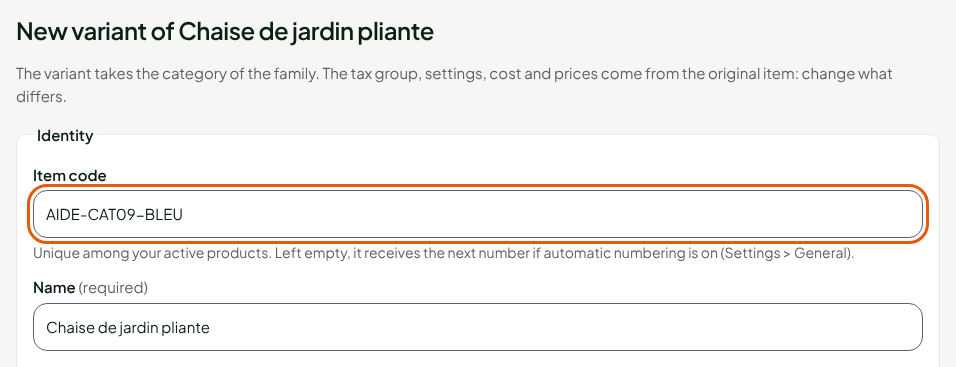
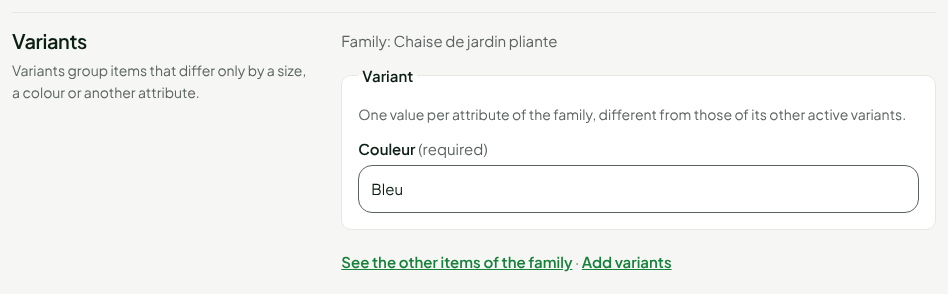
Type the value of each attribute under Variant, for example
Bleuin Couleur.
Change what differs from the original variant: the tax class, the cost, the barcodes, the price. Everything else is taken from it.
Click Create the variant, in the bar at the bottom of the window.
The new variant's sheet opens, with its family and its value.
To remove a variant from the registers, see Deactivating or deleting products. A deactivated variant no longer counts: its value can be taken by another variant.
Troubleshooting
“Another active variant of the family already has these values.”
Two active variants never carry the same values. Change the value, or deactivate the other variant first.
“This item code is already carried by another active product.”
The item code is unique among active products, variants included. Choose another one.