Splitting a payment between several methods
- For
- Cashier
- Where
- Web register
- Permission
- Sell at the register
- Checked on
A customer can pay one sale with several methods: part in cash, part with their store credit, the rest in cash. Each part is paid one after the other; the sale only ends when the Balance due is zero.
Before you start
- The customer must be on the sale to pay with their Store credit or Customer account (Adding a customer to a sale). A Gift card does not need a customer.
- This guide follows the web register. On the installed register, cash always settles the whole balance due: pay the other methods first, then cash last.
- An online method (store credit, gift card) needs the server. Offline, the screen shows Offline: offer another payment (cash). (Selling offline).
Taking a first part in cash
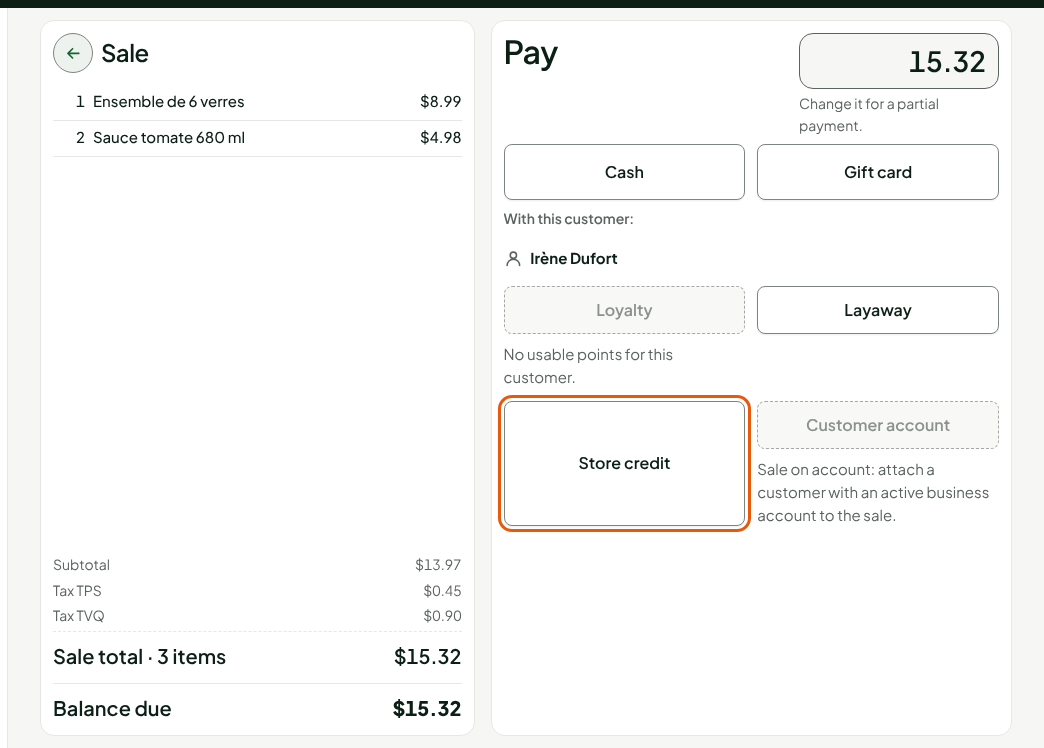
For a $15.32 sale where the customer hands over $5 in cash first:
Click Pay. The Pay screen opens, with the balance due in large type.
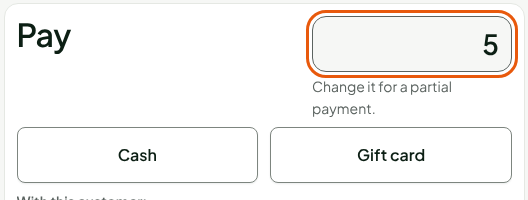
Type 5 in Amount to collect, at the top right: this field makes the partial payment.
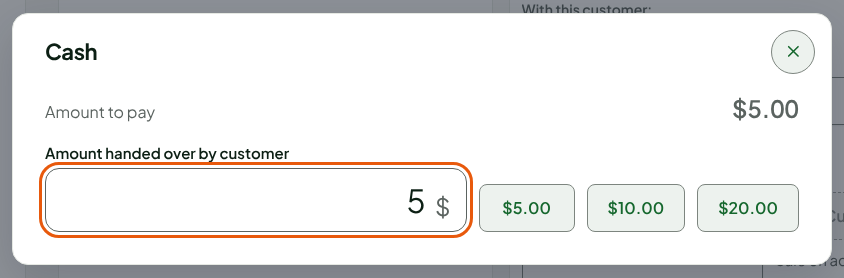
Click Cash, type the amount handed over in Amount handed over by customer, then press Enter.
The cash part is recorded. Under the sale, the Balance due drops to $10.32.
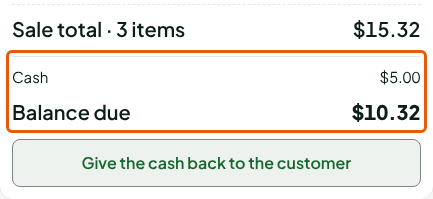
Once a cash part has been taken, the cart can no longer be abandoned. To cancel everything, click Give the cash back to the customer under the sale and hand back what the customer gave.
Paying a part with store credit
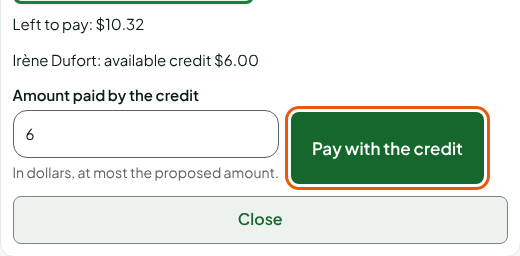
Click Store credit. The screen shows the Balance due and the customer's available credit.
Type the amount in Amount paid by the credit. It cannot be more than the available credit or the balance due.
Click Pay with the credit.
The payment is added under Online payments of this sale, and the Balance due drops by the same amount ($4.32). A customer pays with store credit only once per sale.
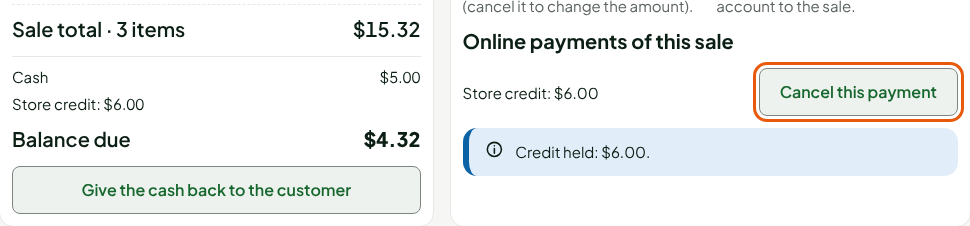
To change the amount, click Cancel this payment: the amount is given back to the customer, then pay again. Paying with a Gift card works the same way: read the card balance, choose the amount, pay with the card.
Paying the rest in cash
Click Cash. The window offers the balance due, rounded to 5 cents: $4.30 for $4.32 (Taking cash payments and rounding to 5 cents).
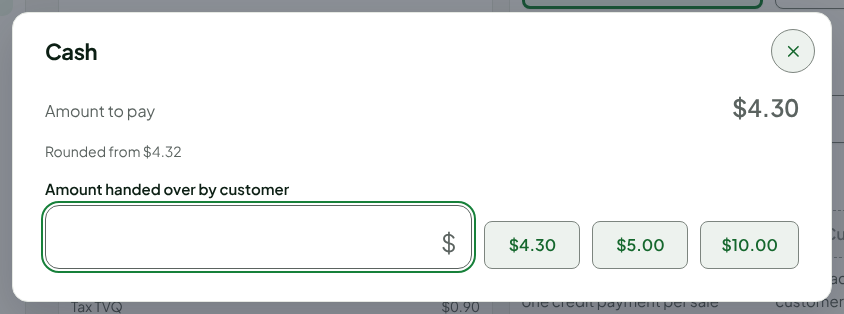
Type the amount handed over, $5 here, then press Enter.
The screen shows the Change due on the last part: $0.70.
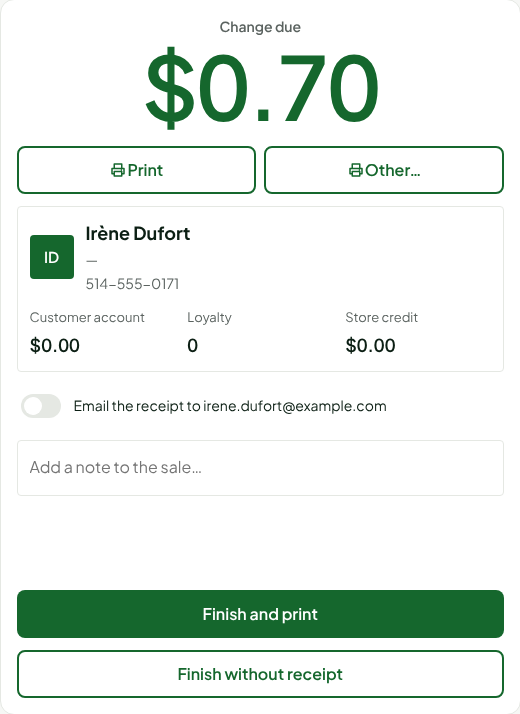
- Click Finish and print or Finish without receipt.
Troubleshooting
"For this basket, collect the remaining cash balance in one payment."
A sale that carries loyalty points as a discount or a promo code does not allow an earlier cash part. Pay the other methods first, then cash last, for the whole rest.
"Store credit already pays this sale"
A sale accepts only one store credit payment. Cancel this payment, then redo it with the right amount.
"An account sale is invoiced in full"
The Customer account pays the whole sale: cancel the other payments first.
"Too many payments for one sale: pay the rest in cash."
A sale can only be split between a limited number of methods. Pay the whole rest in cash.