Choosing a product's tax
- For
- Manager
- Where
- Back office
- Permission
- Manage the catalogue, Manage prices
- Checked on
A product's tax is chosen through its tax class: the class says which of each store's taxes apply to the product, all of them, none, or only some. The register then calculates the tax at each sale. This guide changes a product's class, then sets a particular tax for a single store.
Before you start
- The taxes, the classes and each store's taxes are set first in Settings > Taxes (guide Setting up taxes).
- To change the class, you need the Manage the catalogue permission. To set a store's tax you also need Manage prices: without it, that part is read only.
- A class shows under the name you gave it in Settings > Taxes. A class you have not named yet shows under a default name: its taxes, then its code in brackets, like “TPS 5 % + TVQ 9.975 % (EX_TAXABLE)” or “No tax (EX_DETAXE)” below (without the Manage stores and settings permission, only the code shows).
A tax change only applies to future sales. Sales already made keep the tax that was collected.
Change a product's tax class
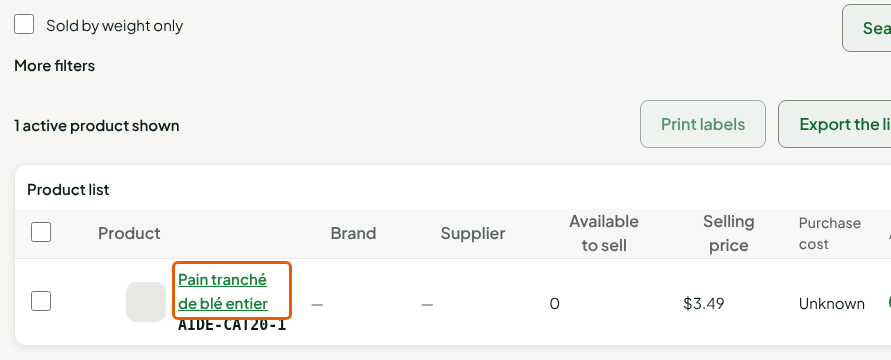
Open Catalog > Products, look for the product, then click its name.
Find Tax class in the Tax section.

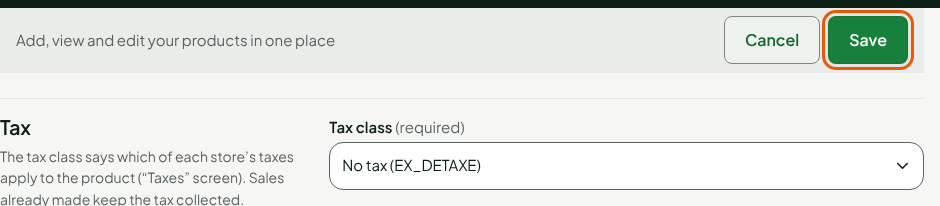
Choose the class you want in Tax class, for example the one that gives no tax.
Click Save, in the bar at the top of the sheet.
The screen shows "Product saved." The registers apply the new class at their next synchronisation.

As long as no class is created in Settings > Taxes, the list shows the classes your business already uses, under their code, and Other code…: that choice lets you type the code of a class that is not in the list. Once you have created your classes, the list shows only those.
Set a product's tax in one store
In rare cases, a store must apply other taxes to a product than those of its class. Each store can have its own tax for this product.
Open the product's sheet, then click Advanced: other taxes in one store, in the Tax section.
Choose the tax of the store you want in the Product tax by store table. Store default tax lets the class decide. No tax or a tax group, for example TPS 5 % + TVQ 9.975 %, replaces the class in that store only.
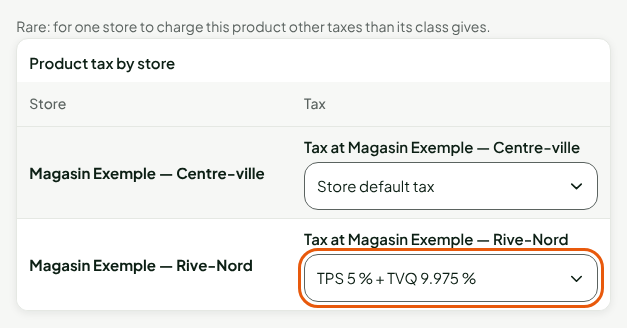
Click Save, in the bar at the top of the sheet.
A store that has a particular tax keeps the table open when the sheet is opened.
See the tax at the register
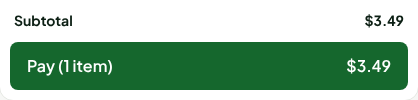
At the sale, the register takes the tax of the product's class in the register's store. A product whose class gives no tax adds no tax line: the basket total is the subtotal.
Troubleshooting
"This product has no tax in these stores: …"
The screen shows “Save incomplete” at the top of the sheet, and this message in the General section. The sheet is refused, on purpose: an active product must have a valid tax in every active store, and in the stores named the product's class is not tied to any tax (a store with no tax ticked in Settings > Taxes is a common case; a "no tax" mapping, on the other hand, counts as valid). Click Configure store taxes, tick the taxes of those stores in Settings > Taxes, or choose a tax for that store in Advanced: other taxes in one store, then save again.
"This tax class does not exist. Choose one from the list."
The code typed in Other code… is not that of a class. Choose a class from the list, or create it in Settings > Taxes.
"Read only: the permissions to manage the catalogue and prices are required to change the tax."
The store tax table can be read, but your role cannot change it. Ask for the Manage prices permission.