Troubleshooting barcode scanners
- For
- Cashier, Administrator
- Where
- Installed register
- Permission
- Sell at the register
- Checked on
A barcode scanner types into the register like a keyboard. When a scan does not put the item in the cart, the cause is almost always the scanner itself, a code the register does not know, or a window open on the sales screen.
Before you start
This guide assumes the scanner is set up as in Setting up a barcode scanner. The messages quoted are those of the installed register.
Troubleshooting
Nothing appears in the search field
The scanner sends nothing to the computer.
- Check that the scanner is switched on and connected to the register computer.
- Click in the Scan or type a name, a code field, then read the code again.
- If nothing is written, try the scanner in another program that accepts text, such as Windows Notepad. If it does not write there either, the problem is the scanner or its connection, not the register.
The code appears in the field, but the item does not go into the cart
The register only recognises a scan if the characters arrive very close together and end with Enter (or Tab). A scanner that is too slow, or that does not send that key at the end, leaves the code in the field: the register sees typing by hand.
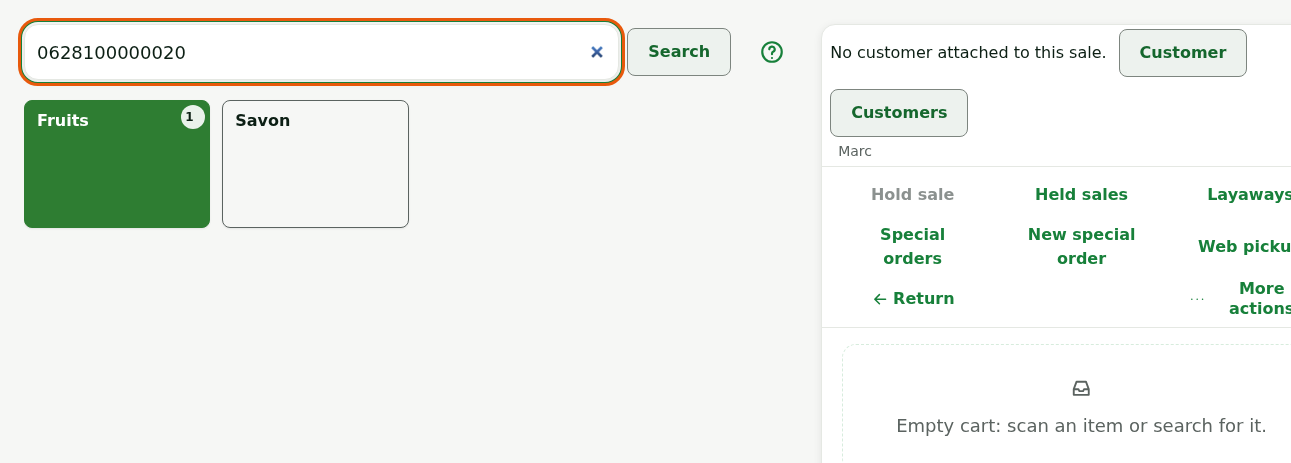
To add the item right away:
Press Enter in the field, or click Search.
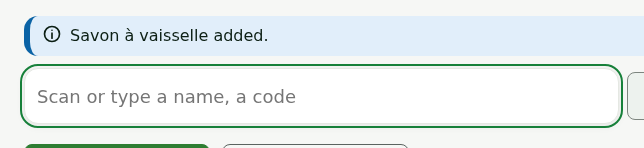
Text that looks like a code is handled as a scan: the item goes into the cart. For this to happen without any action, the scanner must send Enter at the end of the code; that setting belongs to the scanner, in its manufacturer's manual. The scanner must not add any character before or after the code either.
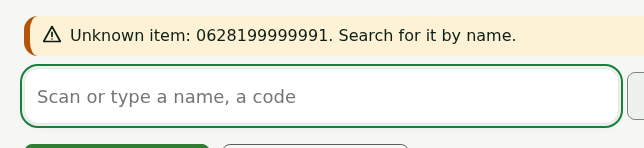
“Unknown item:” followed by the code
No item in the station's catalog carries this code. Search for the item by name. If it exists, its barcode is not on its catalog record: ask a manager to add it.
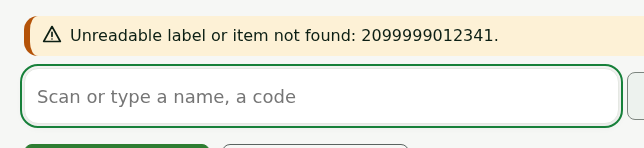
“Unreadable label or item not found:”
The code looks like a price or weight label, but the register cannot read it: the rule for this label is not set up, or the item does not exist. Search for the item by name, then report the label to a manager.
“No item in the station catalog for” followed by the text
No item matches what you searched for by hand. Check the spelling, or search for part of the name or the code.
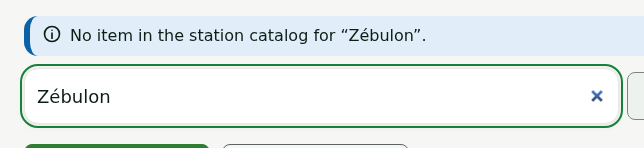
“Several items carry code” followed by the code
Two catalog items share this barcode. Choose the right one in the list that appears, then report the duplicate to a manager.
“Scan ignored” followed by the code: “finish the current action, then rescan”
An action is in progress on the sales screen (a resume, a cancellation, a payment). Finish it or close it, then read the code again.
The code goes into a window, not the cart
When a customer, promo code or serial number window is open, the code read goes to that window, never to the cart. Close the window to scan items.