What's new on November 14, 2026
- Released on
- Sections affected
- Sell, Stock, Catalog, Settings, Team
What changed on screen in Braavu POS on November 14, 2026: what you see, where to see it and the guide that explains it.
Returning a sale paid by gift card or store credit
At the web register, a sale paid by gift card or with store credit can be returned. The Refund screen reloads the card that paid (the customer does not need to present it) or gives the credit back to the sale's customer; the rest is refunded in cash. A sale paid by payment card is not refunded at any register.
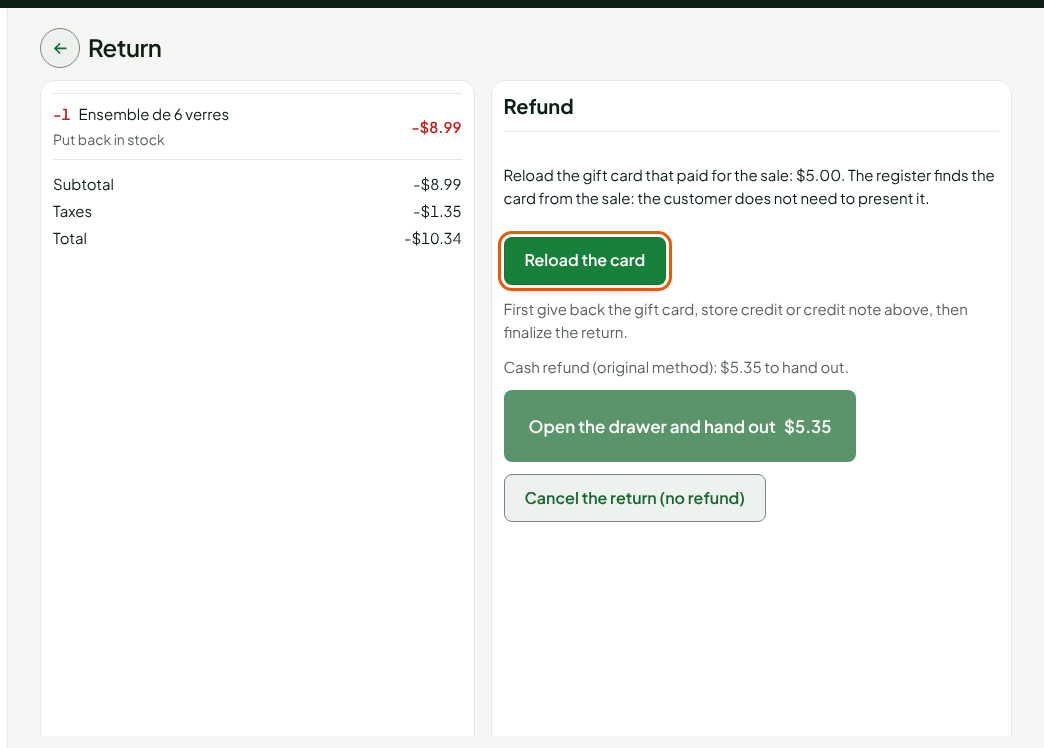
Where to see it: Sell > Sales history, then Return items. The guide: Returning items and refunding.
Returning a sale paid on account
At the web register, a sale paid entirely Customer account can be returned. No cash is given back: Issue the credit note creates a credit note to the customer's account, linked to the sale's invoice, and the account balance due goes down by the same amount.
Where to see it: Sell > Sales history, then Return items. The guide: Returning items and refunding.
Voiding a sale: the cash to give back
After a sale is voided at the web register, the message says the cash to give back: "Give $5.00 in cash back to the customer." When the sale was not paid in cash, it says "No cash to give back."

Where to see it: Sell > Sell, More actions…, then Void a sale. The guide: Voiding a sale.
Negative stock: a warning on the cart line
When the store's Negative stock setting is ticked, the register writes "More than the available stock (2)" under the cart line whose quantity is more than what is available, at the web register and at the installed register. The sale is never blocked.
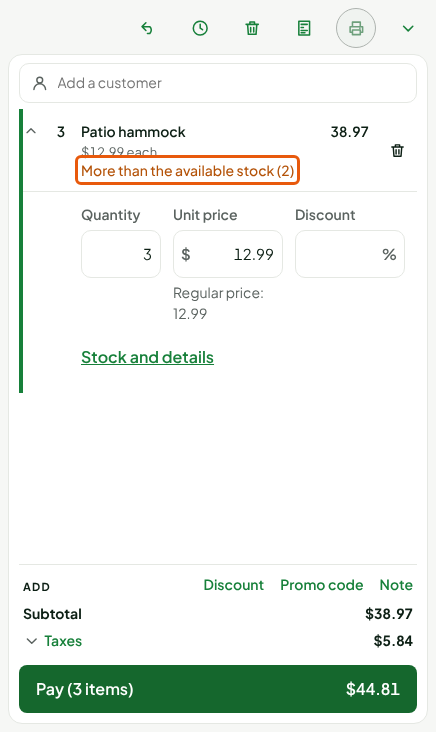
Where to see it: the sell screen. The setting is under Settings > Stores and registers, on the store's page. The guide: Understanding negative stock.
Counting on a phone: the barcode is recognized
When counting on a phone, the Barcode or SKU field recognizes an item's barcode, secondary codes included, and not only its SKU.
Where to see it: Open menu > Count on phone, on the phone. The guide: Counting on a phone.
Counts: ending the entry asks for a confirmation, and the entry can be reopened
At the office, End the entry asks for a confirmation that reminds you to check that every phone has sent everything. An entry that arrives afterwards is refused: it stays kept on its phone and shows at the office under Entries refused after entry was finished. As long as the count is not closed, a manager who has Adjust stock can click Reopen the entry; on the phone, Resend then sends the entry, which counts only once.
Where to see it: Stock > Inventory counts, in the detail of a count, and Open menu > Count on phone, on the phone. The guides: Running a full count and Troubleshooting a count.
The author of a change appears by name
In the history of a product, of a price list and of the settings, the Author column (By in the settings history) gives the name of the person who made the change. Deleted account appears when their access no longer exists.
Where to see it: the Change history section of a product page, the History tab of a price list and the bottom of the Settings screens, such as Payment methods. The guides: Viewing a product's history, Updating a price list and Viewing the settings history.
A maximum discount for each role
A role can have a maximum discount, in percent, per line and for the whole sale. Beyond it, the register asks for the PIN of an employee whose role allows that discount.
Where to see it: Team > Roles, Discounts section of a role's page. The guide: Creating roles and permissions.
A role limited to its own sales
Without the All sales at assigned stores permission, a person sees in the sales history and the sales reports only the sales they made. The reports on all employees (taxes, cash, closings) are not open to them.
Where to see it: Team > Roles, under the View reports permission. The guide: Creating roles and permissions.
Register updates: a pilot register
You can designate a pilot register or store: a new version of the installed register is offered to it first, and to the other registers 24 hours later. If it causes a problem, Withdraw this version stops it before it reaches the other registers.
Where to see it: Settings > Installed registers, Register updates: pilot register button. The guide: Installing the register on a workstation and enrolling it.