Adding a composite product
- For
- Manager
- Where
- Back office
- Permission
- Manage the catalogue
- Checked on
A composite product is sold as a single item, but it is made of other products from the catalogue: a gift box, a basket, a set. The composite has its own name, code and price; its components are the products that leave stock when it is sold.
Before you start
- Your role must have the Manage the catalogue permission.
- The components must already exist, be active and have a price in every store where the composite is sold. Otherwise saving is refused.
- The composite is a simple product: it has no variants. To create it, see the guide Adding a product.
A composite has no stock of its own: its components move. When the composite is sold, the register takes each component out of stock, by its quantity. Only one layer of composition is allowed: a component cannot itself be a composite.
Create the composite product
Open Catalog > Products, then click New product.
In Name, type the composite's name, for example
Coffret cuisine.
Fill in the composite's item code, tax class and selling price, as for a simple product. Its price is not the sum of its components' prices: you set it.
Add the components
Components are set in the Packaging section, in the block The products Coffret cuisine comes from. For a product that is already saved, open its sheet and go to the same place.
Scroll down to the Packaging section. As long as no component is added, the screen says "No components: this item is not a composite."
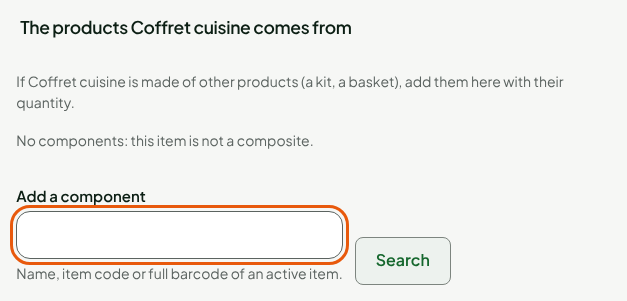
In Add a component, type the name, item code or full barcode of an active product, for example
Poêle, then click Search.Click the Add button of the product found, here Add Poêle antiadhésive 28 cm (code EX-0004).
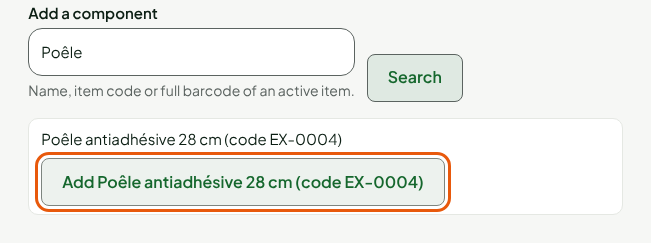
Repeat for each component, for example with
verres.In Quantity of followed by the component's name, type the number of units of that component in one composite. The quantity starts at 1; for half a unit, type
0.5(to the thousandth).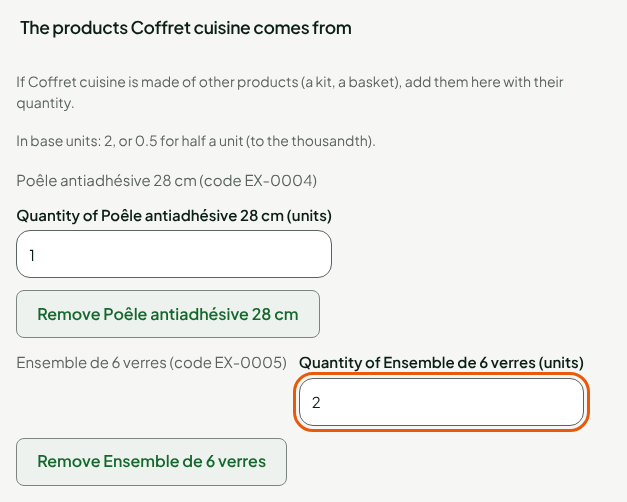
To remove a component, click Remove followed by its name. The list you save replaces the previous one entirely; an empty list removes the composition.
Save
Click Save, in the bar at the top of the sheet.

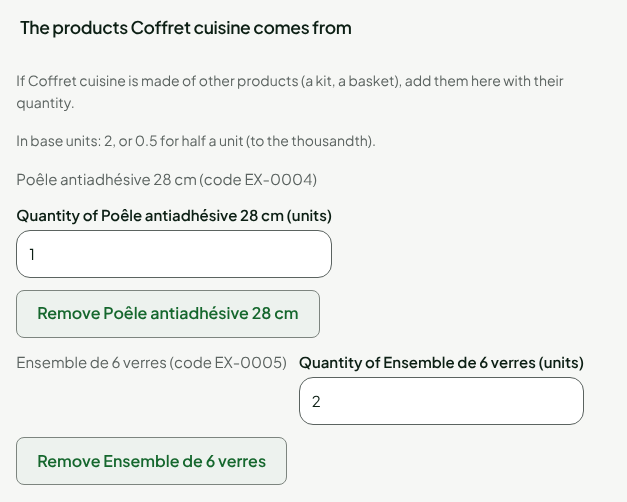
The composite is created, with its components and their quantity. The sheet shows them, each with its quantity.
A component's own sheet, in its Packaging section, lists under Used in the composites that use it.
Troubleshooting
"A component is deactivated: reactivate it or remove it from the list."
A component you add must be active. Reactivate it in the product list, or remove it from the composite.
"A component has no price in a store where this item has one"
The register can only link a component in a store where it sells. Give that component a price in that store first.
"One level of composition only"
Two cases. The component you are adding is itself a composite: choose another product. Or the product you are editing is already part of another composite: the sheet says so ("This item is already part of a composite: it cannot receive components (one level of composition only).") and it cannot become a composite. A simple product can, however, be part of several composites.
The "Inactive component" warning
A component that was already saved has been deactivated, or has lost its price in a store. The composite is still sold, but the register cannot link this component everywhere: reactivate it, give it the missing price, or remove it from the list.