Adding, editing, and anonymizing customers
- For
- Manager, Administrator
- Where
- Back office
- Permission
- Manage customers
- Checked on
A customer record keeps the name, contact details, and balances of a person or business that buys from you. Create one when a customer wants an emailed receipt, loyalty points, or an account. Correct it when their details change. Anonymize it when they ask for their information to be erased.
Before you start
- Your role must have the Manage customers permission.
- You need at least a first name, a last name, or a company to create a record. Everything else is optional.
A customer has no "inactive" switch. A record you no longer use stays in the list; the only way to remove it is to anonymize it, which is permanent.
Adding a customer
To create a record:
Open Customers > Customer records.

Click Add a customer. The window opens on the Contact tab.
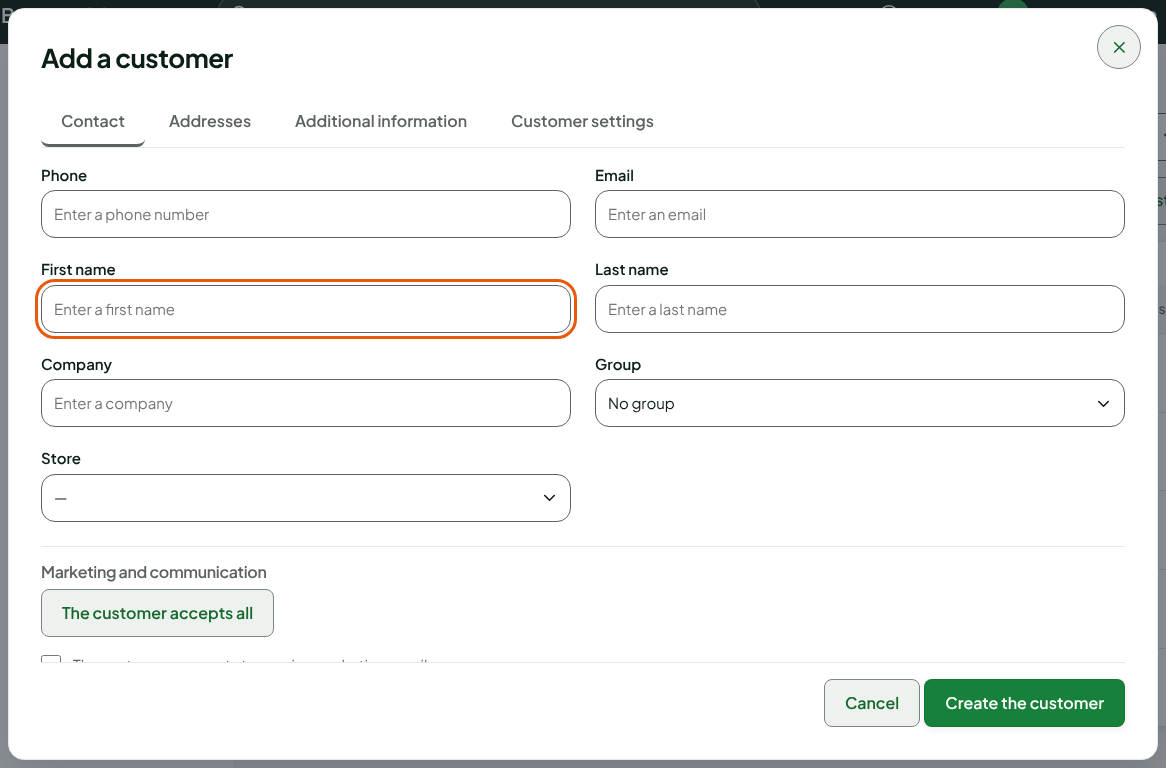
Type the First name and Last name, or the Company. If the customer gives them, also type the Phone and Email.
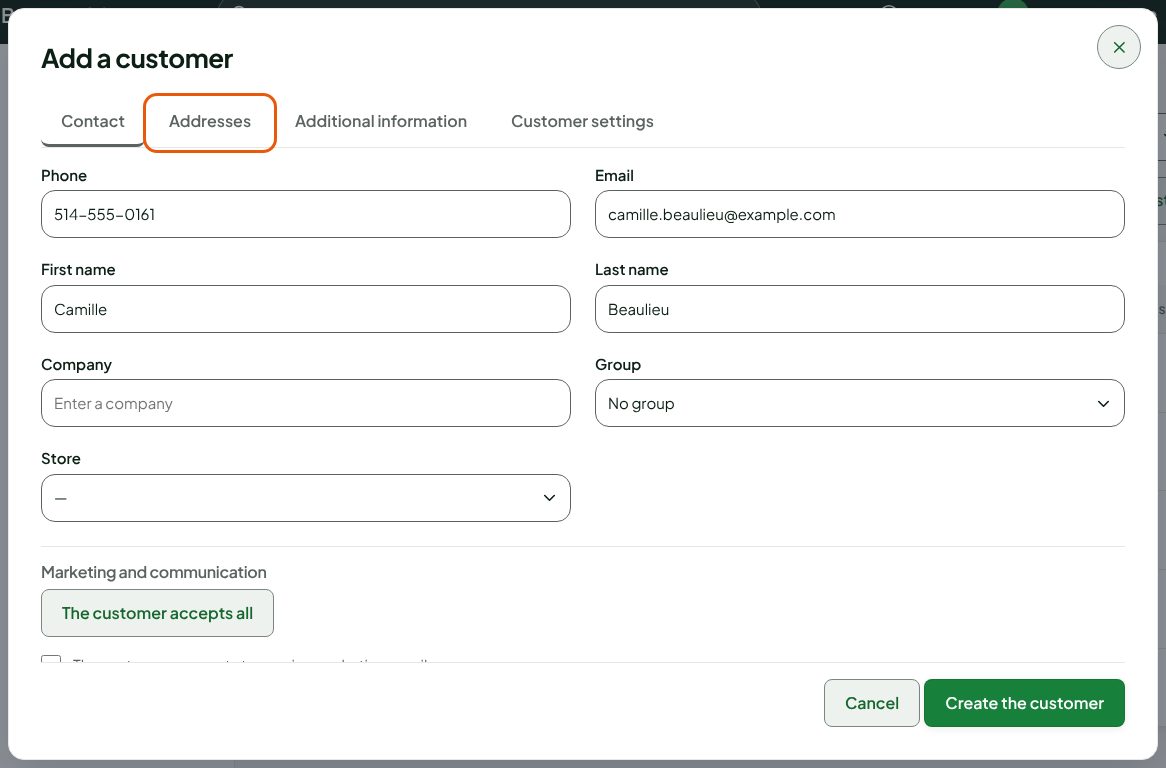
In Group, choose the customer's group, or leave No group.
Click the Addresses tab and fill in what the customer gives you: City, Province, Postal code, Country.
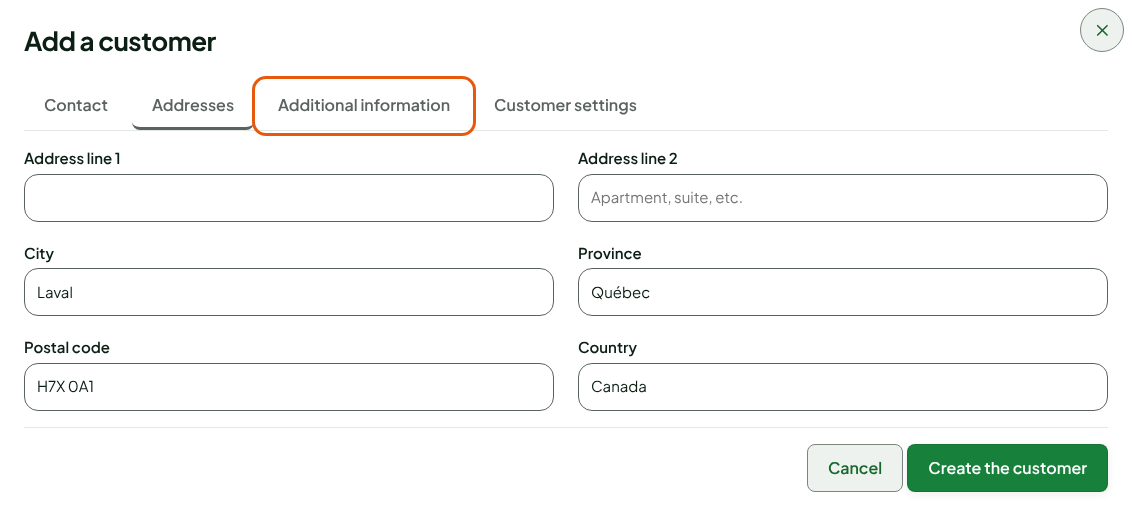
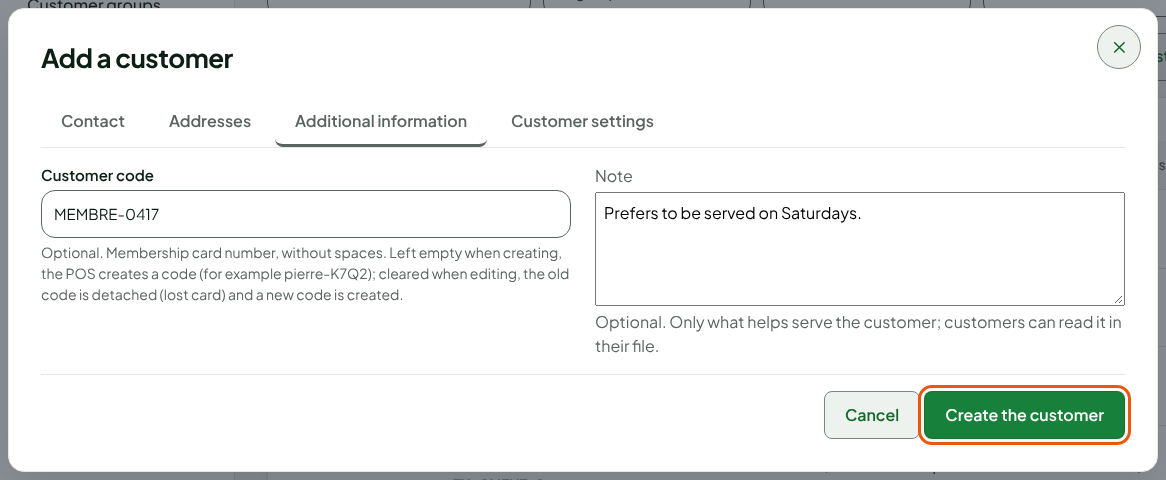
Click the Additional information tab. Type the Customer code if the customer has a membership card, and a Note if it helps with the sale.
Click Create the customer.
The screen shows "Customer added." and the list reloads. Search for the customer by name in Search for customers to find them:
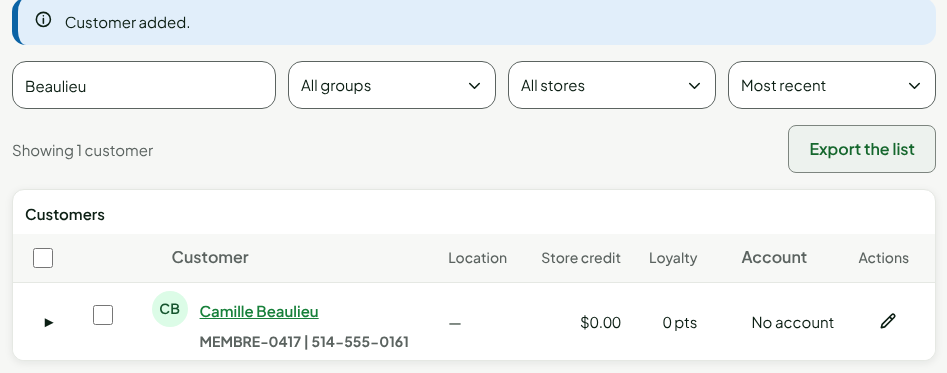
A few notes on the fields:
- Email is used to send the receipt the customer asks for. Marketing emails need separate consent: tick The customer consents to receive marketing emails only if they give it.
- Customer code: if you leave it empty, the software creates a code. Type one only for an existing membership card, with no spaces.
- Address line 1 can suggest addresses as you type. Choosing one fills in the city, province, postal code, and country, but not line 2.
- Note: the customer can read it in their file. Write only what helps you serve them.
The web register can also create a record without leaving the sale: see Creating a customer at the register.
Editing a customer
To correct a record:
Open Customers > Customer records and search for the customer in Search for customers.
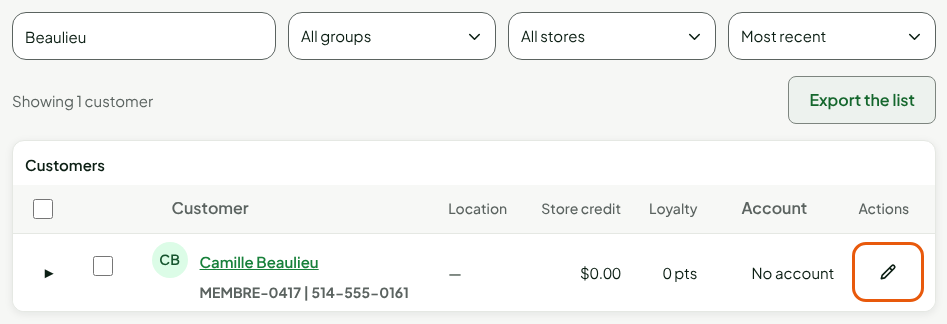
Click the pencil at the end of their row.
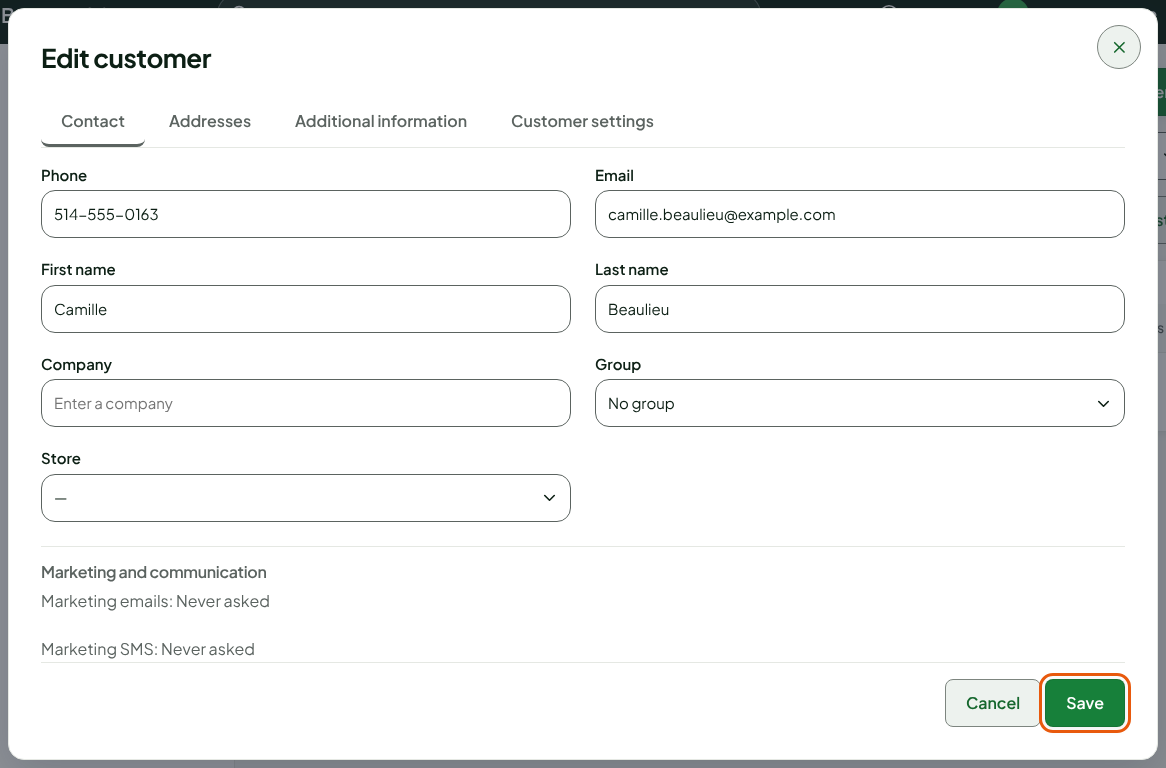
Change the fields you need, for example the Phone.
Click Save.
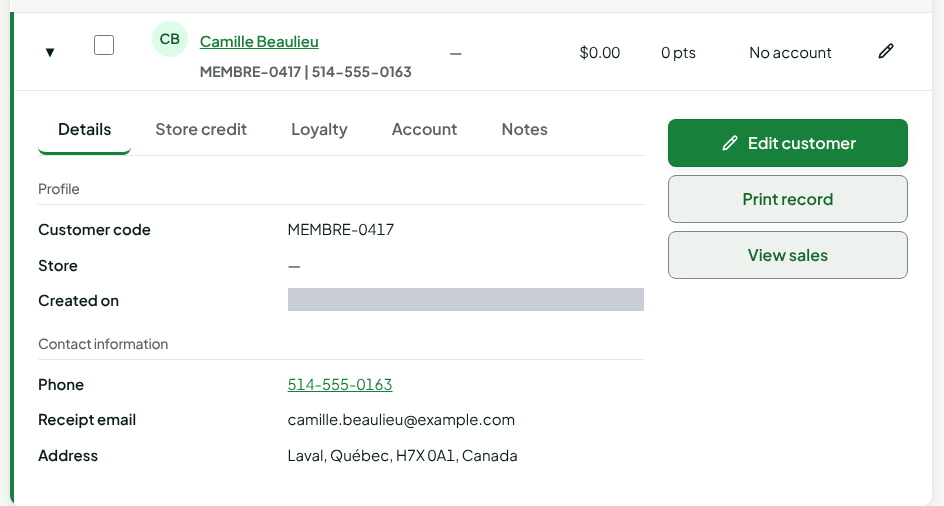
The screen shows "Record corrected." Expand the row with the arrow on the left to read the record again:
Emptying a record's Customer code detaches the old code and creates a new one. Do it only for a lost card: the old card stops working.
Anonymizing a customer
Anonymizing erases the record's name, phone, code, group, and emails. The record itself stays, empty, because amounts (credit, layaways, returns) are attached to it. It cannot be undone.
Click the pencil on the customer's row.
At the bottom of the Edit customer window, click Anonymize.
Read the warning, then click Anonymize permanently. Cancel closes the window without changing anything.
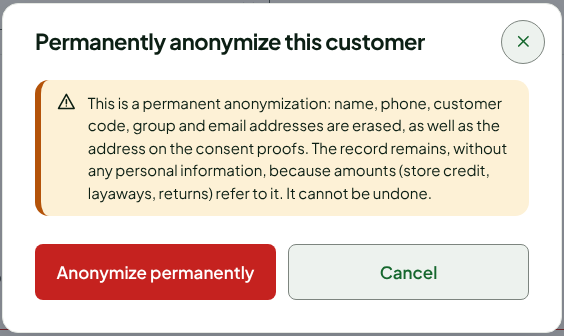
Anonymizing cannot be reversed. Check the name before you confirm.
Troubleshooting
"Someone else changed the record since it was read"
Another person saved the record while you were changing it. Nothing was saved. Click Reload the record, then make your changes again.
"This customer code is already used by another record"
Another customer has this code. Choose another one, or empty the field so the software creates one.
"Erasure refused: a balance is still owed to this customer"
The customer has store credit, an open layaway, or an overpayment to refund. They must first use it or be refunded. Nothing was erased.
"Partial erasure: tax documents keep the name"
The record is anonymized, but some sales or returns keep the customer's name on their tax document until the date shown, then it is anonymized. The screen offers a reply text to send to the person.