Running a partial count
- For
- Manager, Administrator
- Where
- Back office, Phone
- Permission
- Run an inventory count, Adjust stock, Manage stores and settings, Manage the catalogue
- Checked on
A partial count only checks a part of the store: an aisle, a freezer or a category. It is the way to check often the items that move the most, without closing the store for a full inventory.
Before you start
- The permissions are those of a full count: Run an inventory count to open it and end the entry, Adjust stock to close it and to search for items, Manage stores and settings to pick the store from a list (Running a full count). To pick a category from a list, it also takes Manage the catalogue.
- An item that is not in the scope cannot be entered: the count refuses its entry.
Only the items in the scope are touched. An item in the scope that nobody counts stays Not counted (unchanged): its stock does not move.
Choosing the scope
In Scope, three choices:
- Whole store: a full count.
- One category: all the items of the category chosen in Category.
- A list of items (aisle): the items you add one by one. The count name ("Aisle 4", "Freezers") is shown on the phones.
Opening an aisle count
Open Stock > Inventory counts, then click Open a count.
In Store, choose the store, then type the aisle's name in Count name.
In Scope, choose A list of items (aisle).
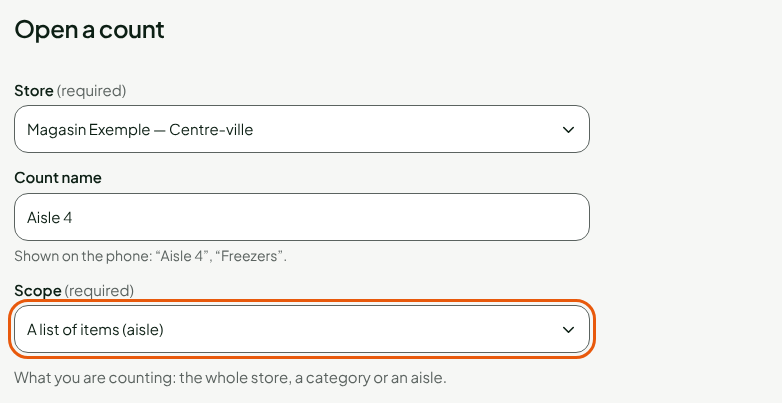
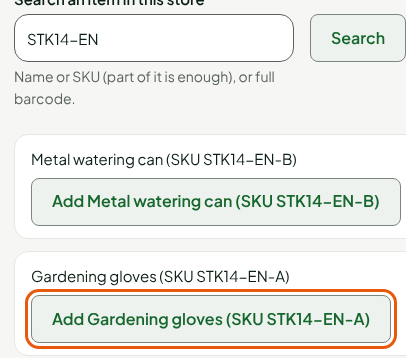
In Search an item in this store, type the name, the code or the full barcode, then click Search.
Click Add followed by the item's name. Repeat for each item in the aisle.
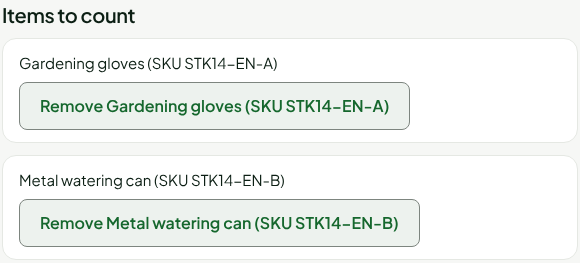
Under Items to count, the list shows what will be counted. To remove one, click Remove followed by its name.
Click Open the count.
For a category, choose One category then the category: there is no item to add. Without the permission Manage the catalogue, the screen asks for the category's identifier: ask an administrator for it. A scope with no item, or with more than 5,000 items, is refused.
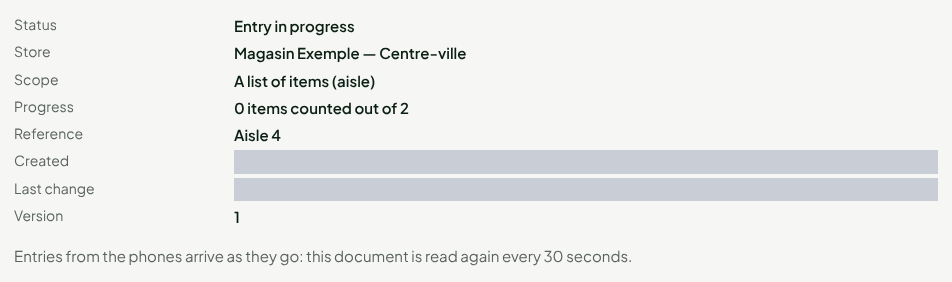
The count opens with the status Entry in progress, with the Scope and the number of items counted out of the scope's total.
Entering, ending and closing
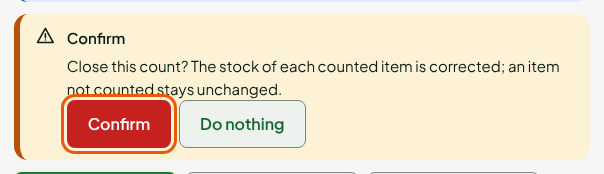
The rest follows the full count: the phones send the counted quantities, you click End the entry, then Close the count (Running a full count). Ending the entry and closing each ask for a confirmation.
Reading the result
The lines table shows the items in the scope only. The counted item has its Counted and its Discrepancy against the On hand at opening. The item nobody counted stays Not counted (unchanged).
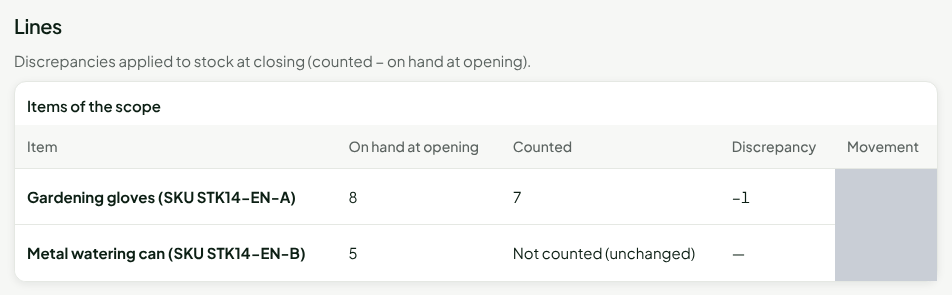
Closing writes a Count stock movement for each counted item whose discrepancy is not zero, and nothing for the others. A closed count can no longer be edited: a mistake is fixed by an adjustment (Adjusting stock).
Troubleshooting
"This scope contains no item."
The chosen category is empty. Choose another one, or a list of items.
"An entered item is not in the scope of the count."
A phone sent an item that is not part of the aisle. Set it aside: to include it, open another count.
"Add at least one item to count"
A list of items with no item does not open. Search for and add at least one item.