Handling an offline register
- For
- Cashier
- Where
- Web register, Installed register
- Permission
- Sell at the register, Close the register
- Checked on
Without Internet, your cash sales keep going: the computer's Register app sells offline, keeps each sale on the station and sends it to the server as soon as the network is back. Nothing is lost, nothing has to be redone. The back office web register does not sell without a connection.
What you see
At the web register, a red banner replaces the sale: Online register: no sale without a connection. Open the computer’s Register app. The Pay button no longer leads to payment.

In the computer's Register app, the header shows Offline, how long the station has gone without reaching the server, and the number of operations waiting to be sent (Sending: 12 operations, for example).

What to do
Switching to the computer's register
If you were selling at the web register when the network went down:
Click Open the computer’s Register app, under the red banner. The instructions appear.
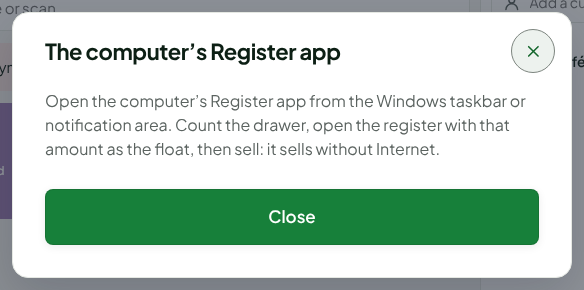
Open the Register app from the Windows taskbar or notification area.
Click your name under Who is taking the station?, type your PIN, then click Open the session.
Click Register: opening, movements, closing.
Count the drawer: type the number of bills and coins of each denomination, then click Open the register.
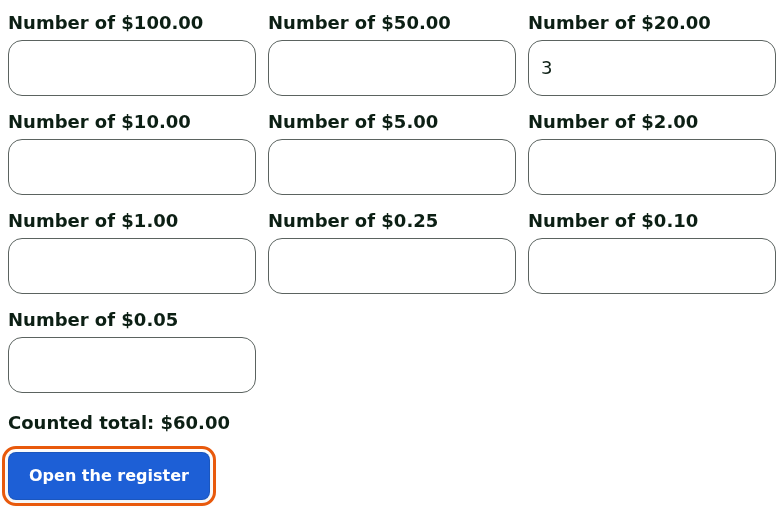
The counted amount becomes the float of the computer's register. You can sell.
Selling offline
The sale works as usual, in cash:
Click Sell, in your session menu.
Scan the items, or search for them by name or code.
Click Pay.
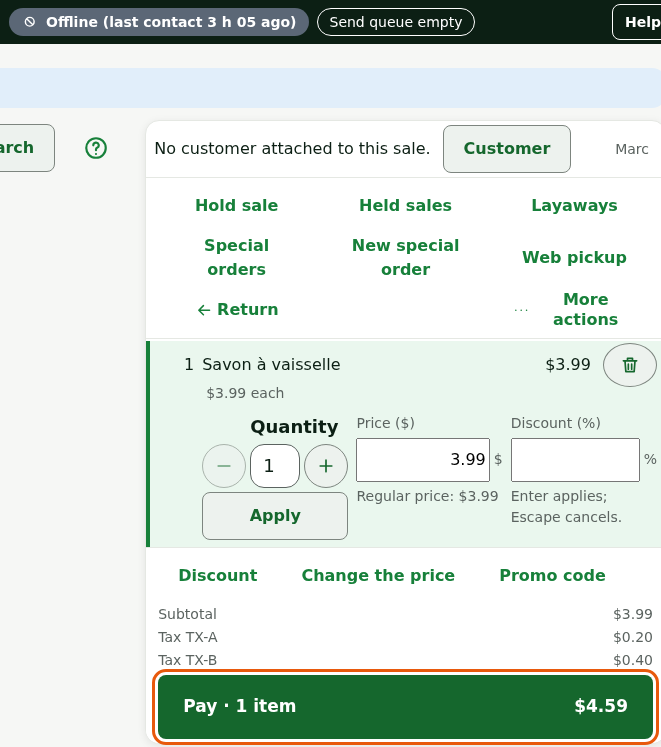
Type the amount received in Amount received, then click Take payment.
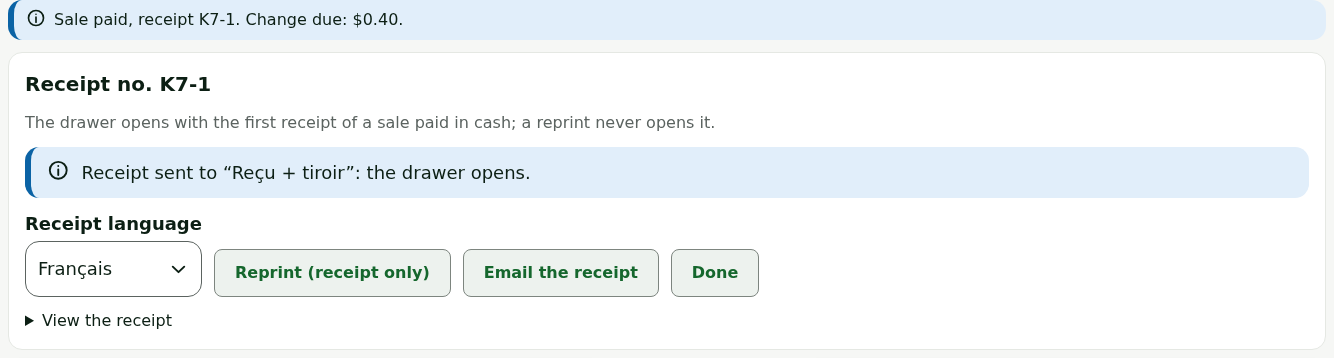
The sale is paid and recorded on the station. The receipt prints and the drawer opens, as online.
Offline, the register refuses anything that touches a value shared between stations or that needs the server: paying with Store credit, a Gift card or Loyalty points, creating a layaway, paying into it, picking it up or cancelling it. A return is allowed only for a sale made on this station and never sent to the server. At payment, these methods show Offline: offer another payment (cash).
Returning to the web register
When the Internet comes back, the computer's Register app says so between two sales, never during a sale.
Click Return to the web register when the notice The internet is back: return to the web register appears. Later postpones it; it comes back afterwards.

Count the drawer on the Register closing screen, then click Close the register. Closing needs an employee allowed to close the register: if needed, a manager opens their session for this step.
The station then sends all its sales to the server. The web register opens only once everything is sent, with your count as its opening float.
What not to do
- Never make a customer pay again because the register is offline: a paid sale is recorded on the station, even if the server has not received it yet.
- Do not turn off the computer to "fix" the connection, do not uninstall the register and do not delete anything: the sales waiting to be sent are on this station.
- Do not turn away a customer paying cash: the register sells without the Internet.
When to call an administrator
- The header shows Locks in…: the station is close to 24 hours without contact with the server. See Handling a station locked after 24 hours without contact.
- The header shows Sending stopped: a manager must check, even with the Internet back. See Handling sales that no longer reach the server.