Multi-item and tiered promotions
- For
- Manager, Administrator
- Where
- Back office, Web register
- Permission
- Manage promotions, Manage the catalogue
- Checked on
Advanced promotions give a discount or a gift depending on what the customer buys or spends: "3 for $24.99", "buy 2, get 1", a discount from $50 of purchases. This guide creates them one by one, and shows how to make tiers.
Before you start
- Your role must have the Manage promotions permission (code
promotion_manage) and Manage the catalogue (codecatalog_manage) to search items by name. - You know how to create a basic promotion: Creating a promotion. The name, schedule and stores are filled the same way.
Offer "3 for $24.99"
Open Catalog > Promotions, click New promotion, then fill Promotion name and Start.
Choose Advanced under Promotion type. In When a customer, leave buys these items, then type
3in Number of items in the group.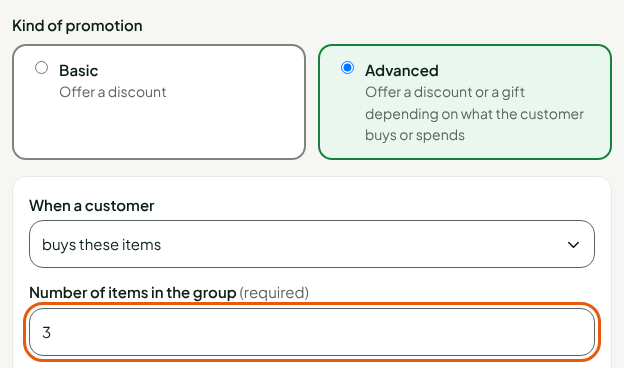
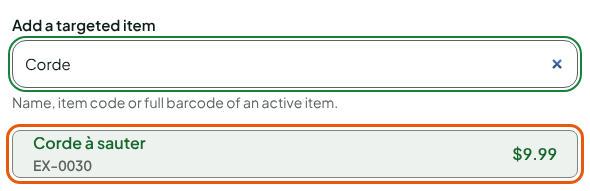
Type the item's name in Add a targeted item, then click the item found. Repeat to target several items: a group can mix them.
Leave pay a fixed price in Then they, then type
24.99in Group price.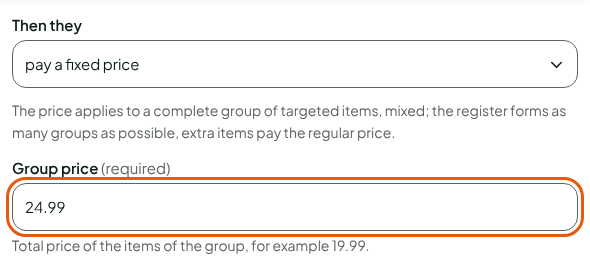
Click Save.
The list shows the promotion; its details say "3 for $24.99 (1 targeted item)".
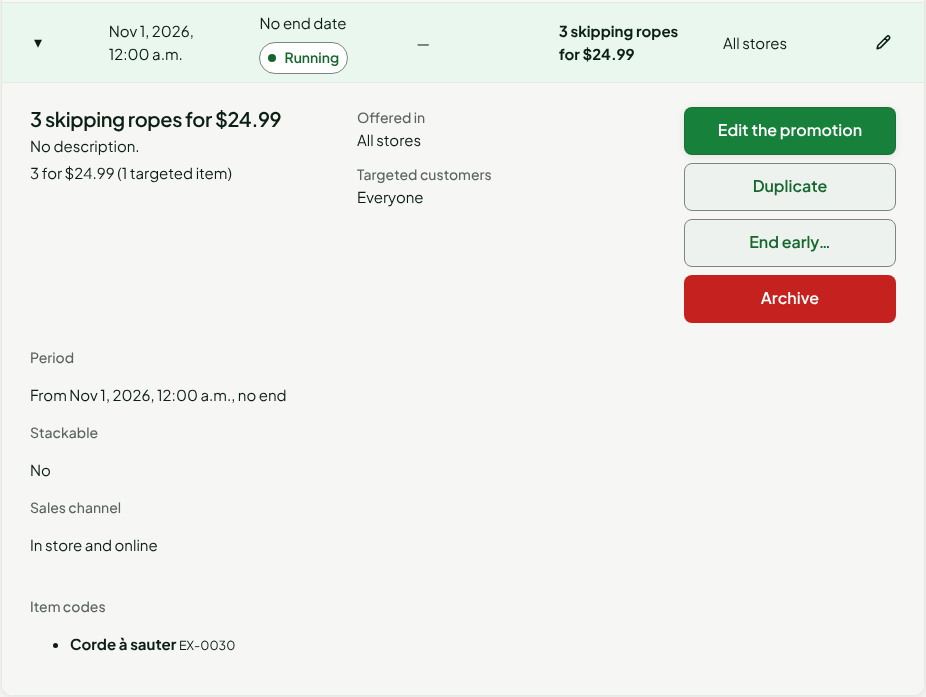
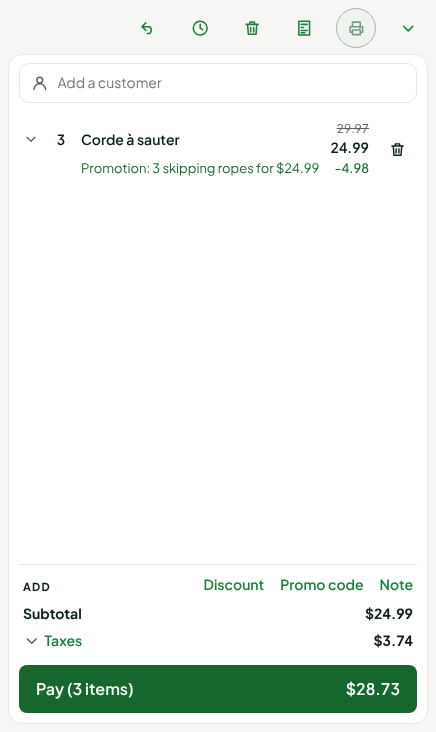
At the register, the price applies to each complete group: the register forms as many groups as possible, and the extra items pay the regular price. Three skipping ropes at $9.99 cost $24.99.
Offer an item: buy X, get Y
Open Catalog > Promotions, click New promotion, then fill Promotion name and Start.
Choose Advanced under Promotion type. In Then they, choose get these items.
Type the quantity to buy in Quantity under Buy, then choose the targeted items.
Choose Free under Get, or % or $ with the discount value, then type the quantity obtained and the items.
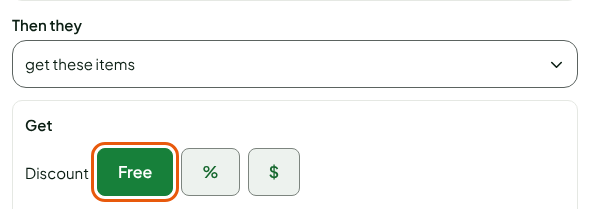
The cheapest items are given first. At most, per sale limits how many times the reward repeats; empty, there is no cap.
Make a quantity tier
For a reward that applies from a number of items, for example from 3 to 5 items:
Open Catalog > Promotions, click New promotion, then fill Promotion name and Start.
Choose Advanced under Promotion type. In Then they, choose save an amount.
Click Set a min or max under Buy.
Type the Minimum, and the Maximum if there is one. Empty, there is no maximum.
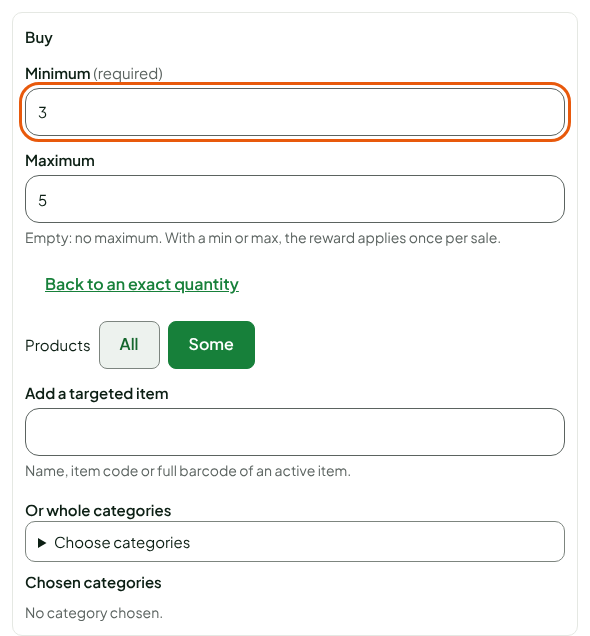
With a minimum or a maximum, the reward applies only once per sale, when the cart has between the minimum and the maximum of targeted items. Above the maximum, the promotion does not apply. Click Back to an exact quantity to return to the repeated group.
Offer a discount based on spending
Open Catalog > Promotions, click New promotion, then fill Promotion name and Start.
Choose Advanced under Promotion type. In When a customer, choose spends.
Type the Amount ($) to reach under Spend, for example
50, and choose the products counted: All or Some.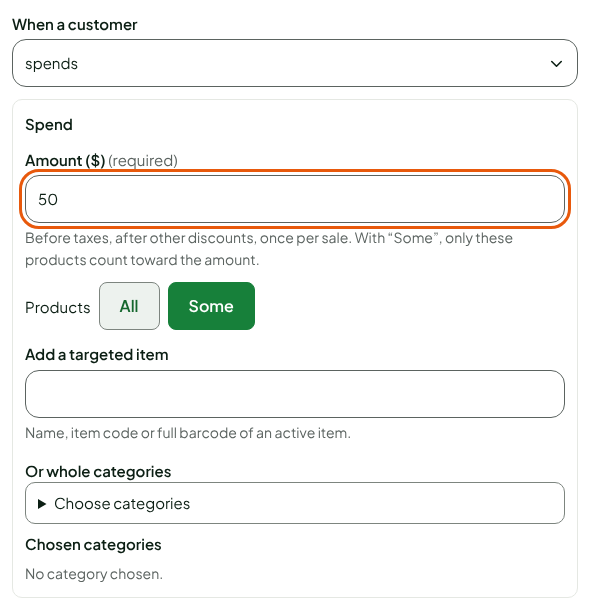
Choose save an amount and type the discount value in Then they.
The spending is measured before taxes, after the other discounts, once per sale.
Make spending tiers
Create one promotion per tier, for example $10 off from $50 and $25 off from $100. Leave Stackable with the other stackable cart discounts unticked: when several non-stackable promotions apply, the register keeps only one, the most advantageous for the customer.
A single unit only gets one promotion on an item: the register keeps the best combination for the customer. To invite the cashier to complete a cart, tick Show a prompt on the sale screen: the register then writes what is missing, without blocking the sale.
Troubleshooting
"This reward does not go with this condition"
A fixed price needs an exact quantity of some items, without categories. Choose another reward, or items rather than categories.
"Choose at least one item or category, or “All”."
The targeted products are not chosen. Add an item, or choose All.