Printing price labels on Avery sheets
- For
- Manager
- Where
- Back office
- Permission
- Manage the catalogue
- Checked on
This page makes a PDF of price labels, ready to print on Avery sheets with any laser printer. Use it to label products, for example after a stock receipt.
Before you start
- You need Avery label sheets in letter size (8.5 × 11 in): Avery 5160 (30 per sheet), Avery 5167 (80 per sheet) or Avery 5163 (10 per sheet).
- The products must have a price in the store whose labels you print. A product with no price in that store gets no label.
- The PDF is made in your browser: nothing is sent to the server.
The printed price is the one on the product's record for the chosen store. A promotion in progress does not appear on it: the label always shows the product's current price.
Choose the products
The Print labels page does not choose products itself. Opened straight from the menu, it shows No product to print.
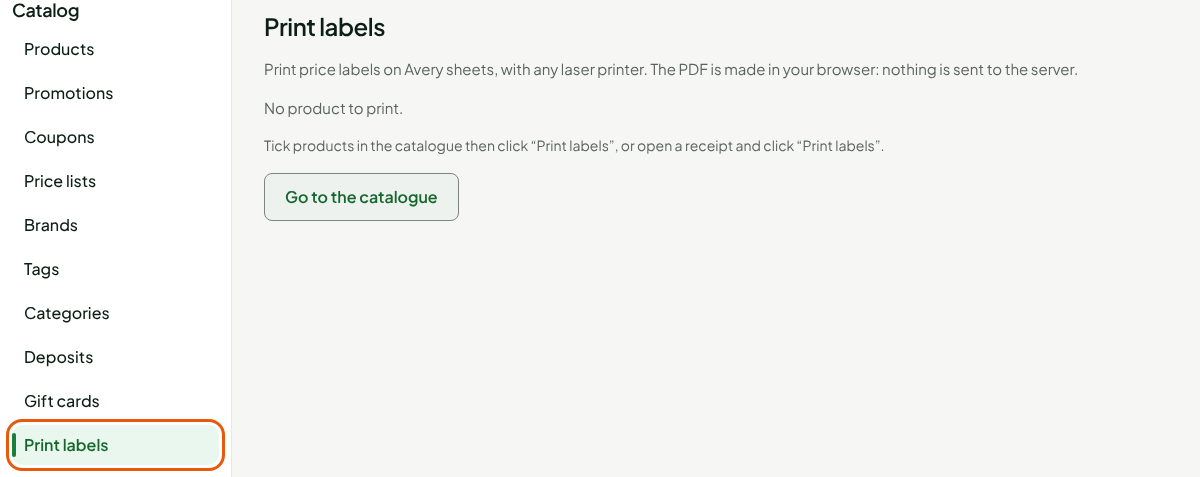
To send products to it from the catalogue list:
Open Catalog > Products.
Type a name, an item code or a barcode in Search products, then click Search.
Tick the products you want, or click Select all in the table header to tick the whole list shown.
Click Print labels.
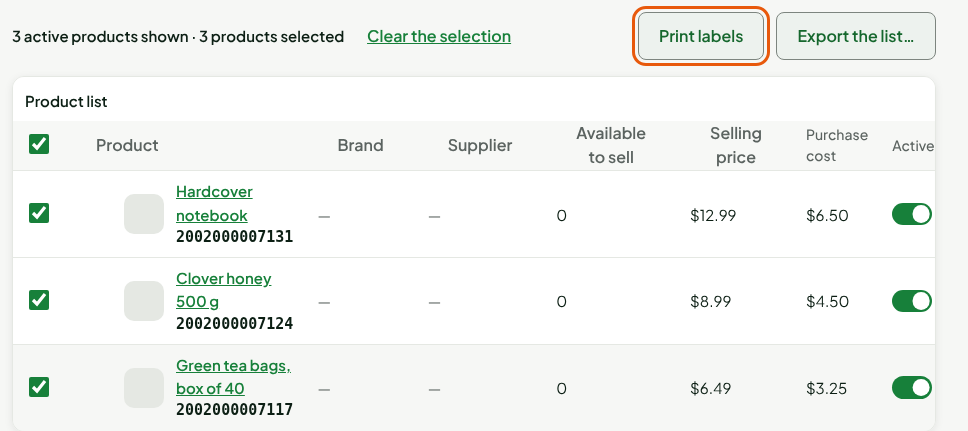
A new search clears the selection: tick the products after searching, not before.
The page opens with one product per line: its price, its barcode and the Number of labels, set to 1 to start.
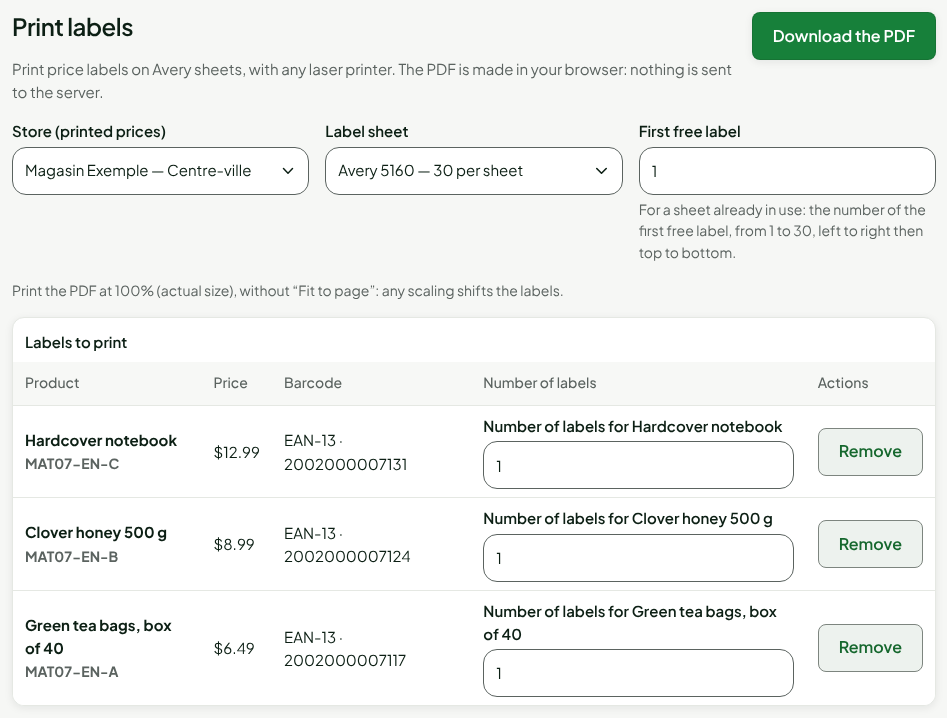
The printed barcode is the product's EAN-13 when it has a valid one. Otherwise, a valid UPC-A becomes the EAN-13 that starts with 0, and another code of the product is printed as Code 128. With no code at all, the column says None: the item code is written as text.
To print the labels for goods you just received, you can also click Print labels in the detail of a receipt (Stock > Stock receipts): the page opens with one label per unit received.
Set up the sheet
To set up the sheet:
Choose the store in Store (printed prices). The price on each label is that store's price.

Choose the template in Label sheet, for example Avery 5167 — 80 per sheet.
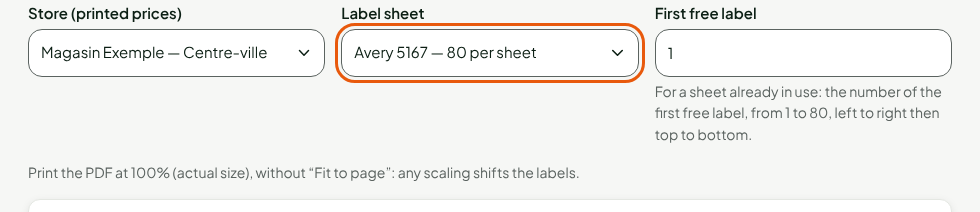
For a sheet already in use, type in First free label the number of the first label still on the sheet, from 1 to the last one on the sheet. Labels are counted left to right, then top to bottom.
Type in Number of labels, on each product's line, how many labels you need. To leave a product out, click Remove at the end of its line.
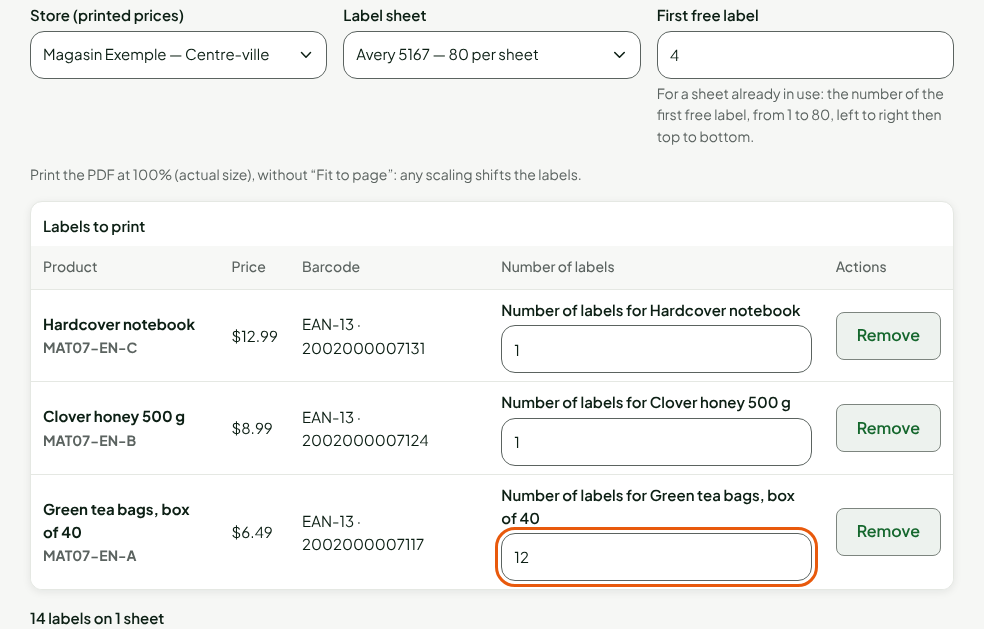
Under the table, the screen shows the total, for example 14 labels on 1 sheet. A single run holds 2,000 labels at most.
Download and print the PDF
To get the labels:
Click Download the PDF, at the top right of the page.

Open the downloaded file, named
etiquettes-avery-followed by the template and the date.Put the Avery sheet in the laser printer, then print at 100% (actual size), without “Fit to page”.
The button stays greyed out until at least one label is requested.
Print at 100%. If the printer rescales the page, the labels shift: they no longer land on the squares of the sheet.
Troubleshooting
A label is cut off or shifted
The PDF was printed at another scale. Print again with Actual size or 100%, without “Fit to page”, and check that the sheet matches the template.
The page shows “1 product without a price in this store will have no label.”
That product is not sold in the chosen store. Choose another store in Store (printed prices), or add the product's price to its record.
The Download the PDF button is greyed out
No label is requested, a number is invalid or First free label goes past the sheet. Fix the field that shows an error.