Editing products
- For
- Manager
- Where
- Back office
- Permission
- Manage the catalogue
- Checked on
A product sheet can be reopened at any time: fix a name, change the category, bring the price up to date. Everything is done in the same page, with a single Save button. This guide changes the name, the category and the price of an existing product.
Before you start
- Your role must have the Manage the catalogue permission. To change the price you also need Manage prices; to see or change the cost, View purchase costs. Without them, those fields stay as they are.
- A deactivated product is also in the list: choose Inactive in Status.
Open the product sheet
Open Catalog > Products.
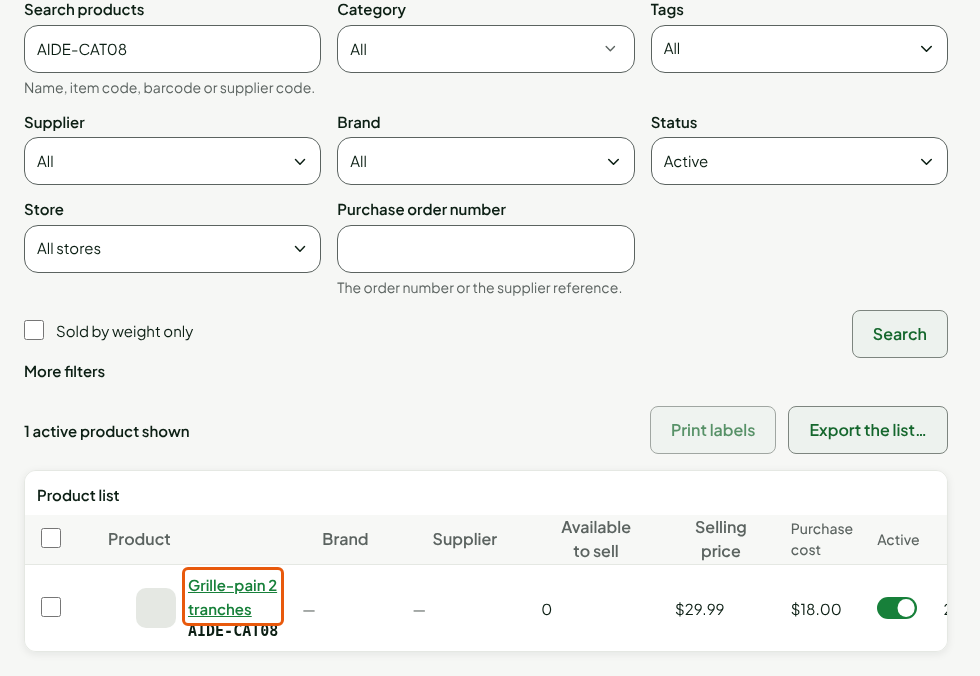
Type the name, the item code or the barcode in Search products, then press the Enter key.
Click the product's name, in the Product column.
The sheet opens. The product's name is the title; just below it, Status and Last modified. The bar at the top holds Cancel and Save, and it stays in view when you scroll.

The sections follow one another down the page, from General to Accounting (Inventory, Variants, Suppliers, Tax, Pricing, Serial numbers…). There are no tabs: scroll down to the section you want.
Change the name, the category and the price
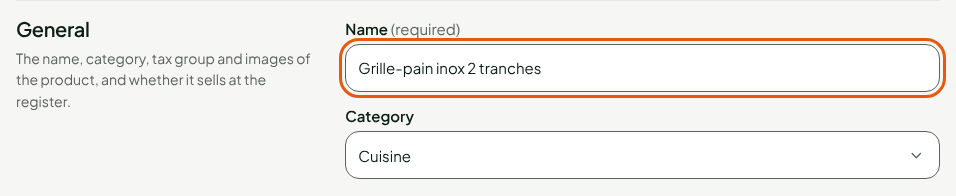
Change the Name, in the General section, for example
Grille-pain inox 2 tranches.Choose another category in Category, for example Cuisine.
Change the Selling price, in the Pricing section, for example
34.99. The Markup % on the selling price and the Margin % on the selling price are recalculated on their own.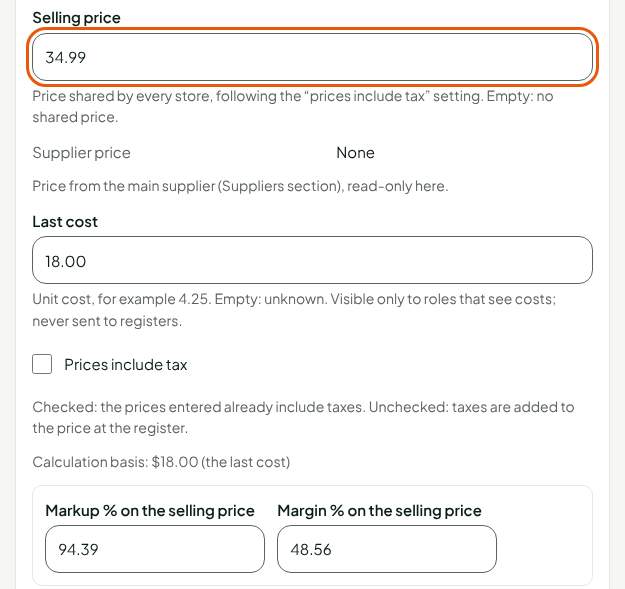
The other fields are changed the same way: the item code and the barcodes in Inventory, the tax class in Tax, the cost in Pricing. Nothing is written until you save.
Save
Click Save, in the bar at the top of the sheet.

The sheet shows “Product saved.”, the new name as the title, and Last modified takes the current date. If you changed nothing, it shows “No change to save.”

A single click on Save writes every changed section, one after the other. If one is refused, the following ones are not attempted: the faulty section shows its message, a box says what is saved and what is not, and a new Save writes only the rest.
Leave without saving
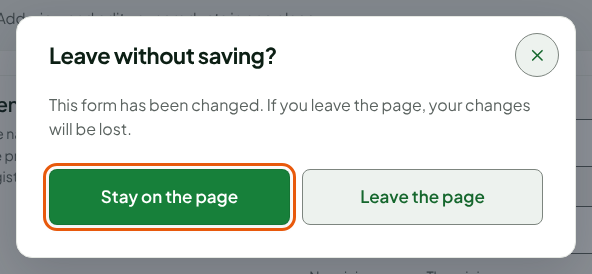
Clicking Cancel, or leaving the page, with an unsaved change opens the Leave without saving? window. Click Stay on the page to keep the sheet and save it. Leave the page discards the changes.
Troubleshooting
“Nothing was overwritten”
Someone else changed the product (another person, or another tab) between the moment you opened the sheet and the moment you saved. Your change is not saved, and the other person's is not lost.
Click Reload the product sheet.
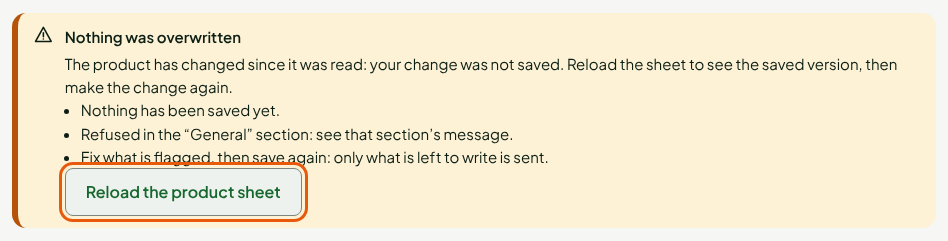
Read the sheet again, which shows the saved version, then make your change again and save.

“This item code is already carried by another active product.”
The item code is unique among active products. Choose another one, or deactivate the other product first.
The price or the cost does not change
Your role does not have the Manage prices permission: the Pricing section says so, and the price stays as it is. Without View purchase costs, the cost is neither visible nor editable. Ask an administrator to change your role.