Managing product tags
- For
- Manager
- Where
- Back office
- Permission
- Manage the catalogue
- Checked on
A product tag is a free keyword, like Nouveauté or Cadeau, that you put on as many products as you like. It helps you find and group products: the product list can be filtered by tag. This guide adds tags, puts them on a product, merges two tags that mean the same thing and deactivates one.
Before you start
- A product carries 20 tags at most. A tag name is 1 to 40 characters long.
- Product tags sort products. They have nothing to do with the price labels that are printed for the shelves.
- A tag is never deleted: you deactivate it, or merge it into another one.
Add a tag
Open Catalog > Tags.
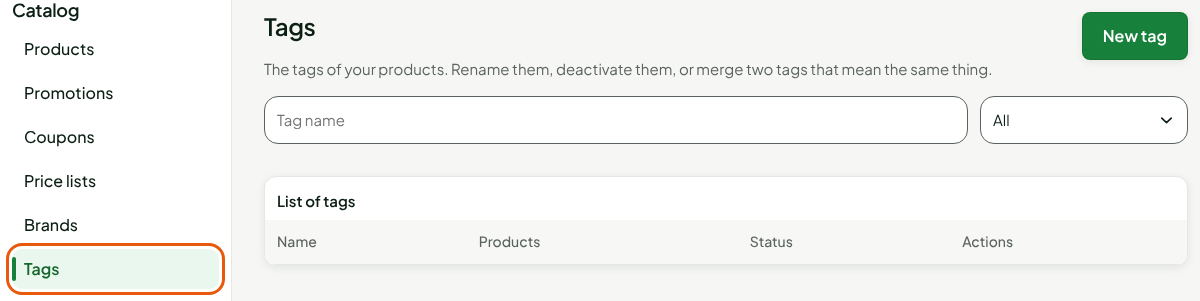
Click New tag.
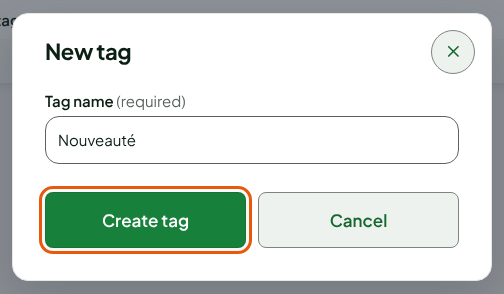
Type the name in Tag name, for example
Nouveauté.Click Create tag.
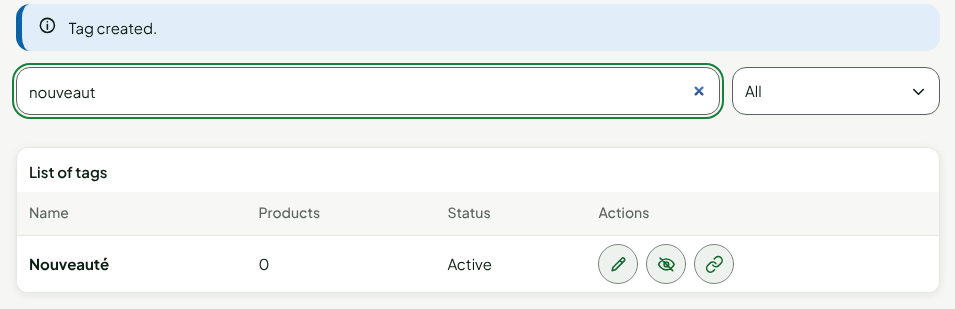
The screen shows "Tag created." and the tag joins the list, active and with no product. To find it again, type part of its name in the search.
Two tags cannot share a name: case does not matter.
Put tags on a product
Open the product's sheet, in Catalog > Products.
Type the name in Tags, in the Brand and tags section. Pick the suggested tag, or press Enter to create a tag that does not exist yet.
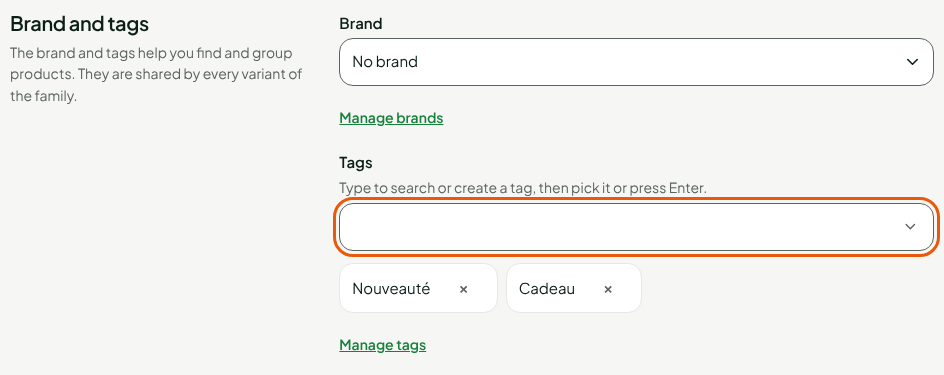
To remove a tag from the product, click its ×.
Click Save, in the bar at the top of the sheet.
A new tag is created when the sheet is saved. All the products of a family with variants share their tags. In the product list, the Tags filter finds the products that carry one.
Merge two tags
Two tags that mean the same thing, for example Cadeau and Cadeaux, can be joined into one. The products of the merged tag receive the other one.
Look for the tags in Catalog > Tags.
Click the merge icon of the tag that should disappear, here Cadeaux.
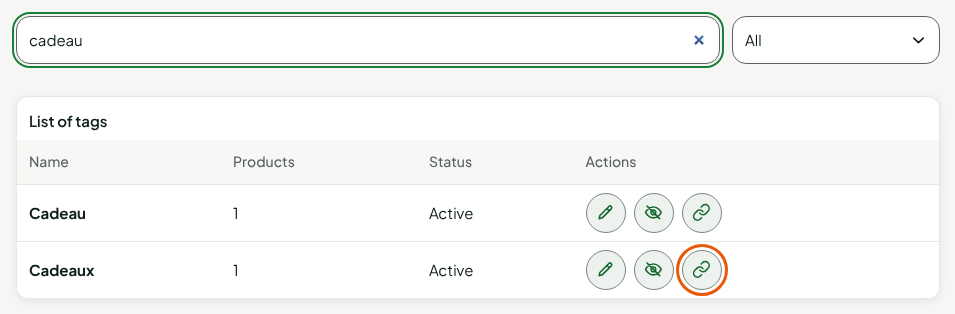
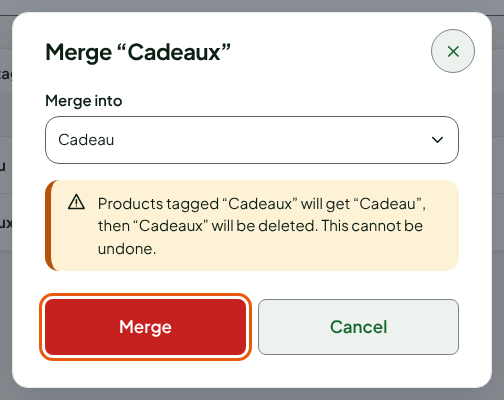
Choose the tag that stays in Merge into, here Cadeau.
Click Merge.
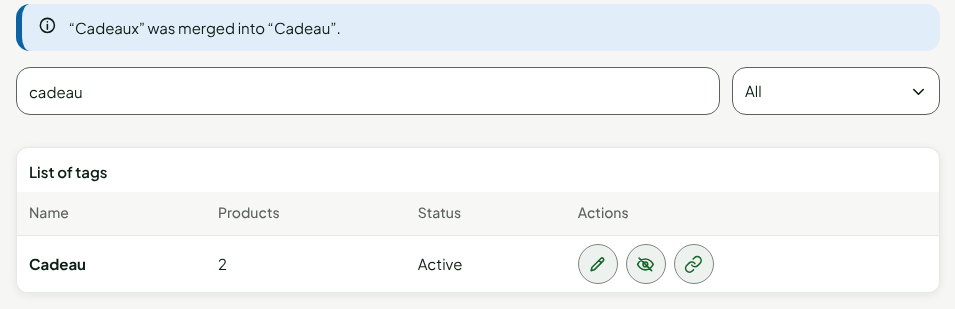
The screen shows "“Cadeaux” was merged into “Cadeau”." The list keeps only Cadeau, which now counts the products of both tags.
A merge cannot be undone: the merged tag is deleted. Only active tags can be chosen in Merge into.
Rename or deactivate a tag
To rename, click the pencil on the line, correct the name in Tag name, then click Save. The products keep the tag under its new name.
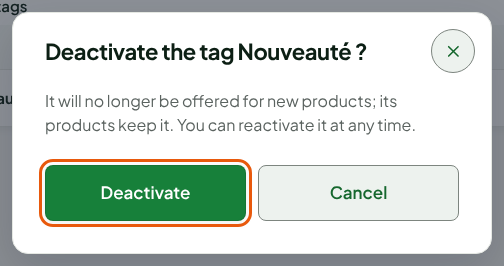
To deactivate, click the crossed-out eye on the line, then Deactivate. A deactivated tag is no longer offered for new products; its products keep it, and you can reactivate it at any time with the eye on its line.
Troubleshooting
"A tag you entered is deactivated: reactivate it or remove it."
You put a deactivated tag on a product. Reactivate it in Catalog > Tags, or remove it from the sheet.
"A tag already has this name with different spelling"
A tag already exists under this word, written a little differently. Pick it from the list instead of typing it.