Selling on a customer's account
- For
- Cashier, Manager
- Where
- Web register, Back office
- Permission
- Sell at the register, Manage customer credit accounts
- Checked on
A business customer with a B2B account buys now and pays later: the register invoices the sale to their account instead of taking payment. This guide follows a sale on account at the web register, then shows where to read the invoice and the account balance in the back office.
Before you start
- Your role must allow selling (permission Sell at the register); to read the account's page, the permission Manage customer credit accounts.
- The customer must have an active B2B account, linked to their customer record (guide Setting an account's credit limit).
- A payment method of type On account must be offered in your store (Settings > Payment methods). Without it, the Customer account tile stays grey and says: "Method not set up for this store: call a manager."
- The store must have its tax registration numbers (Settings > General): they are copied onto every invoice.
A sale on account needs the server: it is never made offline, because the account's credit is shared between all registers. An invoice covers the whole sale: no other payment alongside it.
Invoicing a sale to the customer's account
To invoice a sale to a customer's account:
Open Sell > Sell and put the items in the cart (Making a sale).
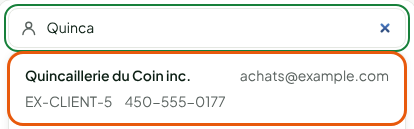
Type the customer's name in Add a customer, then click their record in the list.
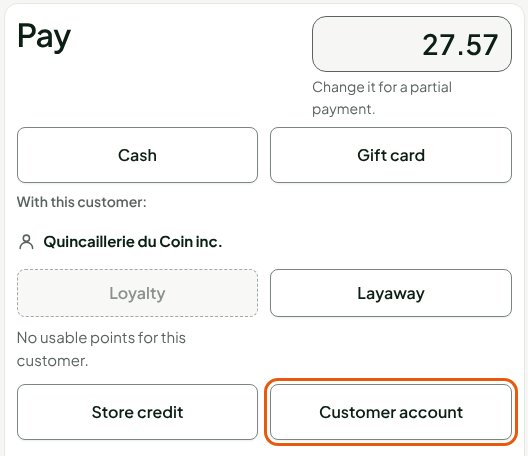
Click Pay, then Customer account.
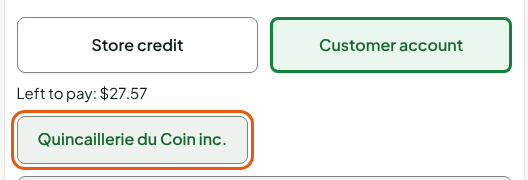
Click the account's name.
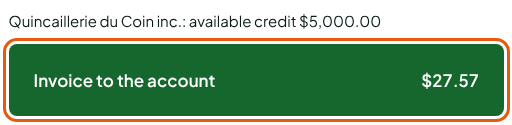
Read the account's available credit, then click Invoice to the account.
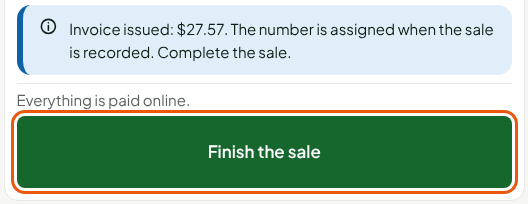
Click Finish the sale.
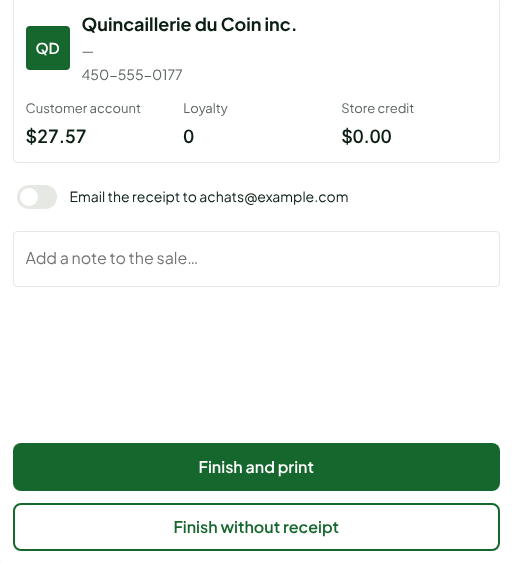
The sale is recorded and the screen shows Sale paid. The customer card shows their balance due on the account, here $27.57. Click Finish and print or Finish without receipt to move on to the next customer.
The invoice number is given when the sale is recorded. Before you finish, Cancel this payment cancels the invoice with a credit note.
The server decides at the moment of invoicing. If the available credit does not cover the sale, nothing is invoiced: offer another payment or reduce the sale.
Reading the invoice and the account balance
The sale appears in the back office, on the account's page:
Open Customers > B2B accounts.

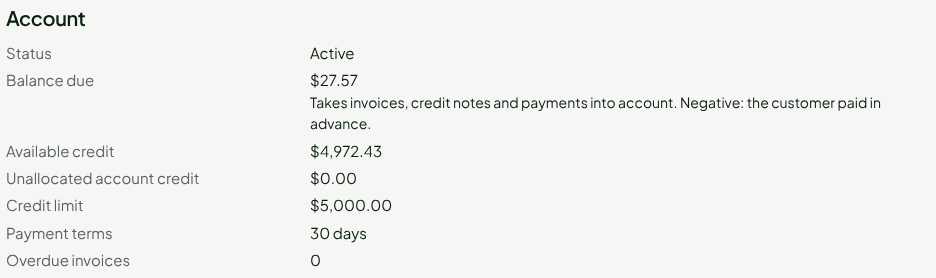
Click the account's name. The page shows the Balance due and the Available credit: the sale raises one and lowers the other by the same amount.
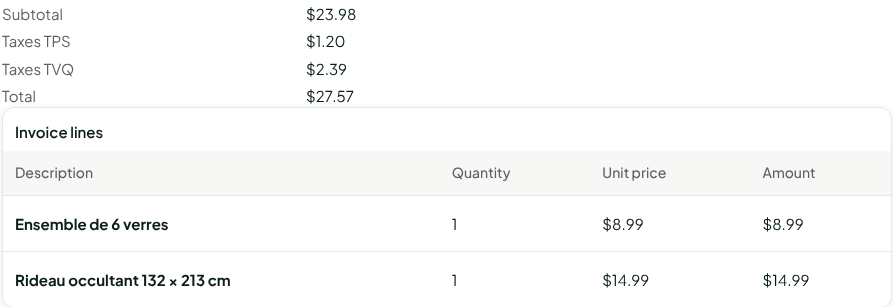
In the Invoices table, click View invoice followed by its number. The invoice opens under the table, with its subtotal, each tax, its total and its lines.
In the table, the invoice stays Open until the customer pays it. It carries its due date: the date of the sale plus the account's Payment terms. To record a payment, see Following and collecting an account balance.
Returning a sale on account
A sale on account cannot be voided: it is returned at the web register, through Sales history > Return items. The refund is a credit note to the customer account, linked to the invoice: the account balance due goes down, no cash is given back. See Returning items and refunding.
Troubleshooting
The Customer account tile is grey
Read the message under the tile. "Method not set up for this store": a manager must add the On account payment method. "Sale on account: attach a customer with an active business account to the sale": add the customer, or ask a manager to open their account.
"This account’s available credit does not cover this sale."
The sale is larger than the available credit. Reduce the sale, or first take a payment from the customer (guide Following and collecting an account balance). A closed account shows "This account is closed." instead.
"This store has no tax registration numbers: invoice impossible, call a manager."
A manager must enter the numbers in Settings > General. Nothing is invoiced while they are missing.