Clocking in and out at the register
- For
- Cashier, Manager
- Where
- Installed register, Web register
- Permission
- Sell at the register
- Checked on
Each employee clocks in on arriving and clocks out on leaving, at the register, with their PIN. These punches give the person's hours, which the manager reads and corrects in the back office. Clocking in or out does not open a sales session.
Before you start
- Your employee record must have a PIN (Setting or resetting an employee's PIN) and the register's store.
- For the web register, open your register first (Making a sale). Clocking in at the web register only works when the server answers.
- The installed register also clocks in offline: the punch goes to the server as soon as the network returns.
Punch every time, in the right direction. An in without an out, or an out without an in, is flagged for the manager, who corrects it (Correcting hours).
Clocking in and out
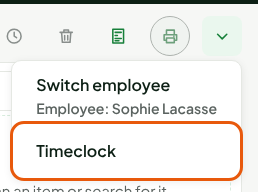
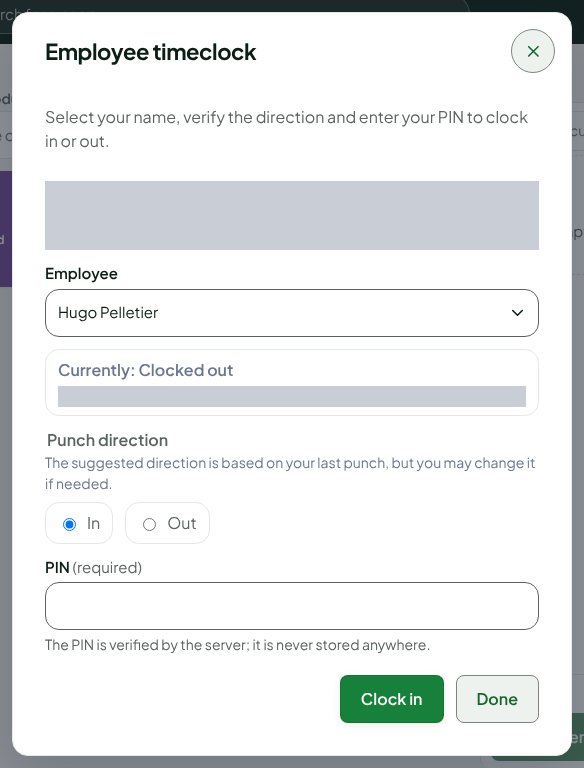
On the sale screen, click More actions…, then Timeclock.
In Employee, choose your name. The window reads your last punch: it shows Currently: Clocked out and suggests In.
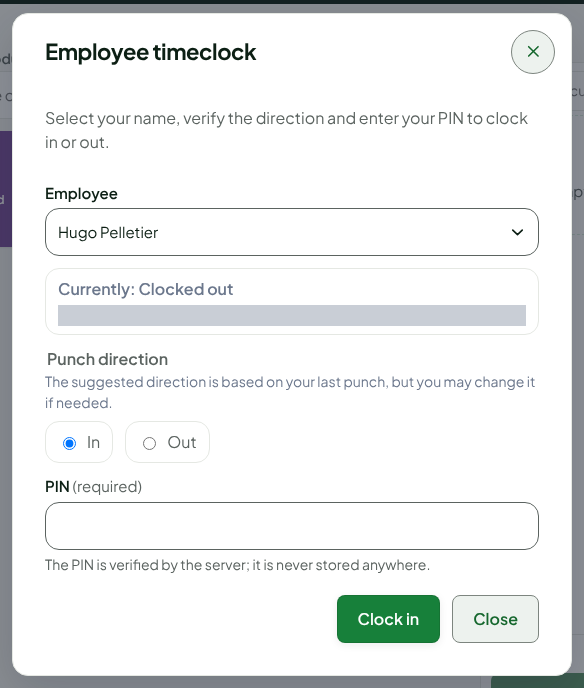
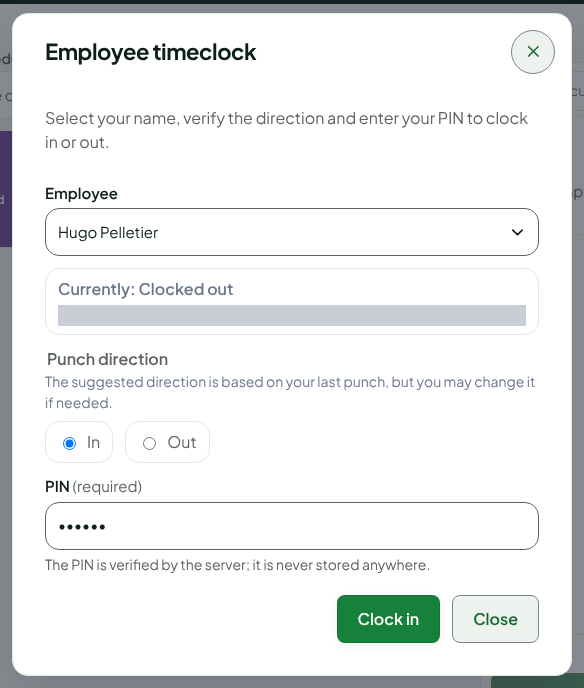
Type your PIN in PIN.
Click Clock in.
The window writes "Punch recorded: Clocked in at" followed by the time and your name. It shows Currently: Clocked in and now suggests Out.
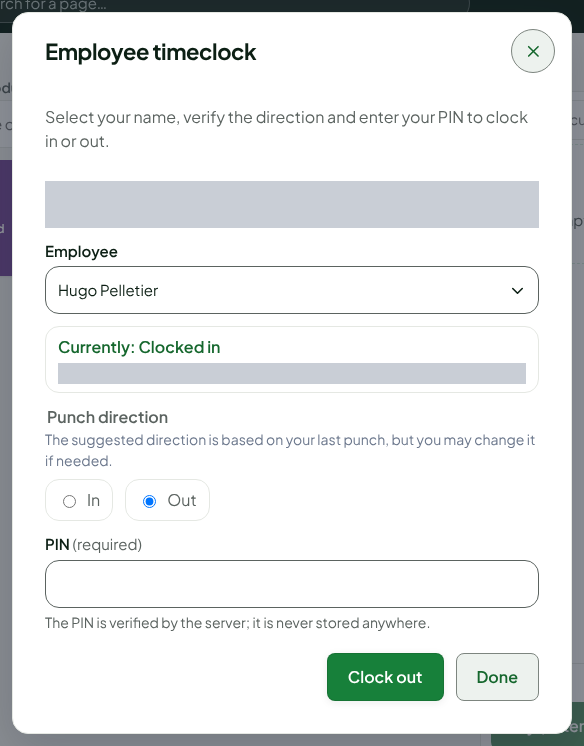
When you leave, reopen More actions… > Timeclock, choose your name, type your PIN, then click Clock out.
Click Done.
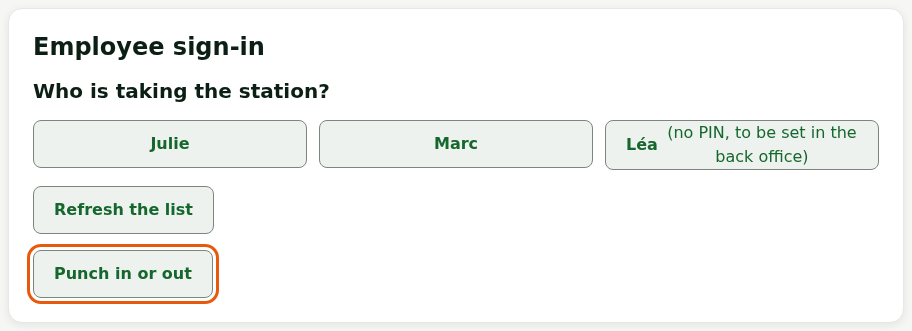
On the Employee sign-in screen, tap Punch in or out.
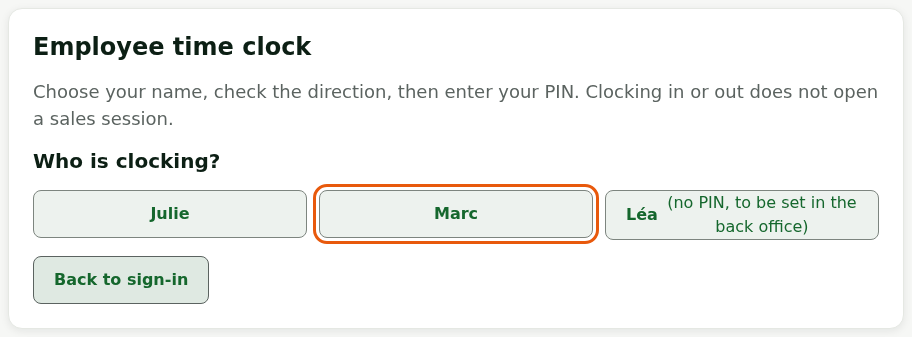
Under Who is clocking?, tap your name.
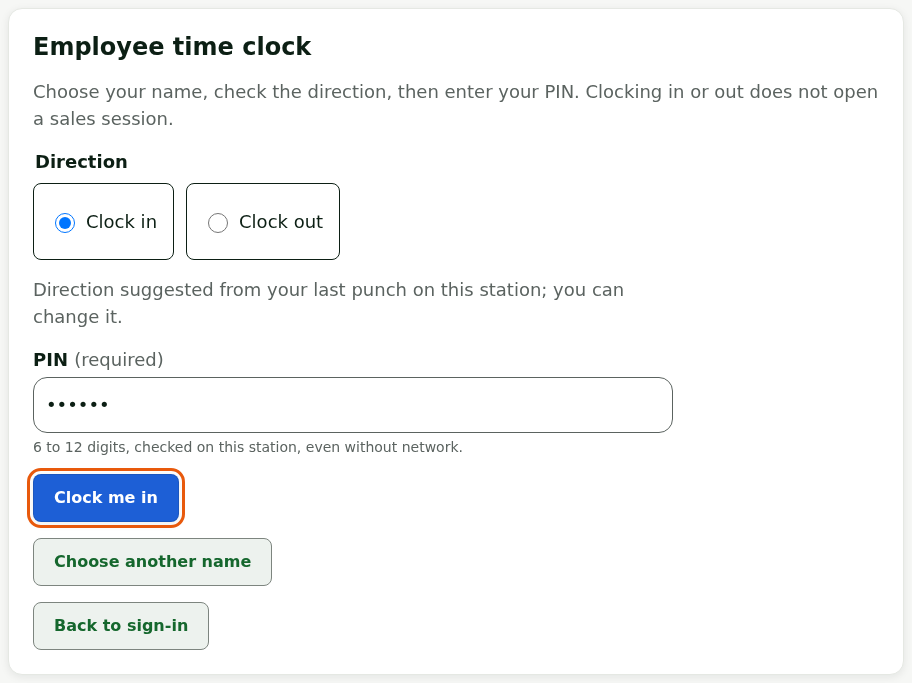
Check the direction: the register suggests it from your last punch on this station. Tap Clock in or Clock out to change it.
Type your PIN, then tap Clock me in or Clock me out.
The register writes your name followed by "clocked in" or "clocked out", then the punch time. Tap Done.
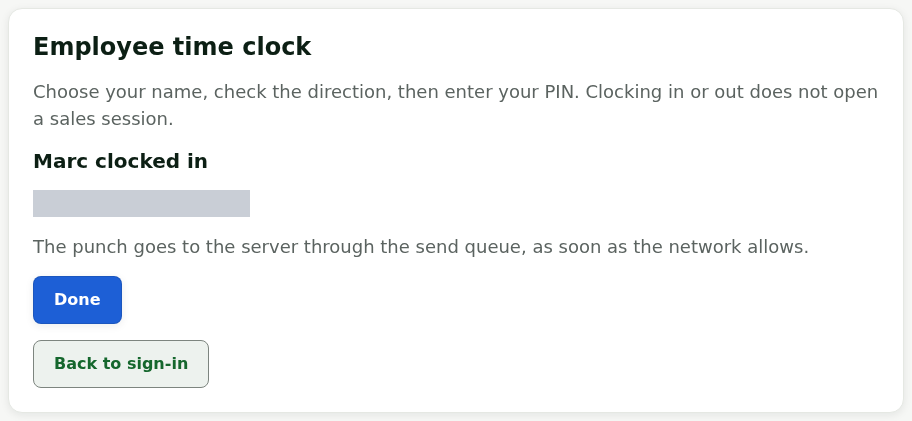
An employee whose name carries "no PIN, to be set in the back office" cannot clock: ask a manager to set a PIN. The punch goes to the server through the send queue, as soon as the network allows. If the station's time is not verified (no recent contact with the server), the register says so: the server confirms it on receipt.
The suggested direction is based on your last punch, but you may change it if needed.
Troubleshooting
"Incorrect PIN."
Check your PIN and type it again. After 5 wrong PINs, the PIN is blocked on that station: a manager must unblock it. At the web register, the screen says "Too many failed PIN attempts for this employee: retry in 15 minutes."
"No employee with a PIN is available for this register."
No employee of the store has a PIN. Ask a manager to set one on your record.
"This employee cannot punch on this register (not assigned to store or without a PIN)."
Your record does not have this register's store, or it has no PIN. Ask a manager to fix it (Adding an employee).
"No response from the server: the punch outcome could not be confirmed."
The network dropped while sending. Click Clock in or Clock out again: the server does not count the punch twice.
"This register was taken over elsewhere: resume it here first."
Another screen took the register. Resume it here, then punch again.