Correcting hours
- For
- Manager, Administrator
- Where
- Back office
- Permission
- Manage the time clock
- Checked on
The Time clock screen shows the hours clocked at the register, by employee and by store. When someone forgets to clock or clocks a wrong time, you add a correction: the original punch stays visible, struck through, and the correction replaces it in the hours. The screen does not work out pay.
Before you start
- Your role needs the permission Manage the time clock.
- You cannot correct your own hours: "an employee never corrects their own hours". Ask another manager.
A punch is never erased. A correction or a cancellation is added, carries your name and its reason, and stays in the log. It counts in the hours right away.
Showing the hours of a period
Open Team > Time clock.
In From and To, choose the period's dates (62 days at most, dates included).
In Store and Employee, choose a store and a person, or leave All.
Click Show.

Each person has a time card per store: their Total, the hours per day, the clock-in and clock-out pairs, and the Alerts. An alert says what is wrong, for example "Missing clock-out: clock-in at Oct 14, 2026, 9:00 a.m. without clock-out".
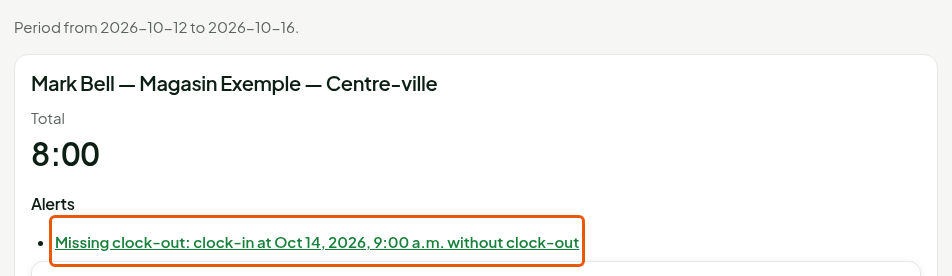
Durations are written in hours and minutes (8:00). The See the last 62 days button appears when the period has no punch.
Adding a missed punch
For a clock-in or clock-out the person did not make:
Under the card's Punches list, click Add a missed punch. If the screen shows "To add an entirely missed shift, also choose the store from the list", choose a store in Store.
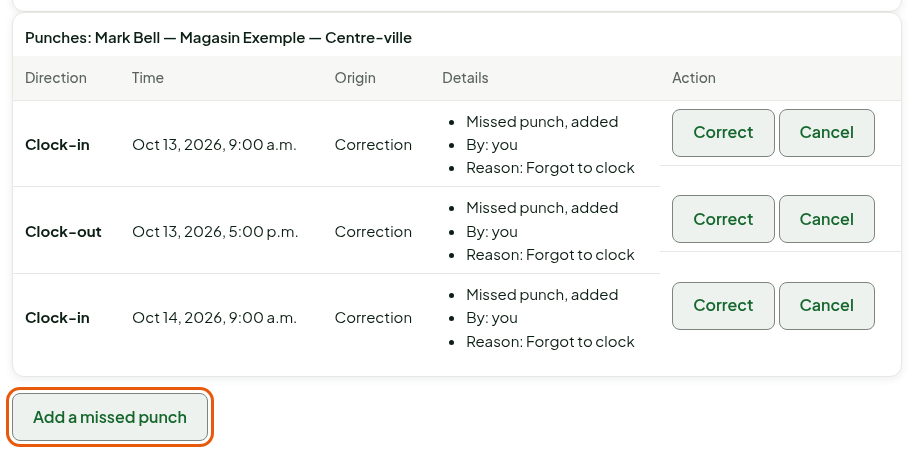
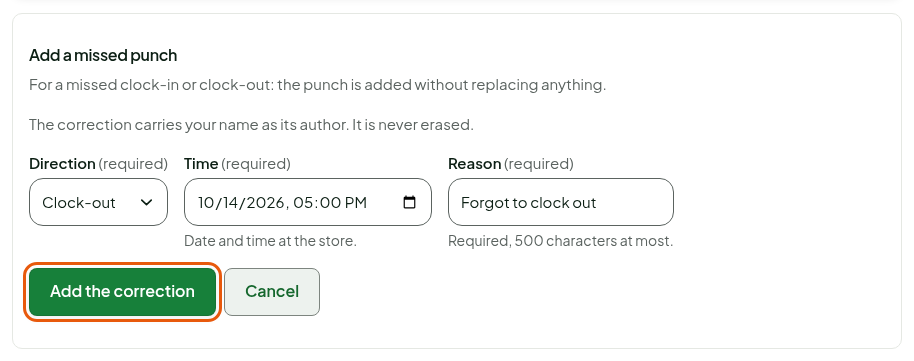
In Direction, choose Clock-in or Clock-out.
In Time, type the day and time at the store.
In Reason, write why (required, 500 characters at most).
Click Add the correction.
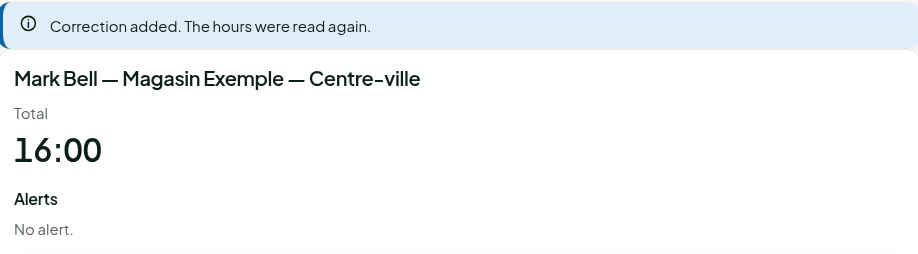
The screen shows "Correction added. The hours were read again." The alert goes away and the total updates.
Correcting a punch
To change a punch's time or direction:
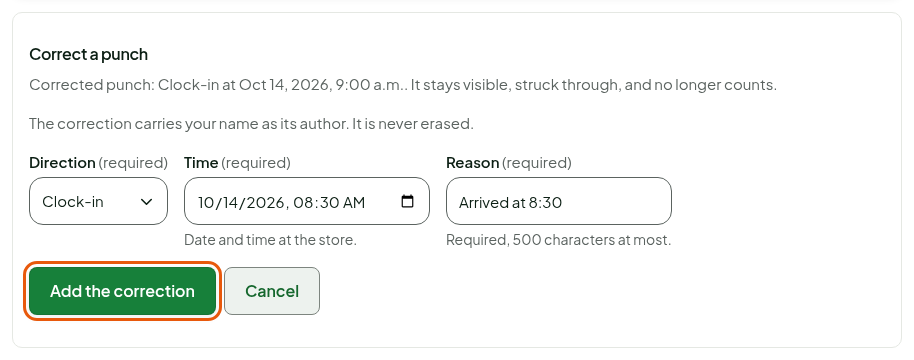
In the Punches list, click Correct at the end of the row.

Choose the Direction, type the new Time and the Reason.
Click Add the correction.
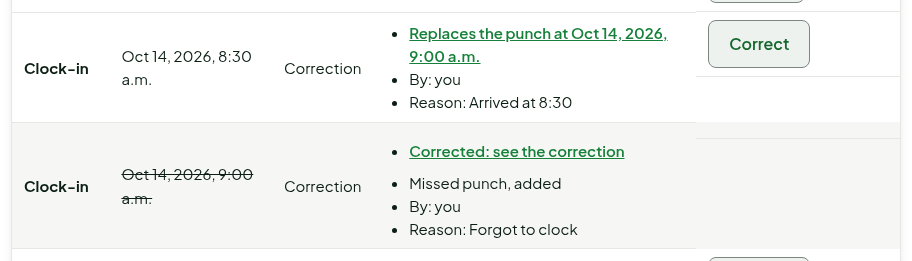
The original punch stays in the list, struck through, with the note "Corrected: see the correction". The new row says "Replaces the punch at…".
Cancelling a punch
Cancelling removes a punch from the hours and the export, without erasing it.
In the Punches list, click Cancel at the end of the row.
Write the Reason, then click Cancel the punch.
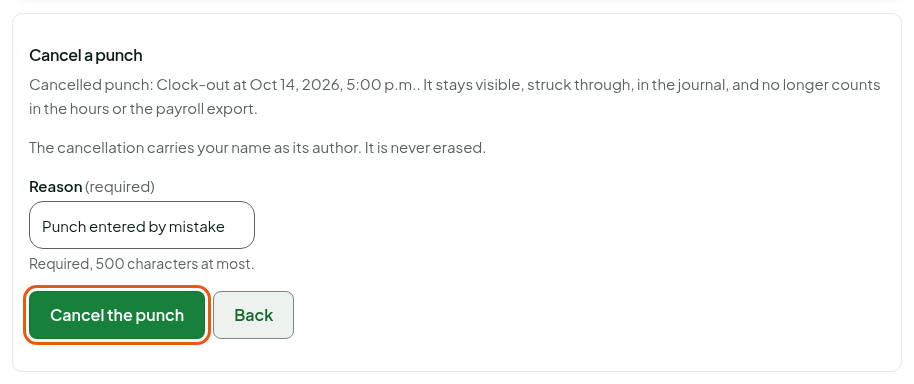
The screen shows "Punch cancelled. The hours were read again." A punch that replaces a correction cannot be cancelled: correct it instead.
Exporting the hours
To send the hours to payroll, click Export hours, at the top of the screen. The browser downloads a CSV file named after the period, for example pointage-2026-10-12-2026-10-16.csv, with one row per employee, store and day worked or flagged. Cancelled punches do not count in it.

Troubleshooting
"The hours have changed"
A punch arrived since you read the screen. Nothing was written. Click Reload the hours, check, then try again: your entry is kept.
"Punch already corrected"
This punch already has a correction. Click Correct the latest correction.
"A correction cannot date a punch in the future."
Choose a past day and time.