Adding an employee
- For
- Manager, Administrator
- Where
- Back office
- Permission
- Manage employee records
- Checked on
Everyone who sells, clocks in or opens the back office has an employee record, created once. The record holds their name, language, roles and the stores where they work. Add the record before the person's first day.
Before you start
- Your role needs the permission Manage employee records.
- Know which stores the person works in and which role they will have (Creating roles and permissions).
- For a role that gives back-office access, have the person's sign-in email. Only someone who manages back-office access, for all stores, can send the invitation.
A person is one account, one record and one state, active or disabled. An employee is never deleted: their sales stay under their name (Disabling an employee).
Creating a cashier's record
To add a cashier who sells in a store:
Open Team > Employees.

Click New employee.

In Name, type the person's full name.
Leave Language of the employee’s screens on The store’s (default), or choose a language: the employee's register then shows in that language.
Under Roles, tick the person's role, for example Caissier. The three base roles keep their French names on this screen.
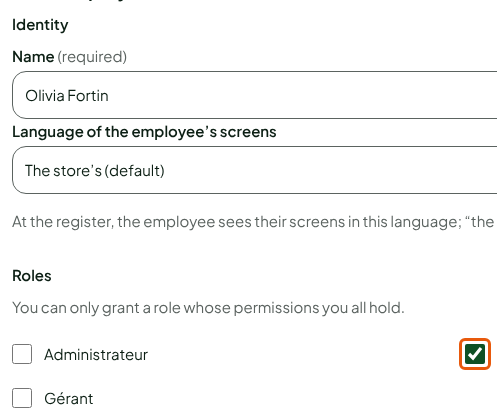
Under Stores, tick each store where the person works and sells.

Click Create employee.
The screen shows "Employee Olivia Fortin created." The record appears in the list, with its role, its stores and the state Active.
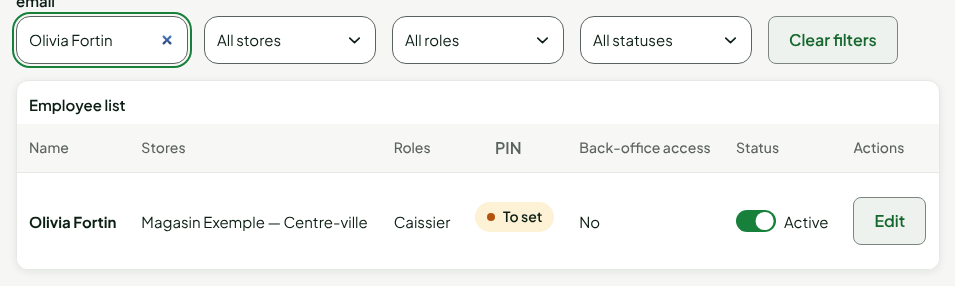
The record starts without a PIN: the PIN column shows To set. Without a PIN, the employee cannot open a register session. Give them their PIN right away (Setting or resetting an employee's PIN).
Giving back-office access
A role can give back-office access, like Gérant or Administrateur. The role decides: the Back-office access section of the record says so. When the chosen role gives access, the screen asks for an email.
In the New employee form, tick a role that gives access, for example Gérant.
In Sign-in email, type the person's email.

Click Create the employee and send the invitation.
The person receives by email a first sign-in link, valid for 30 minutes and usable once. They choose their password with it (Changing your password). Until they do, the record shows Invitation sent, with a Resend the invitation button.
Troubleshooting
"This email already belongs to another employee’s access."
There is one access per email. Check whether the person already has a record: search their name or email in Search a name or an email.
The role you want is not in the list
You can only grant a role whose permissions you all hold. Ask an administrator.
The stores do not appear
The store list needs the permission to manage settings. Without it, the record's stores stay as they are: ask an administrator.