Creating and managing layaways
- For
- Cashier
- Where
- Web register
- Permission
- Sell at the register
- Checked on
A layaway sets items aside in a customer's name; they come back to pay for them and pick them up. It has no deadline: it stays open until it is paid or cancelled. This guide goes from creating one to picking it up, then to cancelling it.
Before you start
- Your role must allow selling (permission Sell at the register).
- The register must be open: a layaway's money goes through the open session.
- The customer must be on the sale, with their record: the layaway is in their name.
A layaway needs the server and stays at its original store: it is created, paid and picked up at the same store. The items leave the available stock as soon as it is created; cancelling puts them back.
Creating a layaway
To put items on layaway:
Open Sell > Sell, put the items in the cart and add the customer to the sale (Making a sale).
Click Pay, then Layaway.
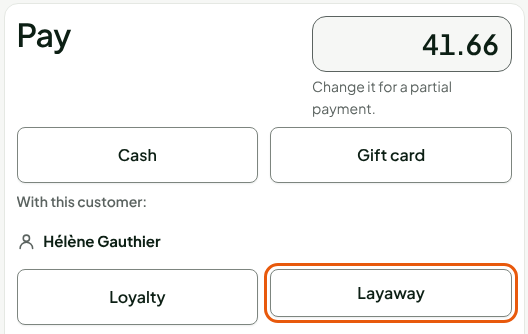
The screen shows Layaway, with the Balance due at pickup. No deposit is required; to take one, see "Taking a deposit".
Click Finish without receipt, or Finish and print to give the customer the receipt.
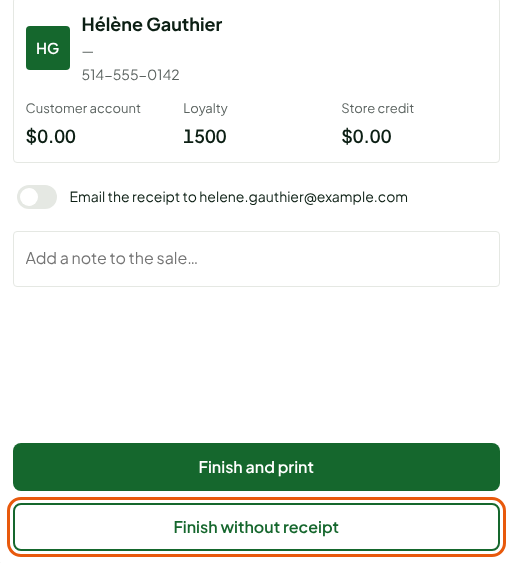
A gift card, a promo code, loyalty points and a sale note do not carry over to a layaway: remove them from the cart first. A tax-exempt sale cannot be put on layaway: it is paid right away.
Finding and resuming a layaway
To pick up a layaway:
Open Sell > Sales history.
In Status, choose Layaways in progress, then click Search.

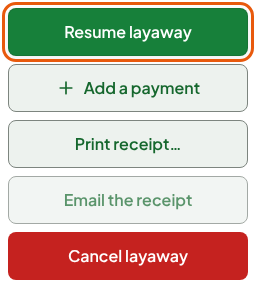
Click the layaway's receipt number. Its items, its balance and its buttons open. Click Resume layaway.
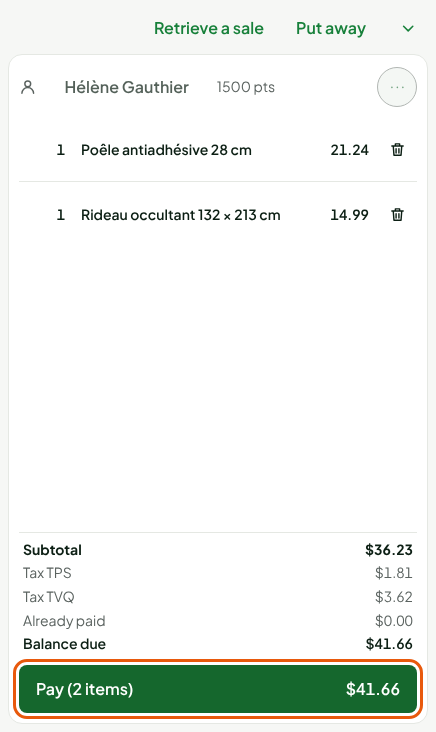
The layaway comes back into the sale, with the Already paid and Balance due amounts.
Click Pay.
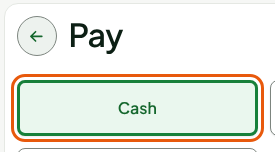
Click Cash, type the amount the customer hands over, then press Enter.
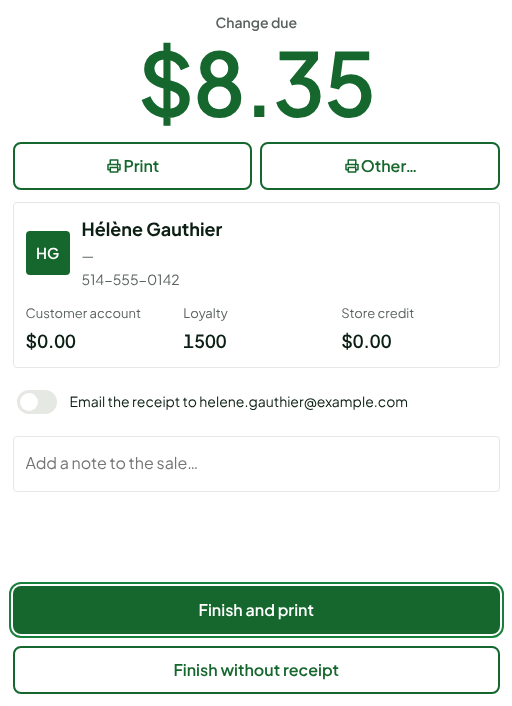
The screen shows the Change due. Click Finish and print or Finish without receipt. The layaway becomes Layaway completed: hand the items over to the customer.
Cancelling a layaway
Cancelling refunds the deposit in full, with no fee, to each original payment method. To cancel:
Find the layaway as above, then click Cancel layaway.
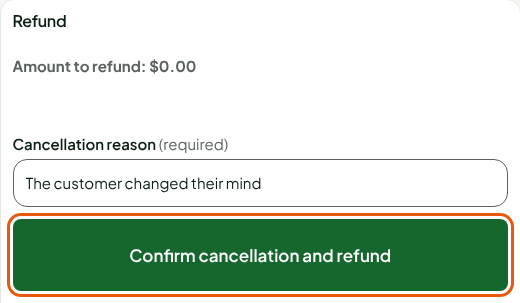
Type the reason in Cancellation reason (required).
Hand over the cash shown, if any, then click Confirm cancellation and refund.
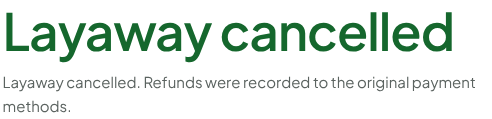
The screen shows Layaway cancelled: the refunds are recorded to the original method, and the items go back into stock.
Confirm the cancellation only after handing the customer the cash shown. A refund that has been paid out cannot be taken back.
Troubleshooting
The Layaway tile is grey
Read the message under the tile: "Choose the customer first" (add the customer to the sale), "A payment has already been started" (cancel it first) or "Tax-exempt sale".
"This layaway is not in this store"
Resume it at the store where it was created.