Setting a store's local time
- For
- Administrator
- Where
- Back office
- Permission
- Manage stores and settings
- Checked on
Each store has its own local time. It places the start and the end of its days: a store in Vancouver does not close its day at the same hour as a store in Montréal. Set it when you add a store, and whenever it changes time zone.
Before you start
- Your role needs the permission Manage stores and settings.
- The store must exist: see Adding or editing a store.
Reports date a store's sales, register sessions and returns by its local time. A wrong local time therefore shifts that store's days in the reports.
Setting the local time
Open Settings > Stores and registers, then click the store's pencil, in the Edit column.

Find Local time in Store details. Your business's default time zone is suggested there.
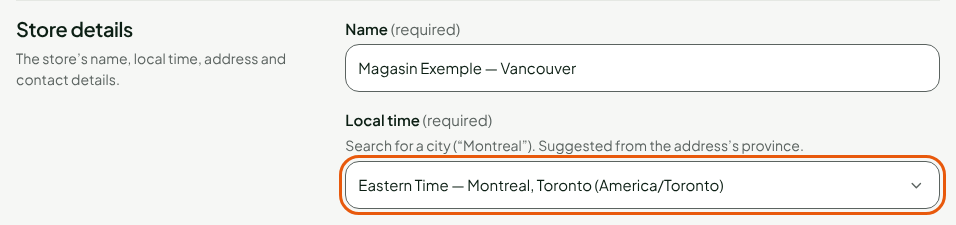
Type the name of a city in Local time, for example
Vancouver. The list offers the matching times.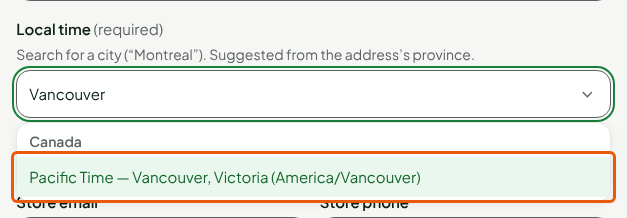
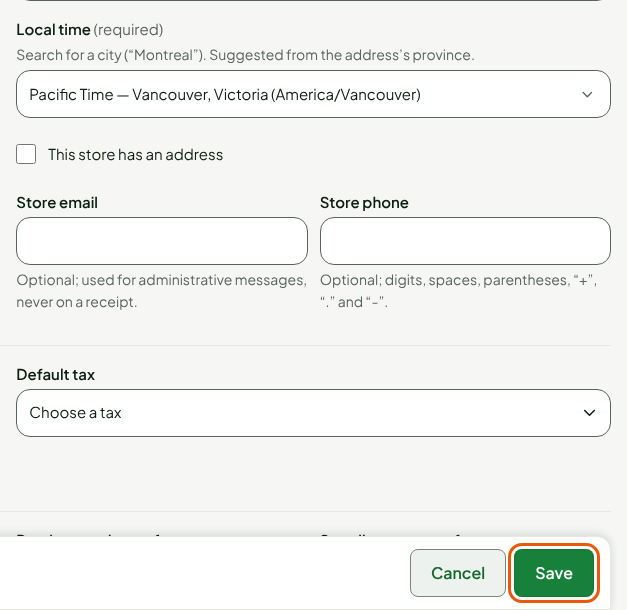
Choose the time in the list.
Click Save, at the bottom of the page.
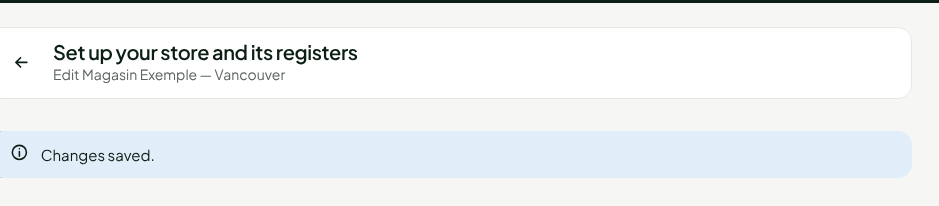
The screen shows "Changes saved."
When a store is created, the local time is suggested from the province of its address, as long as you have not chosen one yourself. For an existing store, it only changes if you change it.
Choosing the right local time
The list gives the name of the time and its cities, then the time zone in brackets, for example "Pacific Time — Vancouver, Victoria (America/Vancouver)". The city you type only helps you find the right line: that time is what is saved for the store.
Two stores of the same business can have two different local times. The business's default time, in Settings > General, is only the suggestion made when you add a store.
Checking a store's local time
Click the arrow left of the store's name in the list under Settings > Stores and registers.
Click the Store information tab.
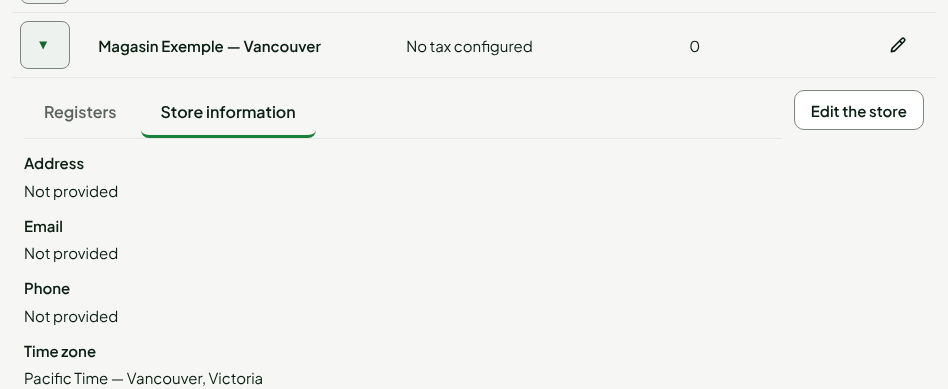
The Time zone line gives the store's local time.
Troubleshooting
"Unknown local time: choose a city from the list"
You typed text without choosing an entry in the list. Type the name of a city, then click the time that is offered.
"The store’s local time is unknown…", on the Taxes screen
The Taxes screen needs the store's local time. Set it as above, then save the store's taxes again (see Setting up taxes).