Gift card balances
- For
- Manager
- Where
- Back office
- Permission
- View reports, All sales at assigned stores
- Checked on
The "Gift card balances" report shows how many gift cards were sold and used over a period, and how much value remains in circulation. A gift card that has not been used is money the business still owes its customers: use this report to know that, and to find the balance of a card.
The report always covers all stores: a card sold in one store can be spent in the others.
Showing the report
To see the summary of a period:
Open Reports > Gift card balances.
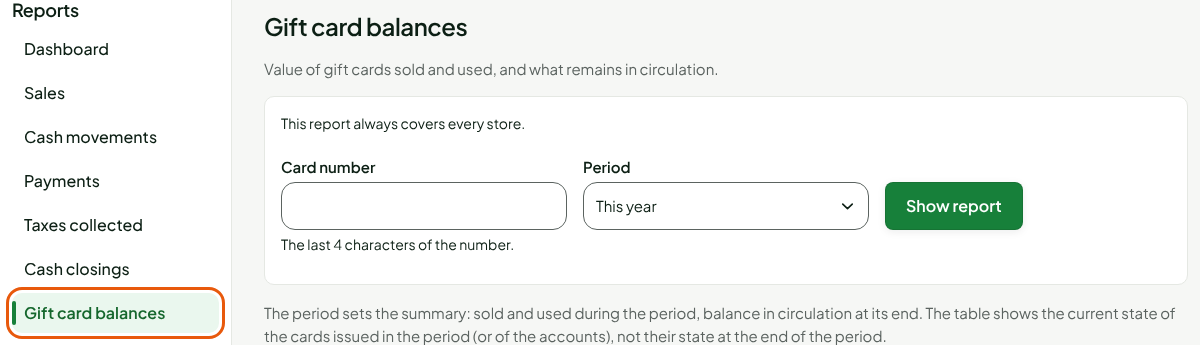
Choose the period under Period (the report opens on This year), then click Show report.
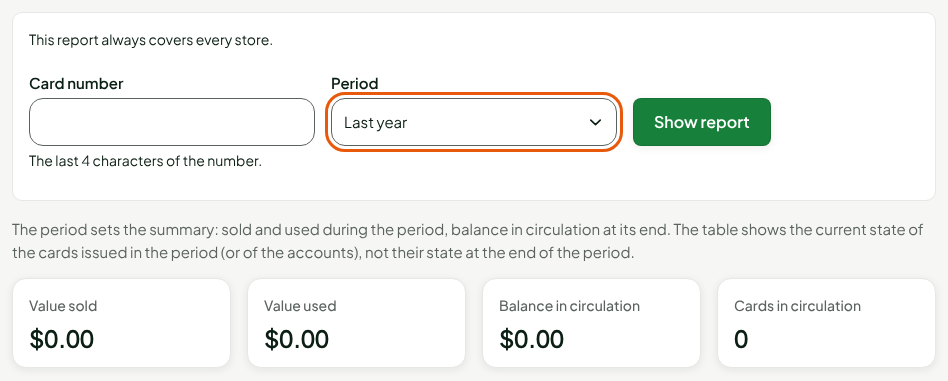
The summary gives four figures:

- Value sold: the value of the cards sold during the period;
- Value used: what customers paid with cards during the period, minus cancelled payments;
- Balance in circulation: what remains on the cards at the end of the period;
- Cards in circulation: the number of cards that still have a balance.
Finding a card by its number
To find the balance of a card:
Type the last four characters of the number in Card number.
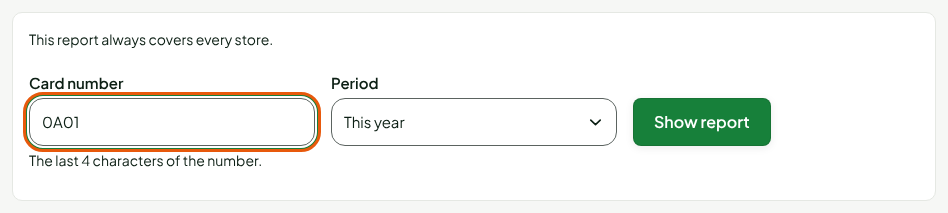
Click Show report.

The report never shows the whole code of a card, only its last four characters. A search by number looks in all periods.
Reading a card whose number is not recorded
A card sold at the register does not have its last four characters yet: they are recorded the first time the card is presented at the register, to read its balance or to pay. Until then, the row shows Number not recorded, with its value.
The card still counts in the summary. To find it, recognize its value in the list.
Changing the period
The period sets the summary: sold and used during the period, balance in circulation at its end. The table, on the other hand, shows the current state of the cards issued in the period, not their state at the end of the period.
Choose another period under Period, then click Show report.
Understanding the columns
| Column | What it shows |
|---|---|
| Number | The last four characters of the card number, or Number not recorded until the card has been presented at the register. |
| Sold | The value of the card when it was sold. Empty for a card imported from a former system; $0.00 if the sale of the card was cancelled. |
| Used | What customers paid with the card, minus cancelled payments. |
| Balance | What remains on the card. A return paid with a card reloads it, by at most the amount paid with it. |
The Export to CSV button, above the table, saves this table to a file (guide "Exporting a report to CSV").
Troubleshooting
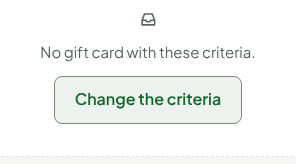
"No gift card with these criteria."
No card matches: the four characters are not those of a card that was sold or presented at the register, or no card was issued in the period. Click Change the criteria and check the number. A card whose number is not recorded cannot be found by its number.
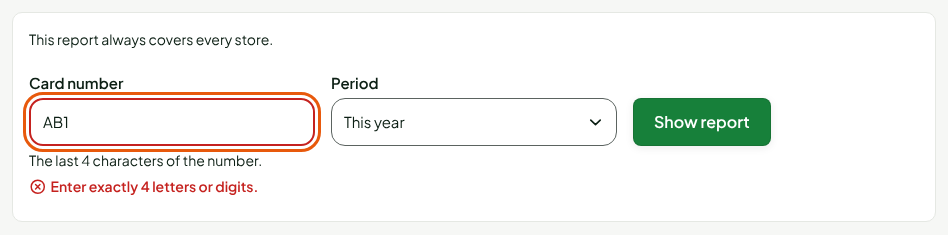
"Enter exactly 4 letters or digits."
The Card number field wants the last four characters, no more, no less.