Reading a customer record
- For
- Manager, Administrator
- Where
- Back office
- Permission
- Manage customers
- Checked on
A customer record brings together a customer's contact details, store credit, loyalty points, account, and consents. Read it before answering a customer's question or correcting a balance. You can read it two ways: on its row in the list, or on its own page.
Before you start
- Your role must have the Manage customers permission.
- To read the Store credit section on the record page, you also need to be able to see reports (the View reports permission). For View sales, either viewing reports or selling at the register is enough.
Reading a customer in the list
To see the essentials without leaving the list:
Open Customers > Customer records.
Type part of the name, phone number, or code in Search for customers. At least 2 characters.
Click the arrow to the left of the customer's row.
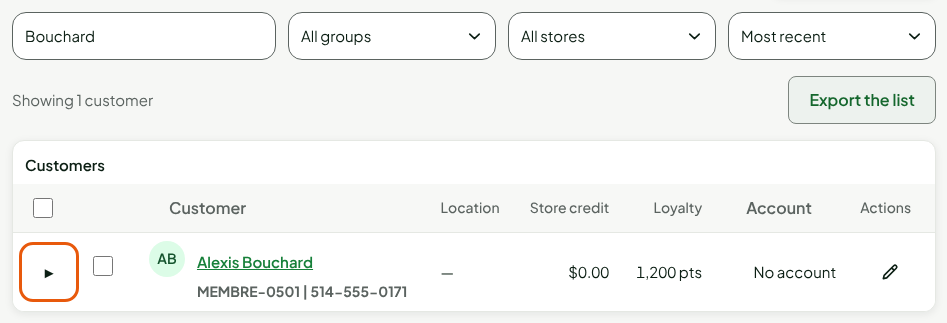
The row expands into five tabs. Each tab is read from the server only when you open it.
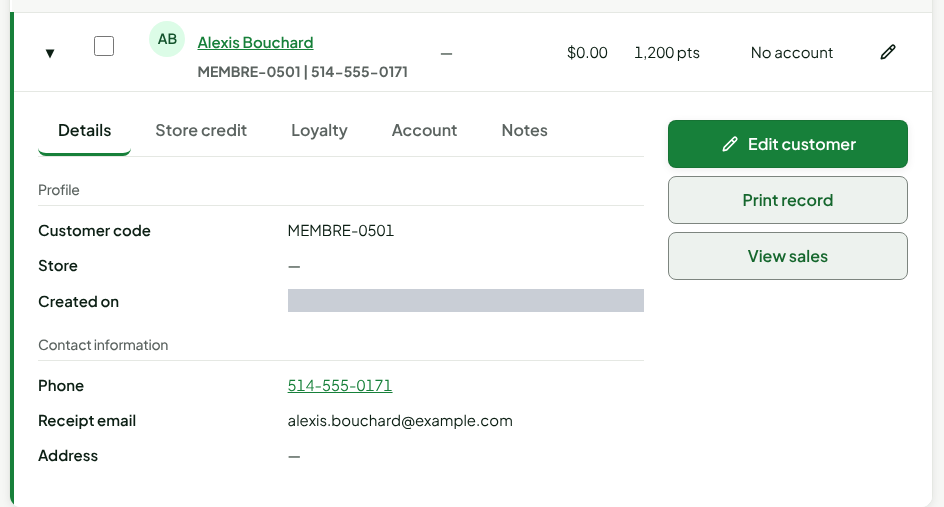
Details
Details shows the Profile (Customer code, Store, Created on) and the Contact information (Phone, Receipt email, Address).
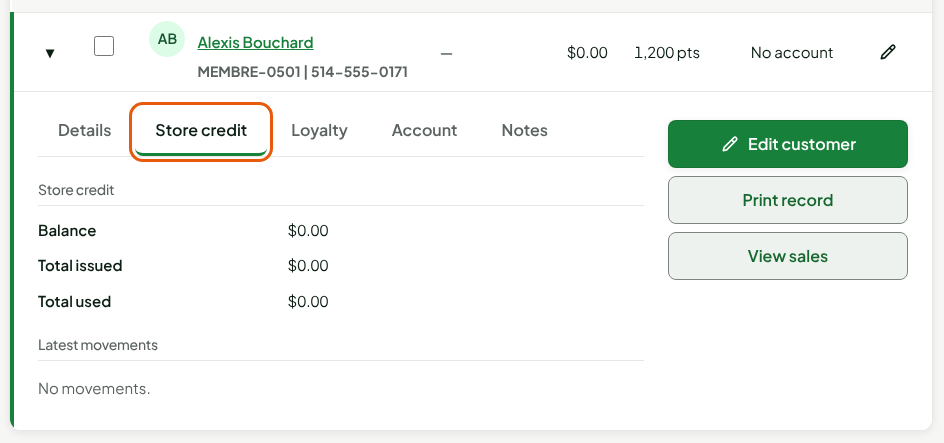
Store credit
Store credit shows the Balance, Total issued, and Total used, then the Latest movements. A customer with no credit shows zero and "No movements."
Loyalty
Loyalty shows the point Balance, Total earned, and Total used, then the movements: date, type, points, balance, and reason.
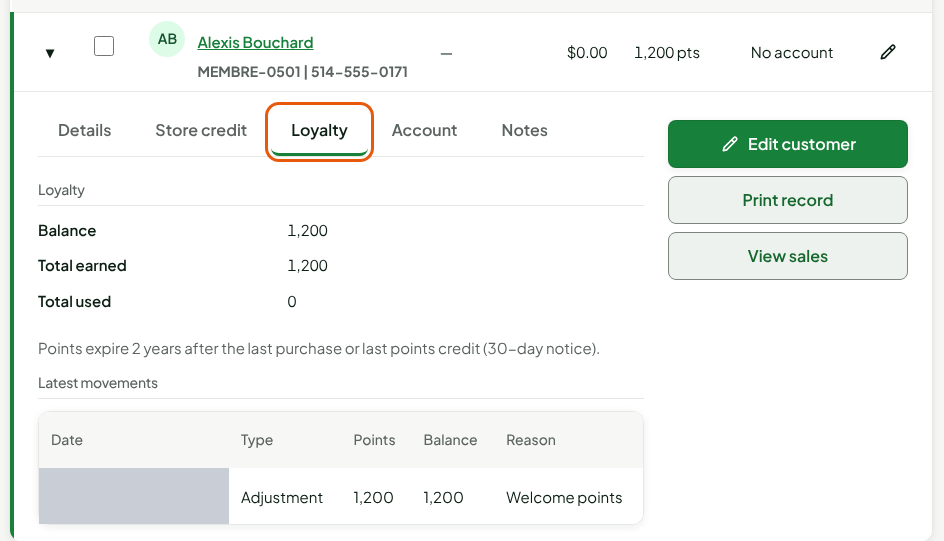
Points expire 2 years after the last purchase or last points credit, with a 30-day notice.
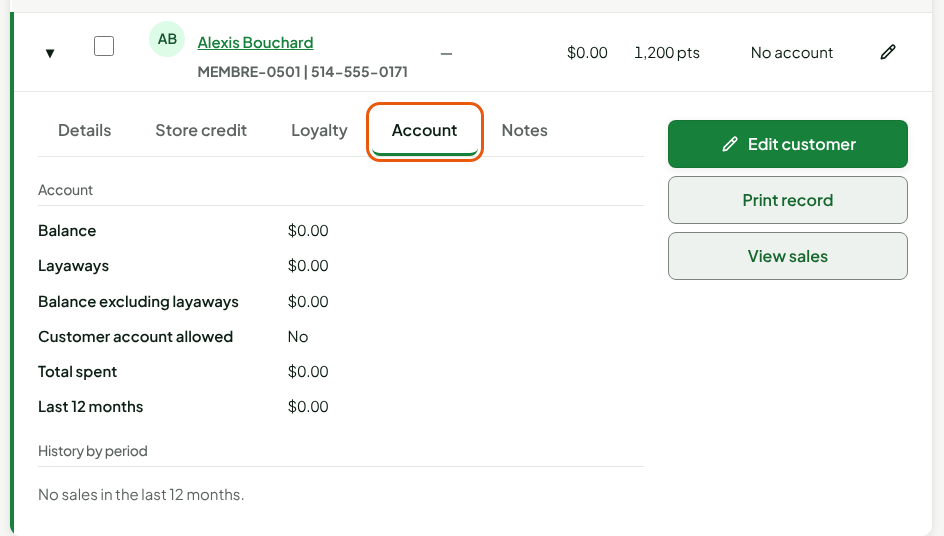
Account
Account shows the customer's B2B account: Balance, Layaways, Balance excluding layaways, Customer account allowed, Total spent, and the last 12 months. A customer with no credit account shows No.
Notes
Notes shows the record's Note.
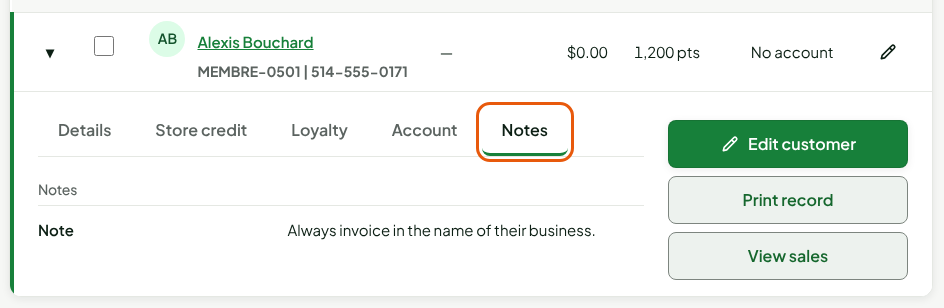
To the right of the tabs are three buttons: Edit customer opens the correction window (guide "Adding, editing, and anonymizing customers"), Print record prepares a one-page sheet, and View sales opens that customer's sales history.
Reading the record page
The page shows everything on one screen, including what the list does not: who created the record, and the consents.
In the list, click the customer's name.
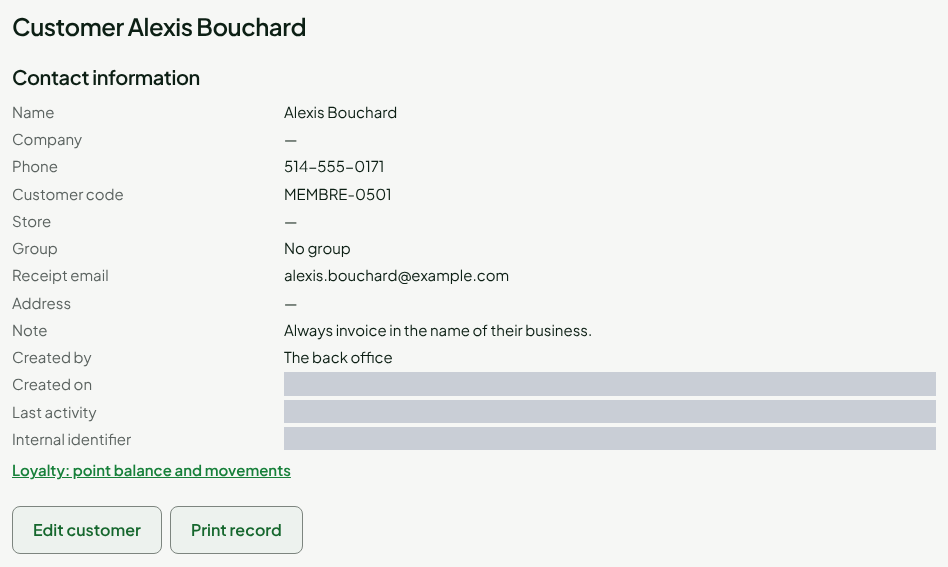
Read Contact information. Created by says where the record came from: a register, the back office, or the import from the former point-of-sale system. Last activity gives the last time the record was used, for example in a sale.
Click Loyalty: point balance and movements to open the customer's loyalty account.
Further down, read Store credit, then Consents.
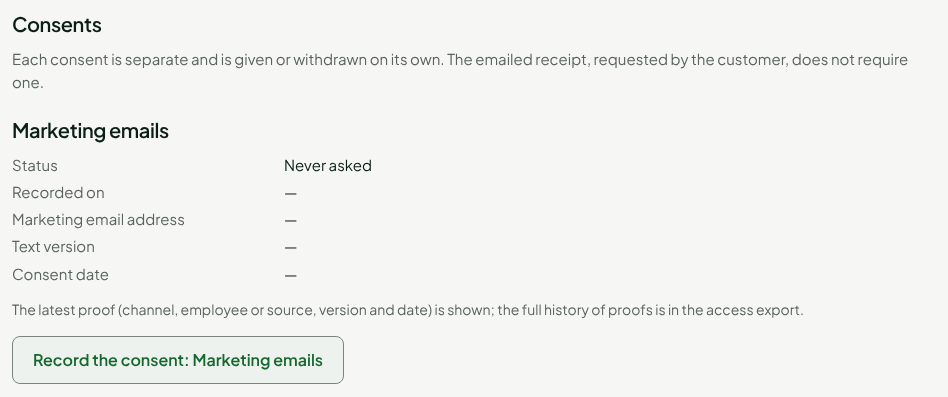
Each consent is separate and has its own status: Never asked, Given, Withdrawn, or To reconfirm. The emailed receipt, requested by the customer, does not require one. For Given, the page shows the latest proof: channel, author, text version, and date.
To reconfirm means the consent was imported without complete proof. Send no marketing message to this customer until they reconfirm.
The bottom of the page, Rights of the person (Quebec Law 25), is used to export the customer's information or to anonymize them. Exporting needs the Export a customer’s data permission.
Troubleshooting
"This customer cannot be found."
The page address does not match any customer. Click Back to the search and reopen the record from the list.
"Anonymized customer"
The record has been anonymized: it no longer holds any information and can no longer be corrected. The amounts attached to it stay in the reports.
"This tab could not be read."
The server did not answer. Close the row, reopen it, and click the tab again.