Receiving stock alerts
- For
- Manager, Administrator
- Where
- Back office
- Permission
- Adjust stock
- Checked on
When items of a store go below their threshold, you can receive an email summary without opening the back office: at most one a day, at the hour you choose. Each person subscribes for themselves, store by store.
Before you begin
- The items must have a reorder threshold and their stock must be tracked (Setting up replenishment for a product). An item with no threshold, or whose stock is not tracked, triggers no alert.
- The summary is sent to your account's address. You must keep the Adjust stock permission: if your role loses it, the summary is no longer sent.
How an alert is triggered
An item is flagged when its Available quantity (the stock on hand minus what is reserved) goes strictly below its Threshold. It is flagged only once: while it stays below the threshold, it triggers no new alert. When it is back at the threshold or above, the alert closes; going below the threshold again opens a new one.
The day's summary only goes out if an alert opened since the previous summary. It lists the items currently below their threshold (200 lines at most; the rest is viewed in the back office), with the new ones marked, and for each the stock on hand, the reserved quantity, the available quantity, the threshold and the quantity to order. It never shows a cost or a price.
Subscribe to a store's alerts
Open Stock > Reorder.
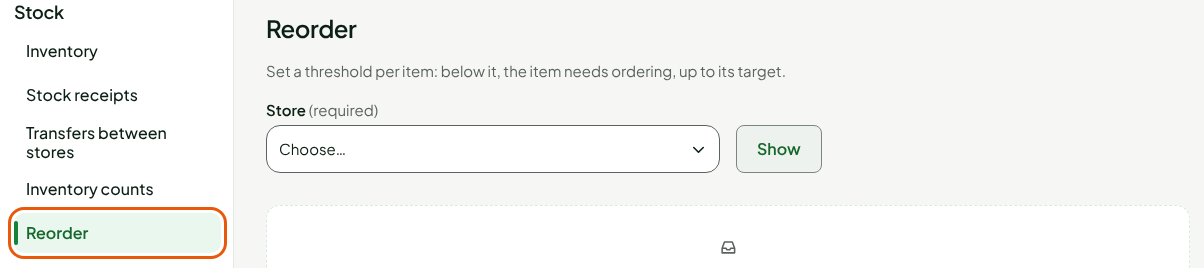
Choose the store in Store, then click Show.

Scroll down to Email notices. While you are not subscribed, the screen says "You are not subscribed to this store’s notices."
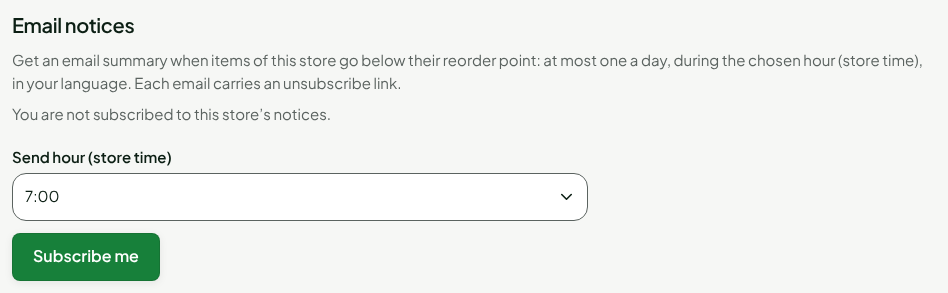
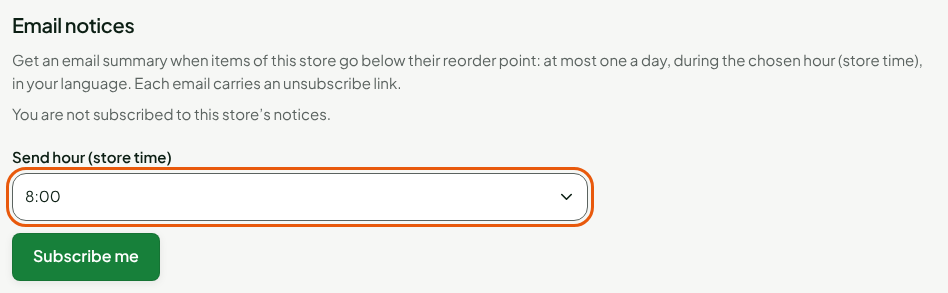
Choose the summary hour in Send hour (store time).
Click Subscribe me.
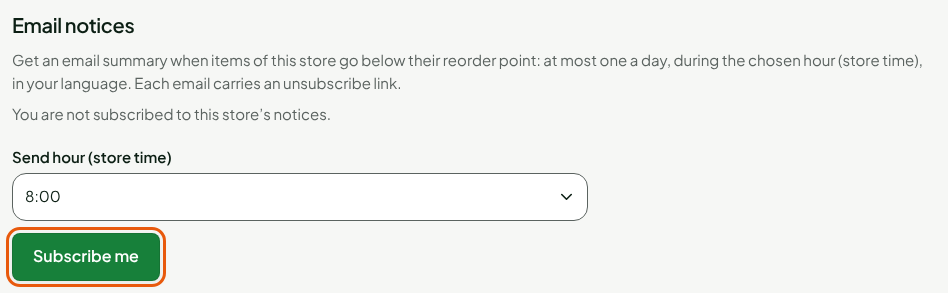
The screen shows "You are subscribed: summary between 8:00 and 9:00."
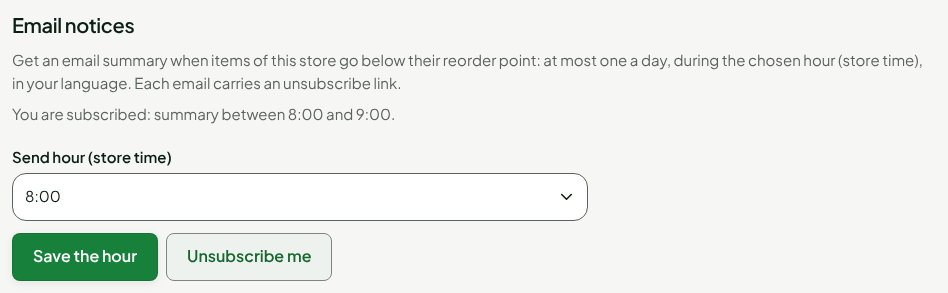
The hour is the store's. The summary goes out during the chosen hour; a missed hour is not made up the same day.
Once a summary has been prepared, the screen adds a "Last notice" line: the day, the number of items and the state (waiting to be sent, sent, sending failed or cancelled).
Change the hour or unsubscribe
To change the hour, choose the new hour then click Save the hour.
To stop receiving this store's summaries, click Unsubscribe me.
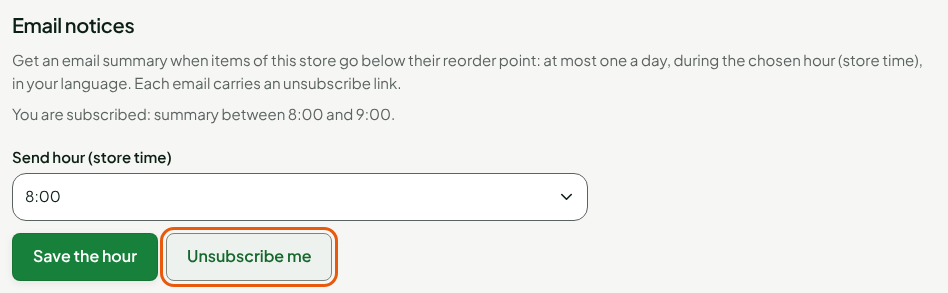
Each email also carries an unsubscribe link: opening it is enough, with no sign-in. The page says "Done: you will no longer receive low stock notices for this store." If the link is incomplete or matches no notice, unsubscribe here.
You subscribe store by store: choose each store to follow, then subscribe.
Troubleshooting
"Subscription refused" or "Your subscription changed elsewhere"
Your subscription was changed from another tab or device. It was read again: check it, then start over.
I receive no summary
Check that you are subscribed to this store, that items of this store have a threshold and tracked stock, and that one of them went below its threshold since the last summary. No summary goes out on a day when nothing new went below a threshold.