Putting a sale on hold and resuming it
- For
- Cashier
- Where
- Web register
- Permission
- Sell at the register
- Checked on
When a customer has to step away or look for another item, put their sale on hold: the cart is set aside and you serve the next person. You resume it afterwards, on this register or on another register of the store.
Before you start
- Your role must allow selling (permission Sell at the register).
- To put a sale on hold, the cart must contain at least one item.
A sale on hold is not paid: no payment is recorded. It stays in the store, and any register of the store can resume it.
Putting a sale on hold
To set the cart aside:
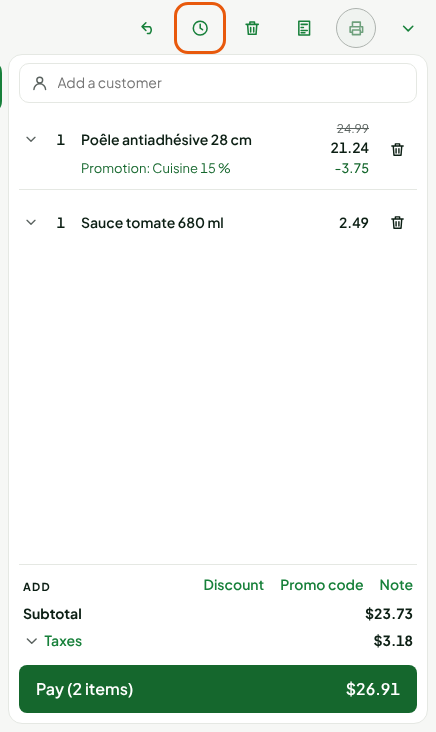
Fill the cart, then click Put on hold, in the row of buttons above the cart.
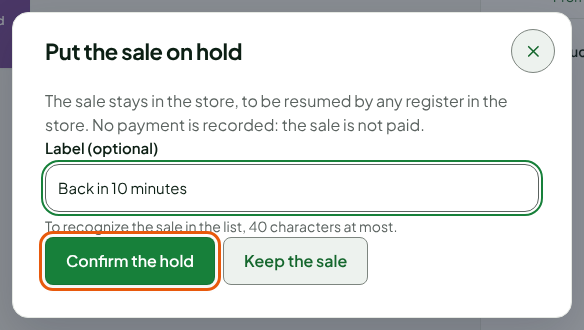
Type a label that will help you recognize the sale in the Put the sale on hold window, for example "Back in 10 minutes". The label is optional and is 40 characters at most.
Click Confirm the hold.
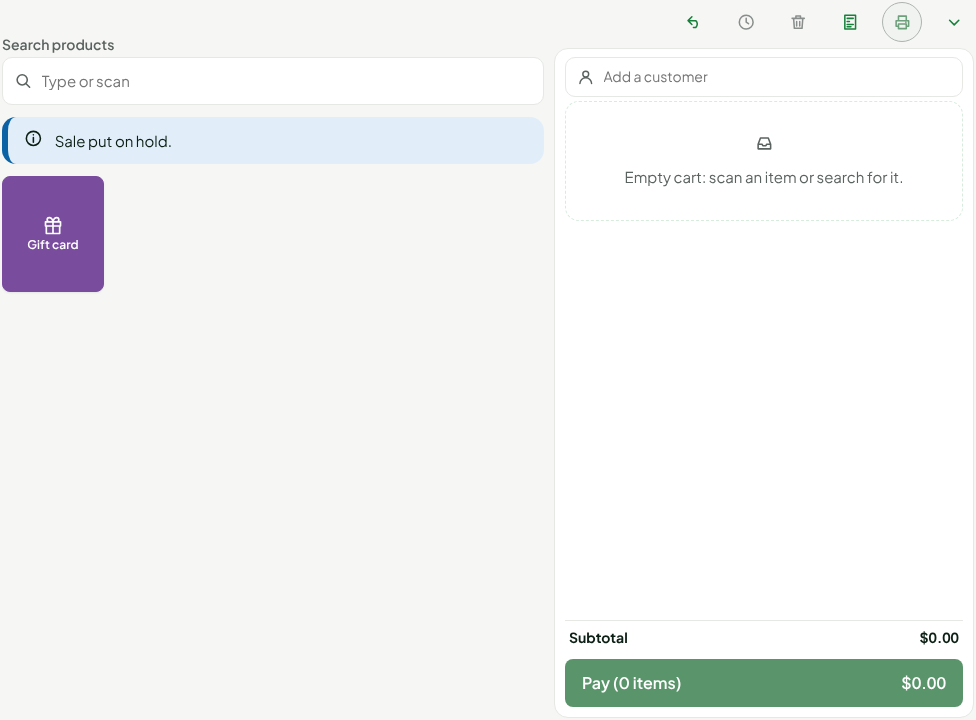
The screen shows Sale put on hold. and the cart empties: you can serve the next customer.
The Put on hold button is greyed out when the cart is empty, or when it contains, among other things, a gift card to sell or a return.
Two things do not follow a sale on hold. The sale note is not kept: type it again when you resume. A discount made with loyalty points is not kept either: remove the points before putting the sale on hold, or pay the sale.
Resuming a sale on hold
To find a sale you set aside:
Click Resume a sale, in the row of buttons above the cart.

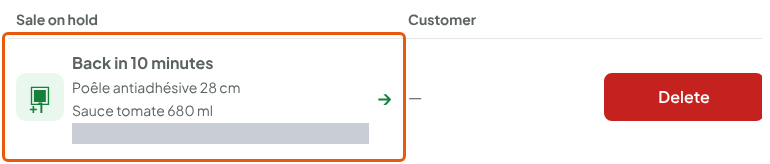
Spot the sale by its label, its items and the time since it was put on hold in the Sales on hold window.
Click the sale's row.
The items come back to the cart and the screen shows Sale resumed in the cart. You can add to it, then click Pay.
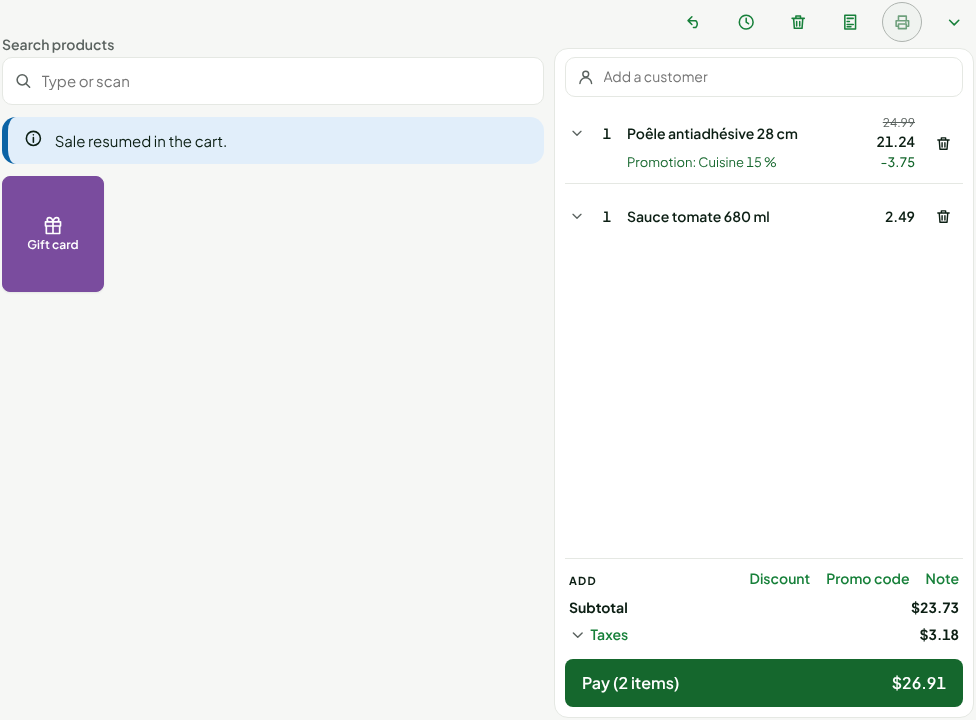
If an item has changed in the catalog since the sale was put on hold, its line is removed from the cart and the screen says so.
Deleting a sale on hold
A sale on hold that nobody needs any more is deleted from the same list:
Click Resume a sale.
Click Delete, at the end of the sale's row.
Click Delete to confirm, or Keep the sale to back out, in the Delete the sale on hold? window.
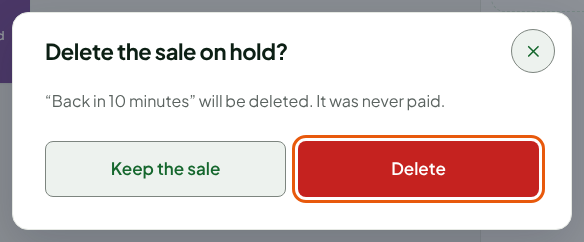
The screen shows Sale on hold deleted.
Troubleshooting
"The current cart is not empty"
The list of sales on hold shows this message when the cart already contains items. Pay that sale, or empty the cart, then resume the sale on hold.
"Held by …: it cannot be resumed here"
Another register has already opened this sale. It is resumed at that register; here, the row cannot be resumed.
If that register will not come back (computer lost, stolen or replaced), a manager releases the sale from the workstation's record, once the workstation is revoked or replaced: see Replacing or restoring a workstation.
A sale cannot be resumed here
If the screen says the sale was checked or discounted by another employee, or that it is unreadable, it stays on hold. You can only delete it.