Installing the register on a workstation and enrolling it
- For
- Manager, Administrator
- Where
- Back office, Installed register
- Permission
- Issue a register code
- Checked on
The installed register is the software that runs on the store's Windows computer, the workstation. It sells even without Internet. To install it, you issue a register code in the back-office, then enter it when the register starts for the first time, on the workstation.
Before you start
- Your role needs the permission Issue a register code. To open the screen from the register's record, as below, it also needs Manage stores and settings.
- The register must exist in its store: see Adding a register to a store.
- The workstation is a Windows computer, connected to the Internet for the first start.
Opening the Register code screen
Open Settings > Stores and registers, click the store's pencil, then unfold the register with the arrow left of its name.
Click Install the backup computer in Backup computer.

The Register code screen opens. Its Install the register on a computer block sums up the work in three steps.
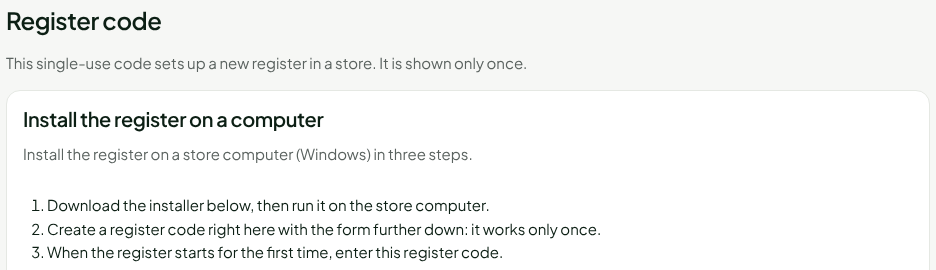
A manager who does not have the permission Manage stores and settings finds Installed registers and Register code in the Settings menu. The Install the backup computer button of Installed registers asks for the register, then opens the same screen.
Installing the register on the workstation
- Click Download the installer (Windows) in the Install the register on a computer block.
- Run the downloaded file on the store's workstation.
Windows may show "Windows protected your PC": the installer is not signed. Click More info, then Run anyway. To check the file, compare the SHA-256 checksum on the screen with the one PowerShell gives: Get-FileHash followed by the file name.
Issuing the register code
Choose the manager in Manager responsible for the register. Myself is suggested.
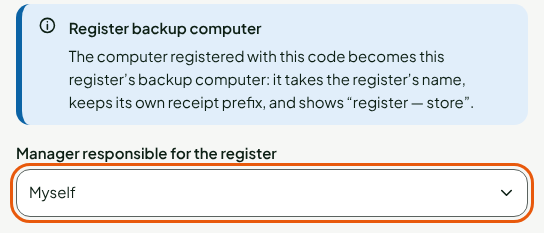
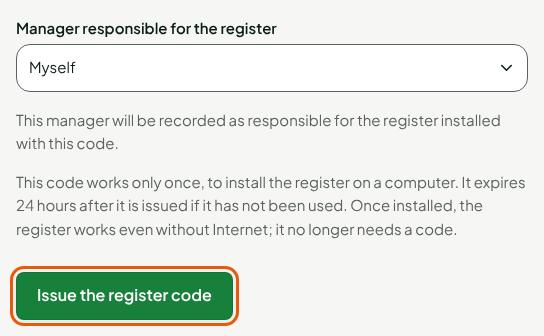
Click Issue the register code.
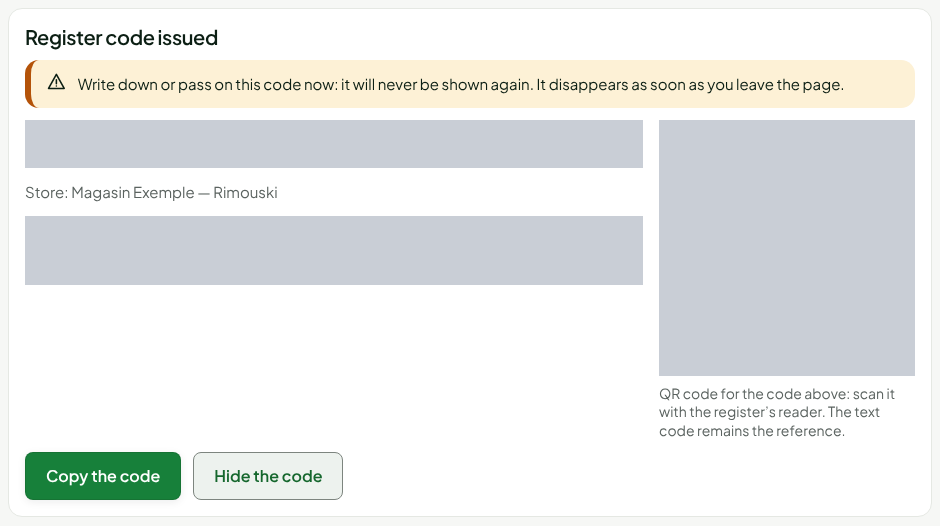
The code appears under the title Register code issued, with its QR code. Write it down or copy it with Copy the code: it is shown only once and disappears as soon as you leave the page.
The code works only once and expires 24 hours after it is issued if it has not been used. If the workstation refuses it, issue a new one.
Enrolling the register on the workstation
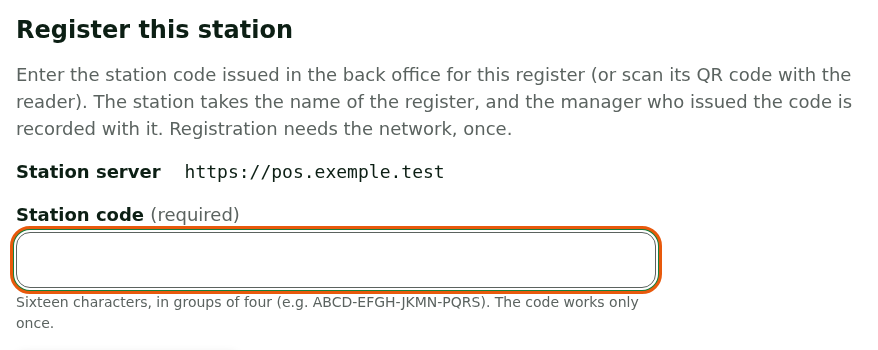
Start the register on the workstation: the Register this station screen opens at the first start.
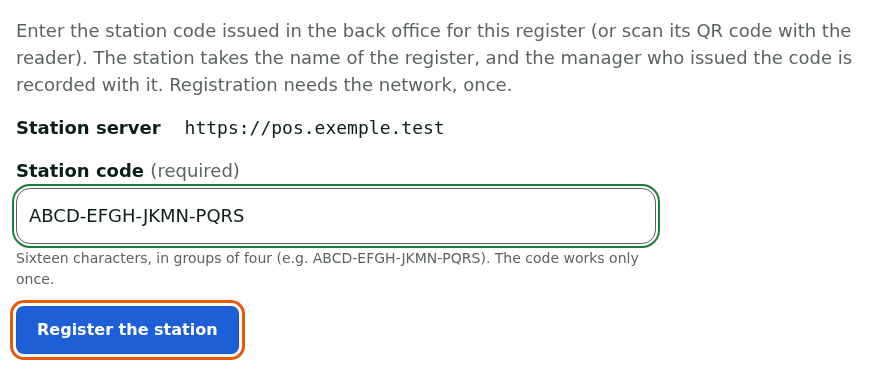
Type the code in Station code: sixteen characters, in groups of four.
Click Register the station.
The screen shows "Station registered".

The workstation becomes the register's backup computer: it takes the register's name, keeps its own receipt prefix and shows "register — store". Once installed, the register works even without Internet; it no longer needs a code.
In the back-office, the register's record now says "In service", followed by the workstation's receipt prefix.

Choosing a pilot register for updates
The installed register updates itself. With a pilot register, a new version is first offered to that register, or to all registers of a pilot store. The other registers get it 24 hours after the first pilot, unless you withdrew it in the meantime. Without a pilot, every register gets the new version right away.
Your role needs the Manage registers permission and access to all stores.
- Open Settings > Installed registers, then click Register updates: pilot register.
- Choose the Store under Designate a pilot. In Register, keep All registers of the store or choose a register.
- Click Designate as pilot. The pilot shows under Pilots, with the Remove button.
The Register app versions table tells where each version stands: "Waiting for the pilot", with the pilot along with the planned date of its release to all registers, offered to all registers, or withdrawn.
If a version causes a problem on the pilot register, click Withdraw this version, then confirm with Withdraw the version. It is no longer offered to any of your registers.
Withdrawing a version is final, and a register that already installed it keeps it. The fix comes with a newer version.
As long as no pilot has received a new version, the other registers do not get it: keep the pilot register turned on and connected to the Internet. A pilot register that was revoked or replaced no longer counts ("Does not count" shows next to its name): designate the new register. If you remove the last pilot, every register gets the latest version right away.
Troubleshooting
"Downloading the register is not set up on this server yet…"
The installer is not available on your server. Ask whoever manages the server to set it up, then reopen the Register code screen.
"Station code incomplete or malformed"
The code has sixteen characters, with no I, L, O or U. Type it again as it was displayed. If it has already been used or has expired, issue a new one.
"All your registers already have their backup computer."
Each register has only one backup computer. To install a new one on a register, remove the old one first: see Replacing or restoring a workstation.