Setting or resetting an employee's PIN
- For
- Manager, Administrator
- Where
- Back office
- Permission
- Manage employee records, Manage register PINs
- Checked on
The PIN is the personal code an employee uses to open their session at the register. It is set in the back office, on the employee's record: nothing is chosen at the register. Give a PIN to every new employee, and reset it when someone forgets it or when it must no longer work.
Before you start
- Your role needs the permissions Manage employee records and Manage register PINs.
- The employee already has a record (Adding an employee).
- A PIN has 6 to 12 digits.
- You cannot change the PIN of an employee who has permissions you do not have. You change your own in Edit your record.
A PIN is never shown, neither to you nor to the employee: it cannot be read back. If someone forgets it, reset it, then give a new one.
Setting a PIN
An employee without a PIN cannot open a session at the register. To give them one:
Open Team > Employees and type their name in Search a name or an email. The PIN column shows To set.
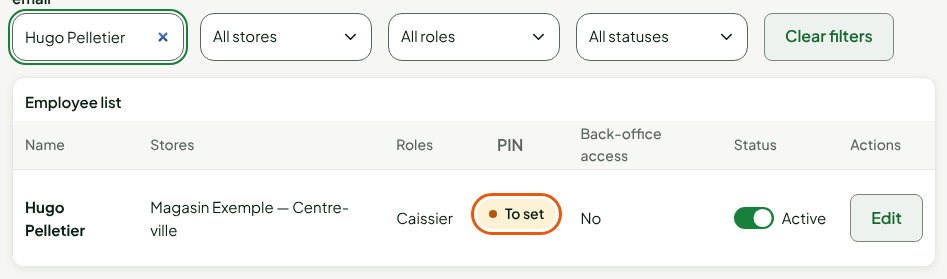
Click Edit on their row.
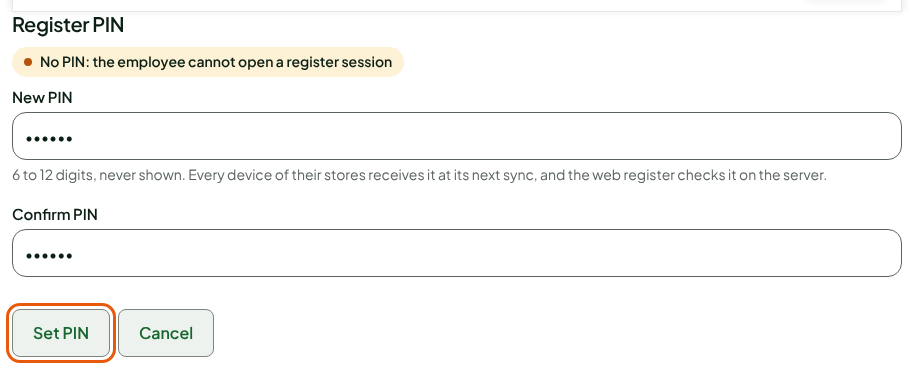
In the Register PIN section, click Set PIN.

Type the PIN in New PIN, then type it again in Confirm PIN. The digits stay hidden.
Click Set PIN.
The screen shows "Hugo Pelletier’s PIN has been saved." The section shows PIN set, with the buttons Replace PIN and Reset PIN.
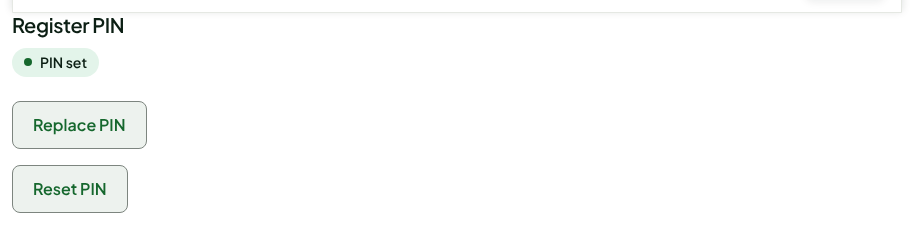
The registers of their stores receive the PIN at their next sync. To change an existing PIN, click Replace PIN and follow the same steps.
Resetting a PIN
Resetting erases the PIN: the employee cannot open a register session until you give them a new one.
Open the employee's record, as above.
In Register PIN, click Reset PIN.
In the Reset Hugo Pelletier’s PIN? window, click Reset.
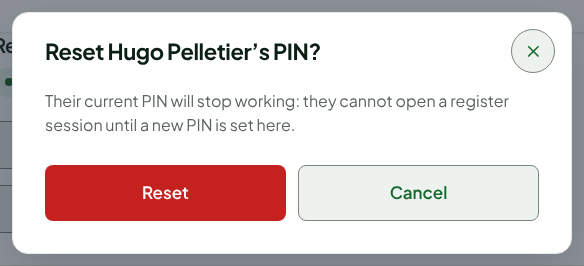
The screen shows "Hugo Pelletier’s PIN has been reset." The record goes back to No PIN.

Changing your own PIN
Everyone changes their own PIN from their own record.
Open Team > Employees, then click Edit your record.
In Your register PIN, type the new PIN in New PIN and in Confirm PIN.
Click Change my PIN.
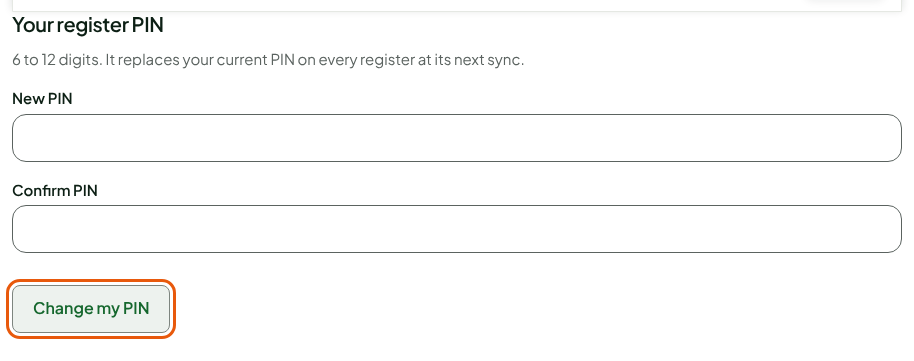
The new PIN replaces the old one on every register at its next sync.
What the employee sees
- An employee without a PIN appears on the register's sign-in screen with the note "no PIN, to be set in the back office". If they choose it, the register writes "no PIN yet. Ask a manager to set it in the back office."
- The PIN has 6 to 12 digits and is never shown. The session locks after 10 minutes without activity: the PIN reopens it. To switch employees, the next one always enters their PIN.
- After 5 wrong PINs in a row, the PIN is blocked on that station: a manager must unblock it with their own PIN. The register says "PIN blocked".
Troubleshooting
"The PIN must have 6 to 12 digits."
The PIN has fewer than 6 digits, more than 12, or contains something other than digits.
"The two PINs do not match."
Type the PIN again in both fields.
The new PIN is not accepted yet at a register
The installed register receives PINs at its next sync. On the register's sign-in screen, click Refresh the list.